
A user must have accessed the project to receive notifications from it. If someone hasn't opened the project yet, they won't get notified about flags shared with them there — even if they've been added to a share group or given access. See our notification Troubleshooting article if a teammate says they're missing flag notifications
Share a flag with a person, group, or organization
- Open or drop the flag you want to share.
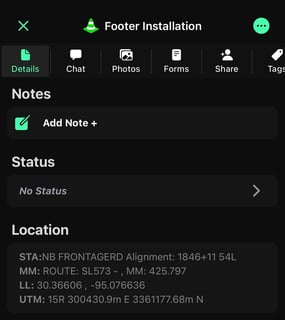
- Tap the Share tab.
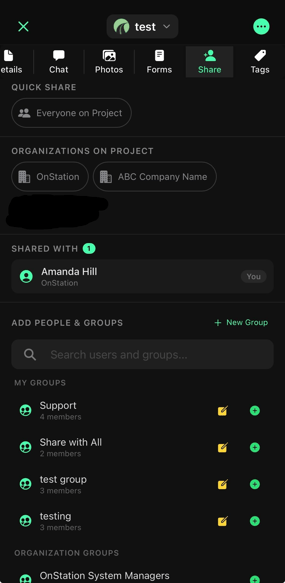
- Choose who to share with. You have five options:
| Share with | What it means |
|---|---|
| A specific person | Shares this flag with one individual user, whether they're in your organization or another organization on the project. |
| An organization share group | Shares this flag with a group you're organization created in the Portal ahead of time. |
| A personal share group | Shares this flag with a group you've built inside the app. |
| Your entire organization | Shares this flag with everyone in your organization. |
| Everyone on Project | Shares this flag with everyone and anyone who accesses the project |
"Everyone" means everyone. If you share a flag project-wide, that flag is visible to anyone who has accesses the project — not just your team or your org. Confirm this is what you intend before sharing broadly.
Sharing across organizations
If you're working a project with more than one organization, keep this in mind:
A user must be assigned the project or access the project to appear on the project user list.
This applies when you're sharing directly with a specific person or adding someone to a personal share group — if they have not been assigned the project or have never opened the project their name won't show up as an option, even if their organization is already on the project.
If a person you need to share with isn't showing up on the list, ask them to log in and open the project once, or contact their admin to be assigned the project, then try sharing again.
Viewing flags shared with you
You don't have to spot a shared flag on the map to find it. Every flag — including the ones shared with you — also lives in a list view.
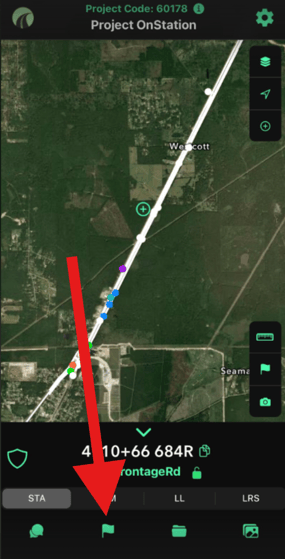
- Tap the flag icon at the bottom of the app screen. This opens the full list of flags on the project, not just the ones you dropped yourself.
- Filter or sort the list to find what you're looking for. Narrow by tag, date, icon, user, or status instead of scrolling the whole project.
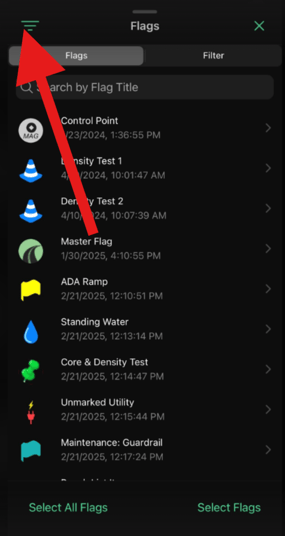
- Tap any flag in the list to open its full details, chat, and photos — same as tapping it on the map.
Helpful to know
- Want project-wide sharing defaults instead of setting this per flag? See Default Share
- Need to update share settings on more than one flag at once? Want to learn more about filtering? See Filter and Bulk Editing Flags