
Alert: This feature is not on by default. If you are not seeing this option detailed in this article it is probably not enabled for your organization as it is something that gets turned on organization wide so once it is enabled it is enabled for all users. This must be requested by someone designated as an OnStation Administrator or Data Manager.
To request that this be activated for your company please have a designated OnStation Admin contact OnStation Support
Overview
- promotes consistent collaboration across the project
- saves time by eliminating repetitive sharing steps, allowing users to focus on more important tasks.
How it works
- Users choose one or more crew members that they want flags to be automatically shared with on a given project.
- Once set, every new flag created by that user and on that project will automatically be shared with those selected users.
- These preferences apply per project, (Via project settings in the informational menu:
 ) allowing customization across multiple projects.
Set Up
To set your default flag sharing for a project follow these steps. Video tutorials follow.
- Open the Project within the OnStation App
- In the top of the screen tap on the
 button next to the project code to reveal additional menus
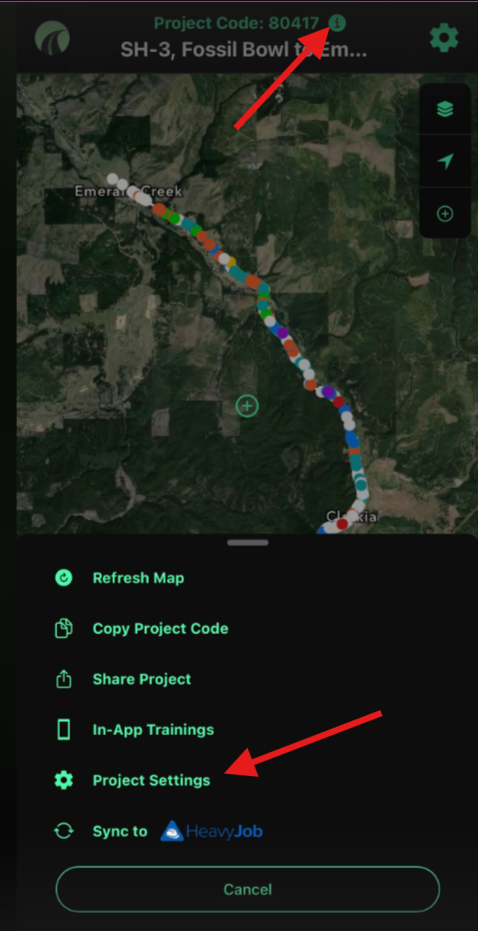
- Tap on the "Project Settings" menu

- Tap on the "Manage" to the right of the "Default Flag Sharing"
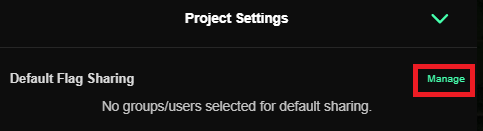
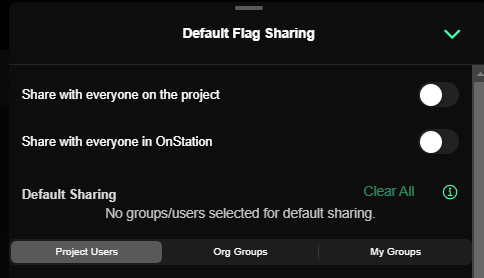
- Select the option, group(s), and/or users you would like to always share flags on this project with.
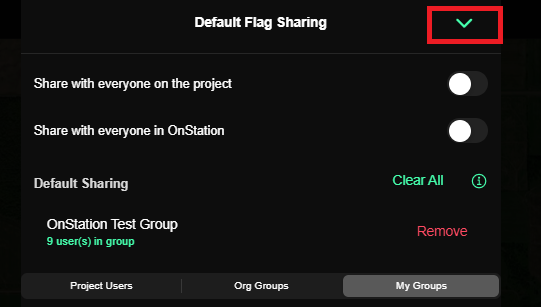
- Once you have selected your Default Flag Sharing options, tap the downward arrow in the upper right hand corner to close this window and save your changes
- Once back at the Project Settings menu tap the downward arrow in the upper right hand corner to return to the main project window

What to Expect When Using This Feature
- After setup, all newly created flags within that project will include the selected users by default.
- Users can still manually adjust sharing on any individual flag if needed.
- Preferences are local to the device/app environment and not tied to the user's account.
Best Practices
- Default Flag Sharing preferences may be cleared under certain conditions. Users must reset these preferences if any of the following occur:
- The app is uninstalled and reinstalled
- The app is updated
- App cache or data is cleared on the device - Verify default sharing settings at the start of long-term or collaborative projects.
- Educate team members so they understand how sharing continuity is maintained.
Troubleshooting
- Flags not being shared automatically?
Confirm whether any app updates, reinstalls, or data clearing recently occurred. - Preferences not saving?
Ensure the app has proper storage permissions (if applicable).
Contact our support line if your default sharing preferences are not being respected by the app
Helpful Related Articles:
Learn how to create groups in the app or portal ➡️ Create Groups
Learn how to share or revoke flag rights in bulk ➡️ Bulk Flag Share & UnShare
Learn about the different ways to share flags ➡️ Ways to Share Flags with Others
Video Tutorial Defaulting Project Share Options
Setting via Prompt
Setting Manually via Project Settings