---
title: Not Getting OnStation Notifications? Check These Settings
description: Not getting OnStation notifications? Check whether the project is muted, confirm notifications are enabled in the app, and check your phone's permissions.
---
[Skip to content](https://help.onstationapp.com/knowledge/not-getting-onstation-notifications-check-these-settings#main-content)
English
Show submenu for translations
[More support](https://help.onstationapp.com/knowledge/kb-tickets/new?hsLang=en) [Support Portal](https://help.onstationapp.com/support-portal?hsLang=en)
[](https://www.onstationapp.com?hsLang=en)
- Support Tools
Show submenu for Support Tools
- [Updates & Bug Fixes](https://www.onstationapp.com/whats-new)
- [Training Webinars](https://www.onstationapp.com/training-webinars)
- [General Stationing Training](https://www.onstationapp.com/stationing-training-series)
- [Submit A Ticket](https://share.hsforms.com/291l4uAzdR0C-hDSgSZKqUQ3053t)
- [Schedule Training](https://meetings.hubspot.com/aubrey-hadney/training-scheduler)
- [Visit Official Website](https://www.onstationapp.com/)
Open main navigation
Close main navigation
- Support Tools
Show submenu for Support Tools
- [Updates & Bug Fixes](https://www.onstationapp.com/whats-new)
- [Training Webinars](https://www.onstationapp.com/training-webinars)
- [General Stationing Training](https://www.onstationapp.com/stationing-training-series)
- [Submit A Ticket](https://share.hsforms.com/291l4uAzdR0C-hDSgSZKqUQ3053t)
- [Schedule Training](https://meetings.hubspot.com/aubrey-hadney/training-scheduler)
- [Visit Official Website](https://www.onstationapp.com/)
- English
Show submenu for translations
- [More support](https://help.onstationapp.com/knowledge/kb-tickets/new)
- [Support Portal](https://help.onstationapp.com/support-portal)
- [Contact Us](https://www.onstationapp.com/contact-us)
[Contact Us](https://www.onstationapp.com/contact-us?hsLang=en)
How can we help you?
- There are no suggestions because the search field is empty.
1. [Knowledge Base](https://help.onstationapp.com/knowledge?hsLang=en)
2. [Share & Collaborate](https://help.onstationapp.com/knowledge/share-collaborate?hsLang=en)
3. [Troubleshooting](https://help.onstationapp.com/knowledge/share-collaborate?hsLang=en#troubleshooting)
August 21, 2026
# Not Getting OnStation Notifications? Check These Settings
## Missing flag alerts, chat messages, or shares?
###### To reduce unnecessary notifications and notification fatigue, users only receive notifications from projects they have accessed and chats they have interacted with. This ensures alerts are relevant and tied to content they have actively engaged with.
#### **Notifications are controlled in three places — the project, the app, and your phone. Start with whichever matches what you're seeing:**
- **Missing notifications from one project only** → start with [Step 1.](https://help.onstationapp.com/knowledge/not-getting-onstation-notifications-check-these-settings#step1)
- **Never getting notifications from any project** → skip to [Step 2](https://help.onstationapp.com/knowledge/not-getting-onstation-notifications-check-these-settings#step2).
### Step 1: Check that the project isn't muted
Each project has its own notification settings. If a project was muted alerts from that project stop, even though everything else is working.
1. Log in and open the project you're working on.
2. At the top of the page, tap the **i** icon next to the project code.
3. Tap **Project Settings**.
4. Look at the settings under **In-App Notifications**. These are mute switches, so they should be **off** — not green.
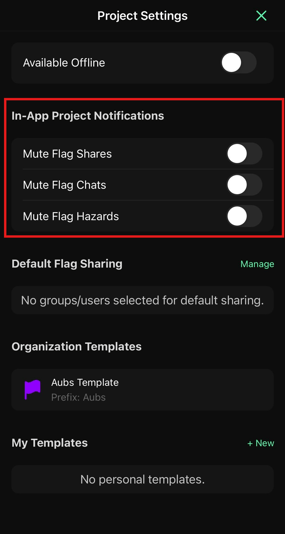
*The switches under In-App Notifications are mutes. Off (not green) means notifications are coming through.*
If the mutes were already off and you're still not getting anything, move to Step 2.
### Step 2: Check that notifications are turned on in the app
1. From the project page, tap the **gear icon** in the top right corner.
2. Scroll to **Notifications**. If it's off, tap to enable it.
3. Tap **Allow** when your phone asks for permission.
### Step 3: Check your phone's permissions
If you tapped **Don't Allow** the first time your phone asked, the app can't ask again — you'll have to turn notifications back on in your phone's settings.
**On iPhone / iPad:**
1. Open **Settings \> Notifications \> OnStation**.
2. Turn on **Allow Notifications**.
3. Confirm **Lock Screen**, **Notification Center**, and **Banners** are checked so alerts are visible however you're holding the phone.
**On Android:**
1. Open **Settings \> Apps \> OnStation \> Notifications**.
2. Turn on **All OnStation notifications**.
3. Check that individual notification categories underneath are on as well — Android can turn off one type while leaving the rest enabled.
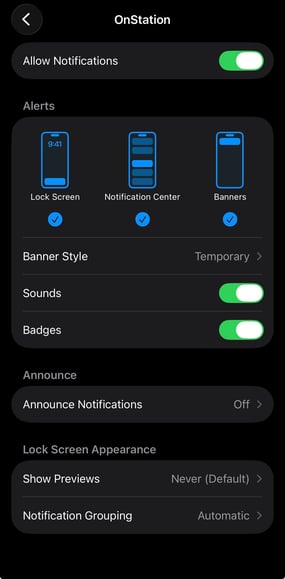
*Phone-level permissions sit above everything else. If these are off, nothing gets through. Apple iPhone shown above.*
### Step 4: Rule out Do Not Disturb
Notifications can be arriving and still stay silent.
- **iPhone:** check that a Focus mode (Do Not Disturb, Work, Driving) isn't running. Swipe down from the top right to see if one is active.
- **Android:** check that Do Not Disturb is off in your quick settings.
- **Both:** if OnStation is allowed to notify but you're not hearing anything, check that the app isn't set to silent or "no sound" in your phone's notification settings.
### Still not getting notifications?
Text or call us at (216) 503-8554, or [reach out online](https://www.onstationapp.com/contact-us?hsLang=en).
- [Getting Started](https://help.onstationapp.com/knowledge/getting-started?hsLang=en#main-content)
- [New Sign-Up/Onboarding](https://help.onstationapp.com/knowledge/getting-started?hsLang=en#new-sign-up-onboarding)
- [Navigating the App](https://help.onstationapp.com/knowledge/getting-started?hsLang=en#navigating-the-app)
- [Navigating the Portal](https://help.onstationapp.com/knowledge/getting-started?hsLang=en#navigating-the-portal)
- [Project Submissions and Managment](https://help.onstationapp.com/knowledge/getting-started?hsLang=en#project-submissions-and-managment)
- [User Managment](https://help.onstationapp.com/knowledge/getting-started?hsLang=en#user-managment)
- [Troubleshooting](https://help.onstationapp.com/knowledge/getting-started?hsLang=en#troubleshooting)
- [Document the Work](https://help.onstationapp.com/knowledge/document-the-work?hsLang=en#main-content)
- [Flags](https://help.onstationapp.com/knowledge/document-the-work?hsLang=en#flags)
- [Photos](https://help.onstationapp.com/knowledge/document-the-work?hsLang=en#photos)
- [Forms](https://help.onstationapp.com/knowledge/document-the-work?hsLang=en#forms)
- [Measuring Tools](https://help.onstationapp.com/knowledge/document-the-work?hsLang=en#measuring-tools)
- [Troubleshooting](https://help.onstationapp.com/knowledge/document-the-work?hsLang=en#troubleshooting)
- [Finding Your Location](https://help.onstationapp.com/knowledge/finding-your-location?hsLang=en#main-content)
- [Learn More](https://help.onstationapp.com/knowledge/finding-your-location?hsLang=en#learn-more)
- [Troubleshooting](https://help.onstationapp.com/knowledge/finding-your-location?hsLang=en#troubleshooting)
- [Share & Collaborate](https://help.onstationapp.com/knowledge/share-collaborate?hsLang=en#main-content)
- [Learn More](https://help.onstationapp.com/knowledge/share-collaborate?hsLang=en#learn-more)
- [Troubleshooting](https://help.onstationapp.com/knowledge/share-collaborate?hsLang=en#troubleshooting)
- [Export & Report](https://help.onstationapp.com/knowledge/export-report?hsLang=en#main-content)
- [Learn More](https://help.onstationapp.com/knowledge/export-report?hsLang=en#learn-more)
- [Active Worksite™](https://help.onstationapp.com/knowledge/active-worksite?hsLang=en)
- [Integrations](https://help.onstationapp.com/knowledge/integrations?hsLang=en#main-content)
- [TransTech Systems](https://help.onstationapp.com/knowledge/integrations?hsLang=en#transtech-systems)
- [HeavyJob](https://help.onstationapp.com/knowledge/integrations?hsLang=en#heavyjob)
- [GNSS/GPS Receivers](https://help.onstationapp.com/knowledge/integrations?hsLang=en#gnss-gps-receivers)
- [FleetWatcher](https://help.onstationapp.com/knowledge/integrations?hsLang=en#fleetwatcher)
- [Trimble](https://help.onstationapp.com/knowledge/integrations?hsLang=en#trimble)
- [Bad Elf](https://help.onstationapp.com/knowledge/integrations?hsLang=en#bad-elf)
[](http://www.onstationapp.com?hsLang=en)
[mailto:email@email.com](mailto:email@email.com)
Copyright © 2026, OnStation