
Table Of Contents:
- Instructions to connect to Data Portal
- Menu Overview
Steps to connect to Data Portal:
You must already be connected to our Management Portal via steps outlined in article: How to login to the Management Portal
- Within the Management Portal click on the "Projects" menu
- Locate the project desired by typing in the project code, name, or alternate name of the project in the "Search" menu or scrolling to the project and then clicking the menu to the far right of the project
- This will bring you to the Data Portal for that specific project and allow you to run reports, view data, associated to your organization for that project
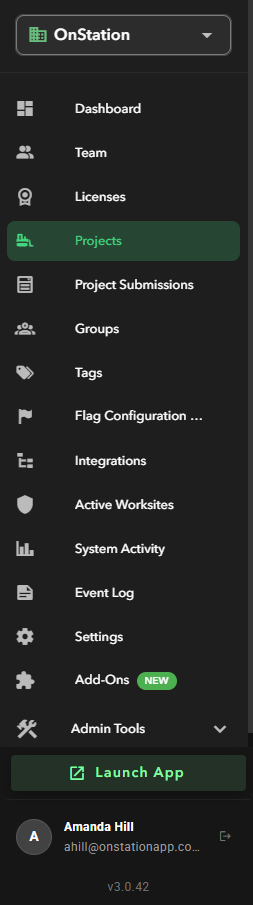

Menus available within the Data Portal
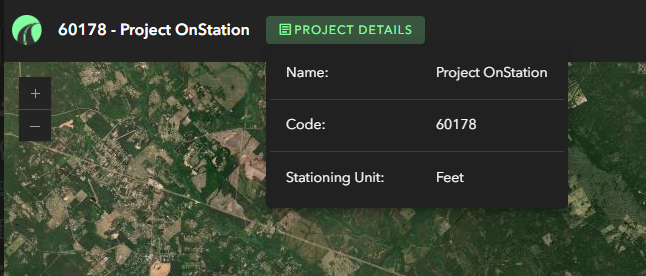
Details
The "Details" menu is available at the top of the Data Portal window. Select  , this will display the Name, Code, and Stationing Unit..
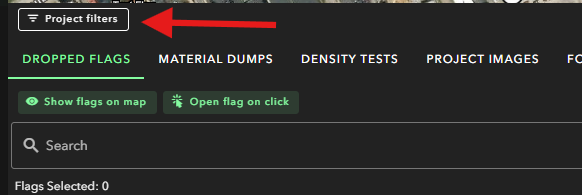
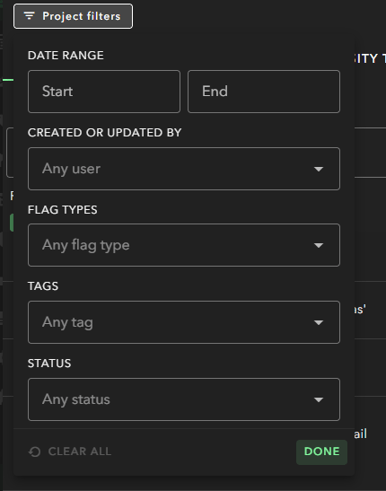
Filter any of the following menus by tapping Flag Filters
Dropped Flags
The Dropped Flags menu will allow you to view and export flag data as well as use an interactive map to see the flag details or select the flags desired for export. For more information on this see articles:

Material Dumps
You must have the Location Reader role associated to your user profile to view Material Dumps
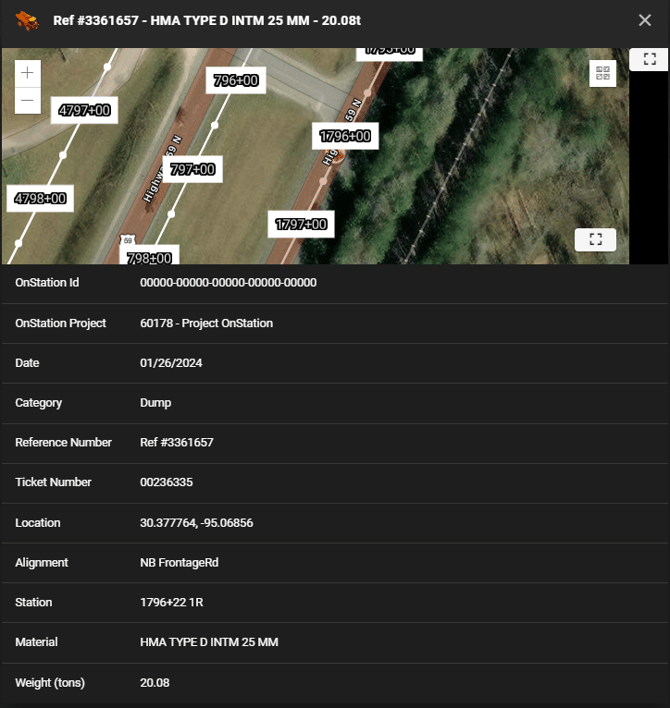
If you have an integration with OnStation and FleetWatcher, your Material Dump data will display here in the "Material Dumps" menu.

Clicking on "view"  for the line item of interest will display that material dump ticket information detail.

Additional Knowledge Base Article Information on FleetWatcher:
Density Tests
You must have the Location Reader role associated to your user profile to view Density Tests
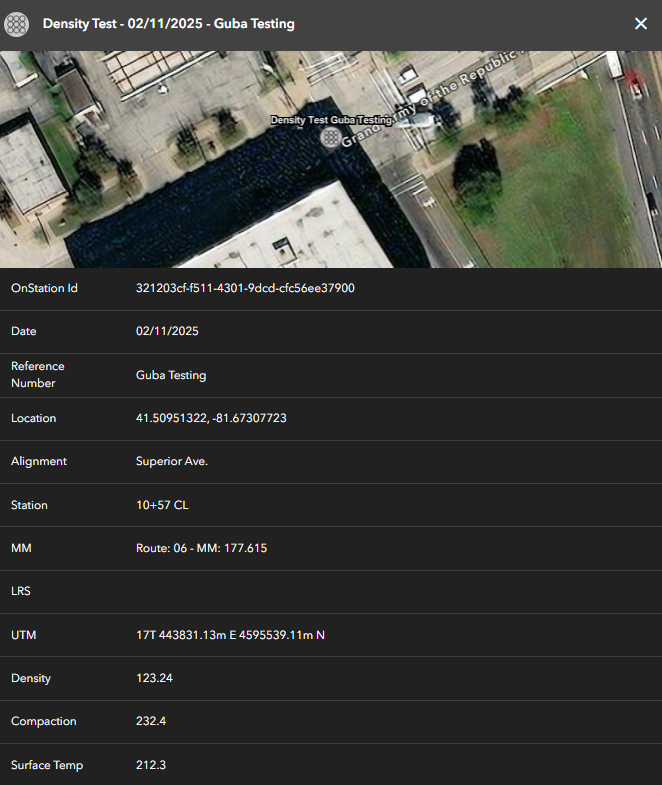
If you have an integration with OnStation and TRansTech, your Density Test data will display here in the "Density Test" menu.

Clicking on "view" for the line item of interest will display that Density Test ticket information detail.

To learn more about the OnStation and TransTech integration click HERE
Project Images

The Project Images menu allows you to view and download all images associated to your organization and the project selected.
Forms Summary

The Forms Summary menu allows you to view and export your organizations form data. For more information on this see article: View and Export Project Form Data
Pay Line Items

The Pay Line Items menu allows you to view pay line items your organizations has flagged on the selected project. To learn more about pay line items click here.
Layers

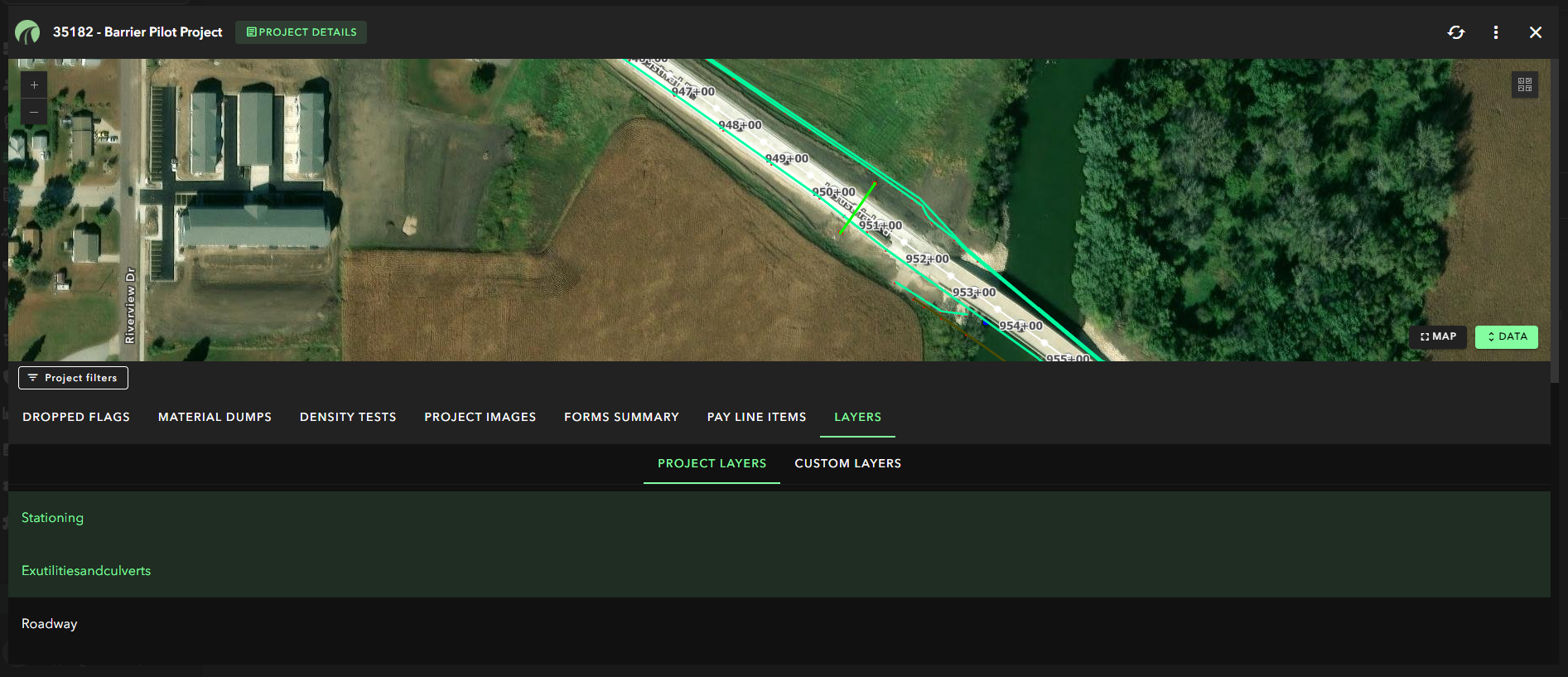
The Layers menu allow you to view project layers and customer layers your organization may have on the project. Additionally, this menu allows users to display the layers selected on the map similar to how layers function in the OnStation app.
 .
.
Reminder: You can expand the map view at anytime by tapping Map at the bottom right of the project.
NOTE:
Users must have the correct permissions assigned to access these menus. Additionally, a Data License is required for accessing and using all of the tools within the Data Portal. Speak with your Account Rep if you would like to discuss adding this feature or click here to learn more.
If you are running into issues viewing or exporting the data, click on the Contact Us page to Contact OnStation Support to assist with any issues you may encounter.