
Prerequisites
To successfully use a Bad Elf GNSS device with OnStation, you'll need:
- An active OnStation license
- Bad Elf Integration enabled for your Organization
- A compatible Bad Elf receiver
- The Bad Elf app, if required for your device — check your device packaging to confirm whether the Bad Elf app needs to be installed on the same device as the OnStation app
- Bluetooth enabled on your mobile device
Step 1: Bad Elf Setup and Configuration
Before using your Bad Elf GNSS device with OnStation, confirm the following:
- Check your device packaging to determine whether the Bad Elf app is required for your model. If so, install it on the same device where the OnStation app is installed.
- Power on your Bad Elf GNSS receiver.
- Ensure Bluetooth is enabled on your mobile device and pair your Bad Elf receiver via Bluetooth in your device's Bluetooth settings.
Step 2: Connecting the Bad Elf Device in OnStation
- Open your OnStation project in the OnStation app.
- Tap the gear icon in the upper-right corner.
- Scroll to the GNSS Receivers section and tap Connect Bad Elf Device.
- OnStation will attempt to connect to your paired Bad Elf receiver via Bluetooth.
- If successful
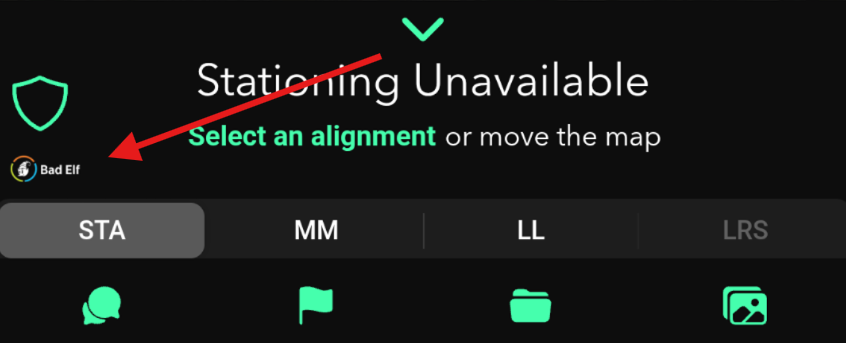
- The Bad Elf logo will appear in the app to the left of the station finder
- Your connection status will show as Connected in the GPS & Device panel (via Setting menu
 ), along with your device's model, serial number, and firmware version.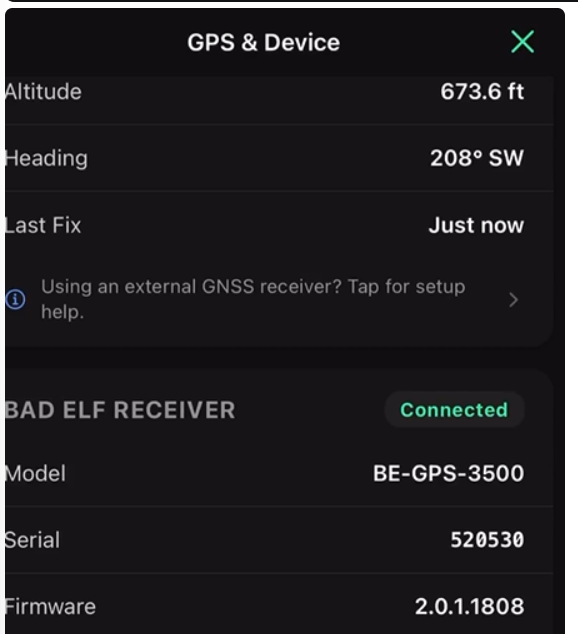
- The Bad Elf logo will appear in the app to the left of the station finder
- Once connected, your Bad Elf receiver's position will flow to the web map. Phone GPS is automatically suppressed while an external receiver is active.
Troubleshooting & Support
If the device fails to connect:
- Ensure Bluetooth is enabled and the receiver is powered on.
- Confirm the receiver is paired in your device's Bluetooth settings.
- If your device requires the Bad Elf app, confirm it is installed and up to date.
For further assistance, contact OnStation Support here or Bad Elf Support based on the nature of the issue.