---
title: Request OnStation Add-Ons
description: Learn how to view, request, and activate Add-Ons in the OnStation Portal — including integrations, GPS tools, and safety features — and what to expect after you request.
---
[Skip to content](https://help.onstationapp.com/knowledge/using-add-ons-in-the-onstation-portal#main-content)
English
Show submenu for translations
[More support](https://help.onstationapp.com/knowledge/kb-tickets/new?hsLang=en) [Support Portal](https://help.onstationapp.com/support-portal?hsLang=en)
[](https://www.onstationapp.com?hsLang=en)
- Support Tools
Show submenu for Support Tools
- [Updates & Bug Fixes](https://www.onstationapp.com/whats-new)
- [Webinars](https://www.youtube.com/@onstationapp/videos)
- [Training](https://help.onstationapp.com/knowledge/getting-started)
- [Submit A Ticket](https://share.hsforms.com/291l4uAzdR0C-hDSgSZKqUQ3053t)
- [Schedule Training](https://meetings.hubspot.com/aubrey-hadney/training-scheduler)
- [Visit Official Website](https://www.onstationapp.com/)
Open main navigation
Close main navigation
- Support Tools
Show submenu for Support Tools
- [Updates & Bug Fixes](https://www.onstationapp.com/whats-new)
- [Webinars](https://www.youtube.com/@onstationapp/videos)
- [Training](https://help.onstationapp.com/knowledge/getting-started)
- [Submit A Ticket](https://share.hsforms.com/291l4uAzdR0C-hDSgSZKqUQ3053t)
- [Schedule Training](https://meetings.hubspot.com/aubrey-hadney/training-scheduler)
- [Visit Official Website](https://www.onstationapp.com/)
- English
Show submenu for translations
- [More support](https://help.onstationapp.com/knowledge/kb-tickets/new)
- [Support Portal](https://help.onstationapp.com/support-portal)
- [Contact Us](https://www.onstationapp.com/contact-us)
[Contact Us](https://www.onstationapp.com/contact-us?hsLang=en)
How can we help you?
- There are no suggestions because the search field is empty.
1. [Knowledge Base](https://help.onstationapp.com/knowledge?hsLang=en)
2. [Integrations](https://help.onstationapp.com/knowledge/integrations?hsLang=en)
May 27, 2026
# Request OnStation Add-Ons
## Add-Ons let you expand your OnStation subscription with integrations, precision GPS tools, safety features, and more. You can browse and request them directly from the Portal.
#### Who Can Access Add-Ons?
Any user with a **Capture** or **Data** license can view the Add-Ons tab and submit requests.
---
#### Finding the Add-Ons Tab
1. Log in to the Portal
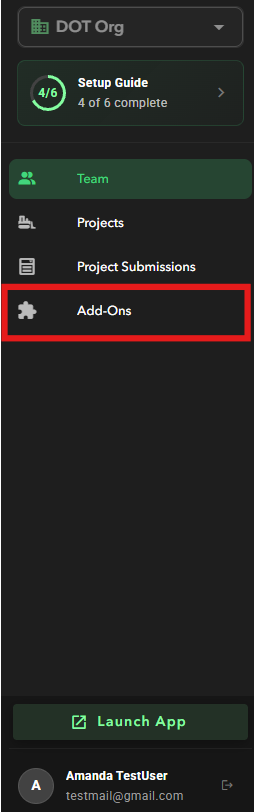
2. In the left sidebar, click **Add-Ons** (the puzzle piece icon near the bottom)
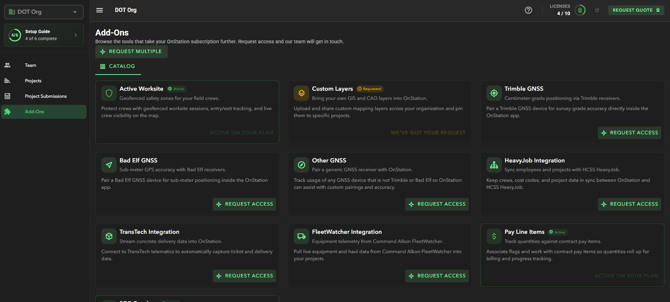
The full catalog loads, showing every available add-on and its current status on your account.
---
#### Understanding Add-On Statuses
Each add-on card shows one of three states:
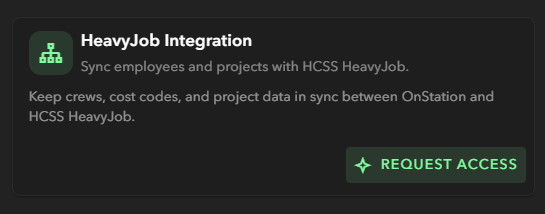
**Request Access (no badge)** The add-on hasn't been requested yet. A green "Request Access" button appears on the card.
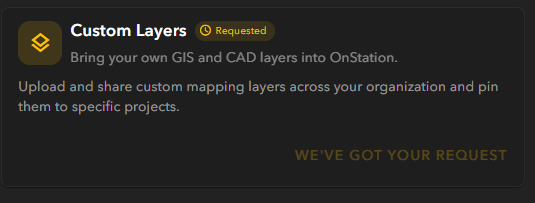
**Requested (amber badge)** Your request has been received. The card turns gold/amber and shows "We've Got Your Request." The sales team will follow up shortly.
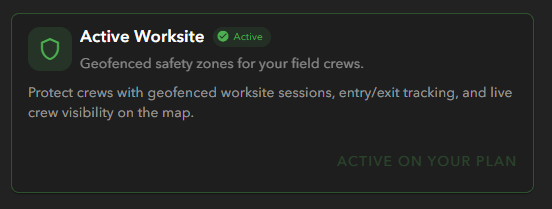
**Active (green badge)** This add-on is live on your account. The card shows "Active on Your Plan" — no further action needed.
---
#### How to Request an Add-On: Portal
You can request a single add-on from its card, or use **Request Multiple** at the top of the catalog to bundle several requests in one submission.
1. Find the add-on you want in the catalog
2. Click the green **Request Access** button on its card
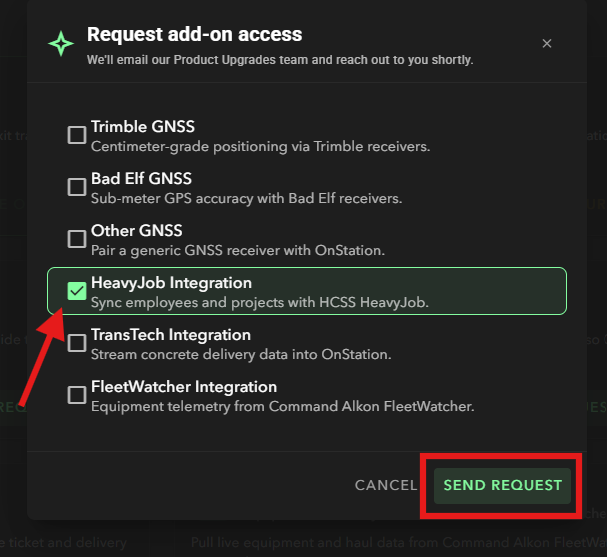
3. In the dialog that appears, confirm your selection and click **Send Request**
4. The card immediately updates to amber — the OnStation team will reach out to complete setup
#### How to Request an Add-On: App
You can request a single add-on from the settings menu inthe OnStation Mobile App
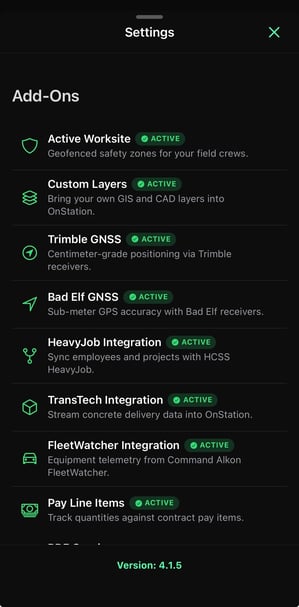
1. Access the **Settings** menu via the gear icon in the top right corner of the app.
2. Scroll down to the "**Add-On**" section
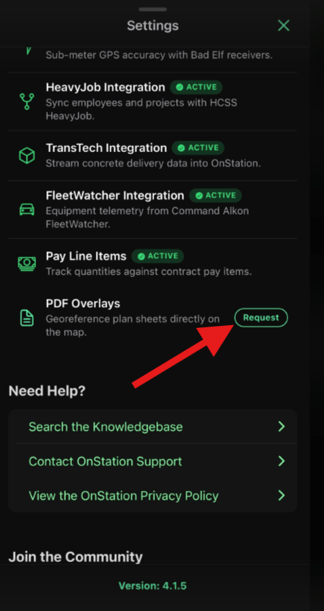
3. Click the green **Request Access** button on the feature you would like to request
****
4. In the dialog that appears, confirm your selection and click **Send Request**
5. The card immediately updates to amber — the OnStation team will reach out to complete setup
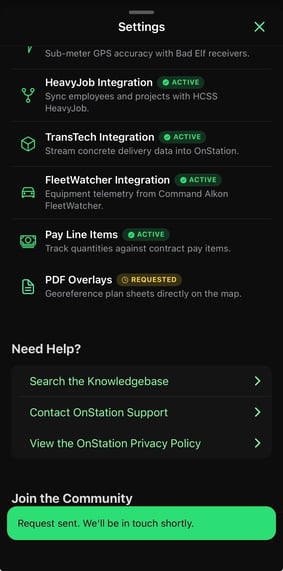
**Note:** Submitting a request doesn't activate the add-on automatically. The OnStation team will contact the right person at your organization — usually within one business day.
---
#### What Happens After You Request
- The add-on card turns **amber** with a "Requested" badge
- The OnStation Product Upgrades team is notified with your account details
- A team member will reach out to discuss pricing, setup, and next steps
- Once activated, the card turns **green** and shows "Active on Your Plan"
You don't need to do anything else after submitting. If you have any questions or would like to learn more please reach out to us! *Stay safe out there.*
- **Sales:** (877) 641-1188 • [Schedule a Demo](https://www.onstationapp.com/contact-us?hsLang=en)
- **Support:** (216) 503-8554
- **Help Center:** [help.onstationapp.com](https://help.onstationapp.com/knowledge?hsLang=en)
---
### Video Demonstration: Portal
---
### For Admins: Requests From Your Team
If you're an admin, you'll see a second tab at the top of the Add-Ons page: **Requests From Your Team.**
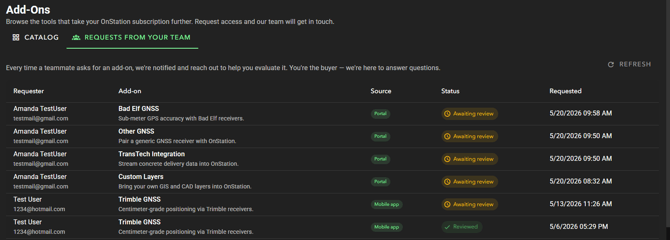
This view shows every add-on request submitted by anyone in your organization, so you always know what your team is interested in before OnStation reaches out.
The table includes:
- **Requester** — name and email of the team member who submitted the request
- **Add-On** — which add-on was requested and a brief description
- **Source** — whether the request came from the **Portal** or the **Mobile app**
- **Status** — either **Awaiting review** (OnStation hasn't acted yet) or **Reviewed** (OnStation has seen it and will be in touch)
- **Requested** — date and time the request was submitted
**Note:** This tab is only visible to admins. Standard users will only see the Catalog tab.
- [Getting Started](https://help.onstationapp.com/knowledge/getting-started?hsLang=en#main-content)
- [New Sign-Up/Onboarding](https://help.onstationapp.com/knowledge/getting-started?hsLang=en#new-sign-up-onboarding)
- [Navigating the App](https://help.onstationapp.com/knowledge/getting-started?hsLang=en#navigating-the-app)
- [Navigating the Portal](https://help.onstationapp.com/knowledge/getting-started?hsLang=en#navigating-the-portal)
- [Project Submissions and Managment](https://help.onstationapp.com/knowledge/getting-started?hsLang=en#project-submissions-and-managment)
- [User Managment](https://help.onstationapp.com/knowledge/getting-started?hsLang=en#user-managment)
- [Troubleshooting](https://help.onstationapp.com/knowledge/getting-started?hsLang=en#troubleshooting)
- [Document the Work](https://help.onstationapp.com/knowledge/document-the-work?hsLang=en#main-content)
- [Flags](https://help.onstationapp.com/knowledge/document-the-work?hsLang=en#flags)
- [Photos](https://help.onstationapp.com/knowledge/document-the-work?hsLang=en#photos)
- [Forms](https://help.onstationapp.com/knowledge/document-the-work?hsLang=en#forms)
- [Measuring Tools](https://help.onstationapp.com/knowledge/document-the-work?hsLang=en#measuring-tools)
- [Troubleshooting](https://help.onstationapp.com/knowledge/document-the-work?hsLang=en#troubleshooting)
- [Finding Your Location](https://help.onstationapp.com/knowledge/finding-your-location?hsLang=en#main-content)
- [Learn More](https://help.onstationapp.com/knowledge/finding-your-location?hsLang=en#learn-more)
- [Troubleshooting](https://help.onstationapp.com/knowledge/finding-your-location?hsLang=en#troubleshooting)
- [Share & Collaborate](https://help.onstationapp.com/knowledge/share-collaborate?hsLang=en#main-content)
- [Learn More](https://help.onstationapp.com/knowledge/share-collaborate?hsLang=en#learn-more)
- [Troubleshooting](https://help.onstationapp.com/knowledge/share-collaborate?hsLang=en#troubleshooting)
- [Export & Report](https://help.onstationapp.com/knowledge/export-report?hsLang=en#main-content)
- [Learn More](https://help.onstationapp.com/knowledge/export-report?hsLang=en#learn-more)
- [Active Worksite™](https://help.onstationapp.com/knowledge/active-worksite?hsLang=en)
- [Integrations](https://help.onstationapp.com/knowledge/integrations?hsLang=en#main-content)
- [TransTech Systems](https://help.onstationapp.com/knowledge/integrations?hsLang=en#transtech-systems)
- [HeavyJob](https://help.onstationapp.com/knowledge/integrations?hsLang=en#heavyjob)
- [GNSS/GPS Receivers](https://help.onstationapp.com/knowledge/integrations?hsLang=en#gnss-gps-receivers)
- [FleetWatcher](https://help.onstationapp.com/knowledge/integrations?hsLang=en#fleetwatcher)
- [Trimble](https://help.onstationapp.com/knowledge/integrations?hsLang=en#trimble)
- [Bad Elf](https://help.onstationapp.com/knowledge/integrations?hsLang=en#bad-elf)
[](http://www.onstationapp.com?hsLang=en)
[mailto:email@email.com](mailto:email@email.com)
Copyright © 2026, OnStation
```json
{
"@context" : "https://schema.org",
"@type" : "VideoObject",
"contentUrl" : "https://5045465.fs1.hubspotusercontent-na1.net/hubfs/5045465/video_assets/213256983663/inherited/web_optimized.mp4",
"dateModified" : "2026-05-20T12:46:08.740Z",
"duration" : "PT38.3S",
"height" : 920,
"name" : "addonPortal-1779281006974",
"thumbnailUrl" : "https://5045465.fs1.hubspotusercontent-na1.net/hubfs/5045465/addonPortal-1779281006974.mp4/medium.jpg",
"uploadDate" : "2026-05-20T12:45:58.703Z",
"width" : 1920
}
```