---
title: Understanding the Project Information (‘i’) Menu
description: "Learn what's in OnStation's Project Information (\"i\") menu — refresh the map, copy your project code, share a project, and manage settings."
---
[Skip to content](https://help.onstationapp.com/knowledge/understanding-the-project-information-i-menu#main-content)
English
Show submenu for translations
[More support](https://help.onstationapp.com/knowledge/kb-tickets/new?hsLang=en) [Support Portal](https://help.onstationapp.com/support-portal?hsLang=en)
[](https://www.onstationapp.com?hsLang=en)
- Support Tools
Show submenu for Support Tools
- [Updates & Bug Fixes](https://www.onstationapp.com/whats-new)
- [Training Webinars](https://www.onstationapp.com/training-webinars)
- [General Stationing Training](https://www.onstationapp.com/stationing-training-series)
- [Submit A Ticket](https://share.hsforms.com/291l4uAzdR0C-hDSgSZKqUQ3053t)
- [Schedule Training](https://meetings.hubspot.com/aubrey-hadney/training-scheduler)
- [Visit Official Website](https://www.onstationapp.com/)
Open main navigation
Close main navigation
- Support Tools
Show submenu for Support Tools
- [Updates & Bug Fixes](https://www.onstationapp.com/whats-new)
- [Training Webinars](https://www.onstationapp.com/training-webinars)
- [General Stationing Training](https://www.onstationapp.com/stationing-training-series)
- [Submit A Ticket](https://share.hsforms.com/291l4uAzdR0C-hDSgSZKqUQ3053t)
- [Schedule Training](https://meetings.hubspot.com/aubrey-hadney/training-scheduler)
- [Visit Official Website](https://www.onstationapp.com/)
- English
Show submenu for translations
- [More support](https://help.onstationapp.com/knowledge/kb-tickets/new)
- [Support Portal](https://help.onstationapp.com/support-portal)
- [Contact Us](https://www.onstationapp.com/contact-us)
[Contact Us](https://www.onstationapp.com/contact-us?hsLang=en)
How can we help you?
- There are no suggestions because the search field is empty.
1. [Knowledge Base](https://help.onstationapp.com/knowledge?hsLang=en)
2. [Getting Started](https://help.onstationapp.com/knowledge/getting-started?hsLang=en)
3. [Navigating the App](https://help.onstationapp.com/knowledge/getting-started?hsLang=en#navigating-the-app)
July 17, 2026
# Understanding the Project Information (‘i’) Menu
## The "i" menu holds several project-level settings in one place — sharing your project, refreshing the map, adjusting notifications, and more. Here's what's inside and how to use it.
Table of Contents
1. [Locate the "i" menu](https://help.onstationapp.com/knowledge/understanding-the-project-information-i-menu#locate)
2. [Refresh Map](https://help.onstationapp.com/knowledge/understanding-the-project-information-i-menu#refresh)
3. [Copy Project Code](https://help.onstationapp.com/knowledge/understanding-the-project-information-i-menu#Copy)
4. [Share Project](https://help.onstationapp.com/knowledge/understanding-the-project-information-i-menu#Share)
5. [Project Settings and Offline Mode](https://help.onstationapp.com/knowledge/understanding-the-project-information-i-menu#Projectsetting)
[a.](https://help.onstationapp.com/knowledge/understanding-the-project-information-i-menu#a)[In-App Project Notification](https://help.onstationapp.com/knowledge/understanding-the-project-information-i-menu#a)
[b. Default Flag Sharing](https://help.onstationapp.com/knowledge/understanding-the-project-information-i-menu#b)
6. [Sync to HeavyJob](https://help.onstationapp.com/knowledge/understanding-the-project-information-i-menu#HeavyJob)
#### **Locate the "i" Menu**
To access the Project Information menu, first ensure you are logged into the OnStation app and in a project.
Once the project is loaded you will see the project code and name at the top of the screen
Notice next to the project code the green circle with an "i" inside. This is the Project information menu.
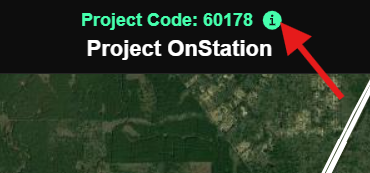
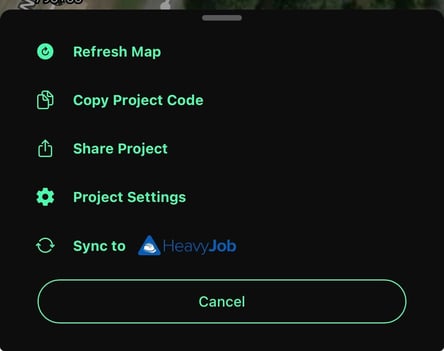
Tap the "i" to open the menu.
#### **Refresh Map**
To reload the project map, tap the Refresh Map button. This refresh can be useful to apply changes you have made, or when troubleshooting.
#### **Copy Project Code**
To easily copy the project code of the open project tap Copy Project Code.
#### **Share Project**
To share the open project, tap Share Project. This will open a window where you can share via other applications, a QR code, or with a link to the project.
An OnStation account and valid license is necessary to view a project.
#### **Project Settings**
##### Offline Mode
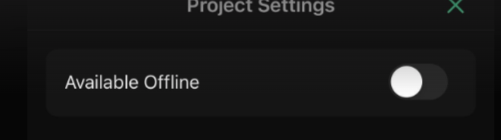
Tap the toggle to enable offline mode for the current project. This will then start the download of the project. Once the download is complete you will be able to access the project when you are without a data connection.
To learn more about Offline Mode click [here](https://help.onstationapp.com/knowledge/enabling-offline-mode?hsLang=en).
##### The projects menu contains settings to control in app notifications, default flag sharing, and Project information.
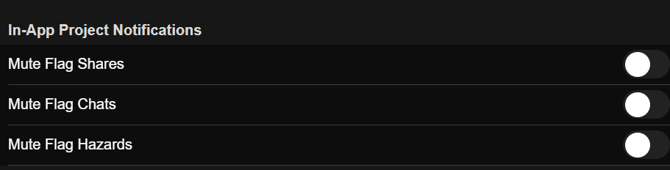
a. In-App Project Notification
Here you can adjust settings for notifications regarding the open project. Toggle on and off the ability to mute flag shares, flag chats, and hazard notifications
b. Default Flag Sharing
If default flag sharing is turned on for your organization, here you can manage this feature further. Choose to share with everyone on the project, your entire organization ("OnStation" in the example screen shot below), with select users.

#### **Sync to HeavyJobs**
Here you can sync your HCSS account to OnStation.
To learn more about the OnStation HeavyJobs integration click [**here**](https://help.onstationapp.com/knowledge/integrations-hcss?hsLang=en)
Need help? Call or text us at (216) 503-8554, or [reach out online](https://www.onstationapp.com/contact-us?hsLang=en).
- [Getting Started](https://help.onstationapp.com/knowledge/getting-started?hsLang=en#main-content)
- [New Sign-Up/Onboarding](https://help.onstationapp.com/knowledge/getting-started?hsLang=en#new-sign-up-onboarding)
- [Navigating the App](https://help.onstationapp.com/knowledge/getting-started?hsLang=en#navigating-the-app)
- [Navigating the Portal](https://help.onstationapp.com/knowledge/getting-started?hsLang=en#navigating-the-portal)
- [Project Submissions and Managment](https://help.onstationapp.com/knowledge/getting-started?hsLang=en#project-submissions-and-managment)
- [User Managment](https://help.onstationapp.com/knowledge/getting-started?hsLang=en#user-managment)
- [Troubleshooting](https://help.onstationapp.com/knowledge/getting-started?hsLang=en#troubleshooting)
- [Document the Work](https://help.onstationapp.com/knowledge/document-the-work?hsLang=en#main-content)
- [Flags](https://help.onstationapp.com/knowledge/document-the-work?hsLang=en#flags)
- [Photos](https://help.onstationapp.com/knowledge/document-the-work?hsLang=en#photos)
- [Forms](https://help.onstationapp.com/knowledge/document-the-work?hsLang=en#forms)
- [Measuring Tools](https://help.onstationapp.com/knowledge/document-the-work?hsLang=en#measuring-tools)
- [Troubleshooting](https://help.onstationapp.com/knowledge/document-the-work?hsLang=en#troubleshooting)
- [Finding Your Location](https://help.onstationapp.com/knowledge/finding-your-location?hsLang=en#main-content)
- [Learn More](https://help.onstationapp.com/knowledge/finding-your-location?hsLang=en#learn-more)
- [Troubleshooting](https://help.onstationapp.com/knowledge/finding-your-location?hsLang=en#troubleshooting)
- [Share & Collaborate](https://help.onstationapp.com/knowledge/share-collaborate?hsLang=en#main-content)
- [Learn More](https://help.onstationapp.com/knowledge/share-collaborate?hsLang=en#learn-more)
- [Troubleshooting](https://help.onstationapp.com/knowledge/share-collaborate?hsLang=en#troubleshooting)
- [Export & Report](https://help.onstationapp.com/knowledge/export-report?hsLang=en#main-content)
- [Learn More](https://help.onstationapp.com/knowledge/export-report?hsLang=en#learn-more)
- [Active Worksite™](https://help.onstationapp.com/knowledge/active-worksite?hsLang=en)
- [Integrations](https://help.onstationapp.com/knowledge/integrations?hsLang=en#main-content)
- [TransTech Systems](https://help.onstationapp.com/knowledge/integrations?hsLang=en#transtech-systems)
- [HeavyJob](https://help.onstationapp.com/knowledge/integrations?hsLang=en#heavyjob)
- [GNSS/GPS Receivers](https://help.onstationapp.com/knowledge/integrations?hsLang=en#gnss-gps-receivers)
- [FleetWatcher](https://help.onstationapp.com/knowledge/integrations?hsLang=en#fleetwatcher)
- [Trimble](https://help.onstationapp.com/knowledge/integrations?hsLang=en#trimble)
- [Bad Elf](https://help.onstationapp.com/knowledge/integrations?hsLang=en#bad-elf)
[](http://www.onstationapp.com?hsLang=en)
[mailto:email@email.com](mailto:email@email.com)
Copyright © 2026, OnStation