
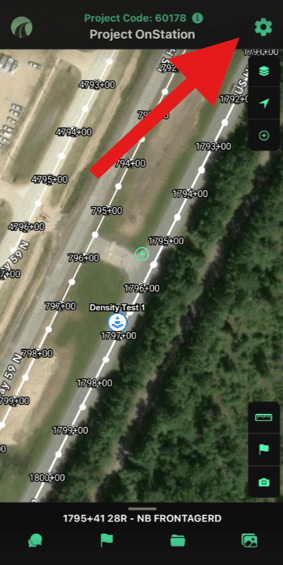
Access the OnStation App settings menu via the gear icon at the top right of the screen.
Profile & license
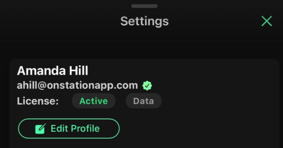
Your name, email, and license tier at a glance. Tap Edit Profile to make changes.
Your name, email, and current license tier show at the top of Settings. Tap Edit Profile to update your information.
Organizations
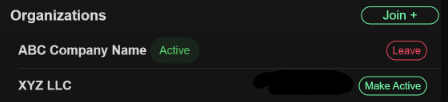
If you're linked to more than one organization, you can switch which one is active — see Switching Between Organizations → for the full walkthrough. You can also add a new organization or leave one from this section.
Referral program
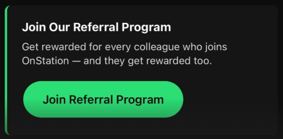
If you'd like to refer new users to OnStation, you can join the referral program from this section — refer a colleague and you get rewarded.
Active Worksite
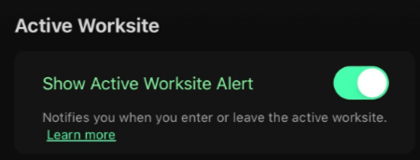
Active Worksite is a safety feature that lets you alert the traveling public when they're entering an active work zone. Toggle Show Active Worksite Alert here to notify your crew when they enter or leave the worksite.
Learn more: How to turn on and use Active Worksite as a user →
Location
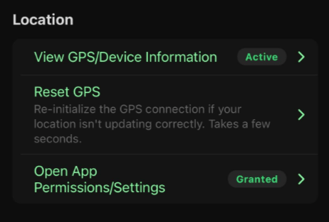
Location settings — view your GPS status, reset the connection, or jump to your device's app permissions.
- View GPS/Device Information — see your current GPS connection status. Learn more: How to run and send a GPS diagnostic report →
- Reset GPS — tap to re-initialize your GPS connection if your location isn't updating correctly. You'll see a confirmation that says "GPS connection has been reset." Takes a few seconds.
- Open App Permissions/Settings — takes you out of OnStation and into your device's own Settings app, where you can review or change location and other app permissions.
Notifications
Notifications require two steps. Even after you allow notifications at the device level (iOS or Android), you also have to enable Push Notifications here, inside OnStation's app settings. If either one is off, you won't receive chat, flag, or support notifications.
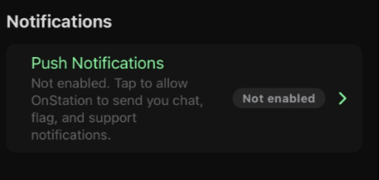
If Push Notifications shows "Not enabled," tap it to turn notifications on inside the app — separate from your device's notification permission.
GNSS receivers
If you're connecting an external GNSS receiver — Trimble, Bad Elf, or another supported device — see Integrations for setup and troubleshooting by device.
Add-ons
Active Worksite, Custom Layers, GNSS integrations, HeavyJob, TransTech, FleetWatcher, Pay Line Items, and PDF Overlays all show their activation status here. Learn more: Using Add-Ons in the OnStation Portal →
Need help?
Quick links to Search the Knowledgebase, Contact OnStation Support, and View the OnStation Privacy Policy.
Join the community
Links to OnStation's Instagram, Facebook, LinkedIn, and YouTube.
Configure GPS receivers
Setup guides for supported external GNSS devices (Bad Elf, Leica, and others) — Integrations for device-specific instructions.
Account
Log out of OnStation, or delete your account, from this section.
Need help? Call or text us at (216) 503-8554, or reach out online.