---
title: Enhanced Project Submissions
description: Submit a new project in OnStation — choose Standard, Approximate Stationing, or No Stationing. Includes map drawing, saved drafts, PDF overlays, and team setup.
---
[Skip to content](https://help.onstationapp.com/knowledge/submitting-a-new-project#main-content)
English
Show submenu for translations
[More support](https://help.onstationapp.com/knowledge/kb-tickets/new?hsLang=en) [Support Portal](https://help.onstationapp.com/support-portal?hsLang=en)
[](https://www.onstationapp.com?hsLang=en)
- Support Tools
Show submenu for Support Tools
- [Updates & Bug Fixes](https://www.onstationapp.com/whats-new)
- [Training Webinars](https://www.onstationapp.com/training-webinars)
- [General Stationing Training](https://www.onstationapp.com/stationing-training-series)
- [Submit A Ticket](https://share.hsforms.com/291l4uAzdR0C-hDSgSZKqUQ3053t)
- [Schedule Training](https://meetings.hubspot.com/aubrey-hadney/training-scheduler)
- [Visit Official Website](https://www.onstationapp.com/)
Open main navigation
Close main navigation
- Support Tools
Show submenu for Support Tools
- [Updates & Bug Fixes](https://www.onstationapp.com/whats-new)
- [Training Webinars](https://www.onstationapp.com/training-webinars)
- [General Stationing Training](https://www.onstationapp.com/stationing-training-series)
- [Submit A Ticket](https://share.hsforms.com/291l4uAzdR0C-hDSgSZKqUQ3053t)
- [Schedule Training](https://meetings.hubspot.com/aubrey-hadney/training-scheduler)
- [Visit Official Website](https://www.onstationapp.com/)
- English
Show submenu for translations
- [More support](https://help.onstationapp.com/knowledge/kb-tickets/new)
- [Support Portal](https://help.onstationapp.com/support-portal)
- [Contact Us](https://www.onstationapp.com/contact-us)
[Contact Us](https://www.onstationapp.com/contact-us?hsLang=en)
How can we help you?
- There are no suggestions because the search field is empty.
1. [Knowledge Base](https://help.onstationapp.com/knowledge?hsLang=en)
2. [Getting Started](https://help.onstationapp.com/knowledge/getting-started?hsLang=en)
3. [Project Submissions and Managment](https://help.onstationapp.com/knowledge/getting-started?hsLang=en#project-submissions-and-managment)
August 28, 2026
# Enhanced Project Submissions
## When submitting a new project in OnStation, you can now choose the submission type that best fits your situation. This article covers all three options — Standard, Approximate Stationing, and No Stationing.
### Table of Contents
1. [Getting Started](https://help.onstationapp.com/knowledge/submitting-a-new-project#start)
2. [Approximate Stationing Projects](https://help.onstationapp.com/knowledge/submitting-a-new-project#approx)
3. [No Stationing Projects](https://help.onstationapp.com/knowledge/submitting-a-new-project#noStation)
4. [Video Tutorials](https://help.onstationapp.com/knowledge/submitting-a-new-project#Video)
#### Getting Started
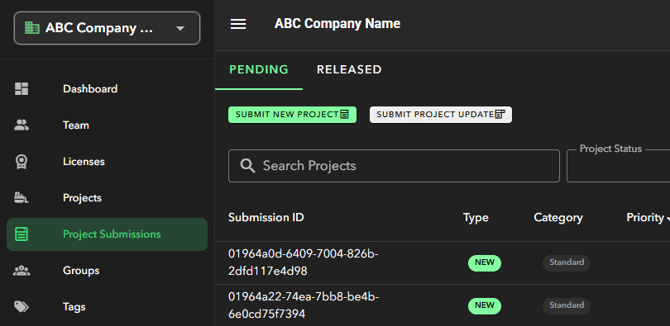
1. Log in to the OnStation Portal at onstationapp.com.
2. From the left navigation menu, select **Project Submissions**.
3. Tap **SUBMIT NEW PROJECT** in the top left.
#### Step 1 — Choose Your Submission Type
The first screen asks you to select a submission type. Choose the option that matches your project and tap **CONTINUE**.
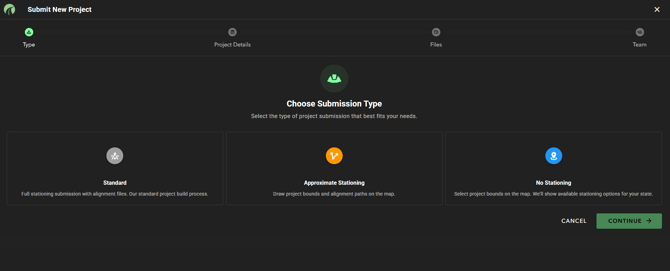
| **Type** | **Best For** | **Description** |
| --- | --- | --- |
| **Standard** | Projects with design/alignment files | Full stationing submission. Same process as existing uploaded projects. |
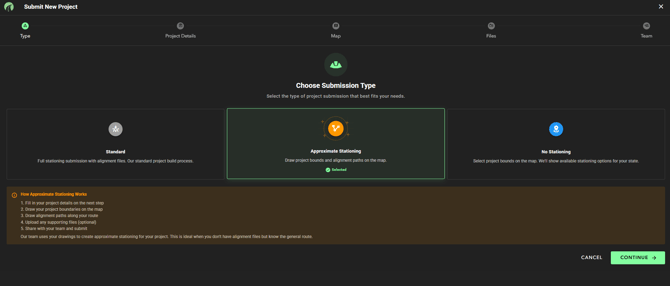
| **Approximate Stationing** | No alignment files, but know the route | Draw project bounds and alignment on the map. OnStation generates approximate stationing from your drawing. |
| **No Stationing** | Projects without stationing | Draw project bounds only. OnStation shows available stationing options for your state. |
**📋 Saved Draft**
If you previously started a submission and did not complete it, a banner will appear at the bottom of the submission type screen: "Draft restored from your last session."
Tap **Discard** to clear the draft and start fresh, or tap **Continue** to pick up where you left off. All previously entered information will be pre-filled. This applies to all three submission types.
#### Standard Submission
Select **Standard** and tap **CONTINUE**. This follows the same process as all existing OnStation projects — fill in project details, upload your alignment files, and submit. No changes to this workflow.
#### Approximate Stationing
Approximate Stationing lets you define your project by drawing bounds and an alignment directly on the map. OnStation uses your drawings to generate approximate stationing — no alignment files required.
### Project Details
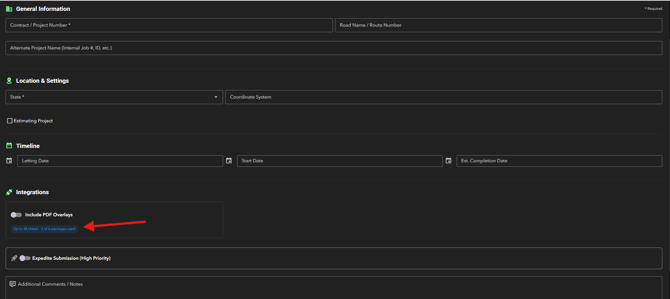
1. Fill in the required fields: **Contract / Project Number**, State, and any other details.
2. If your org has **PDF Overlays** enabled as an integration, you'll see that option here along with the number of sheets remaining from your purchase.
3. After selecting your state, an **Available Stationing** notice will appear showing which stationing types are supported for that state — for example LRS, Mile Markers, or Lat/Long. Items with a checkmark are available.
4. Tap **CONTINUE** to proceed to the Map.
### Using Jump to Location on the Map
When you reach the **Map** step while submitting a new project, you don't have to manually pan and zoom to find your project area. Use the **Jump to Location** tool to get there fast.
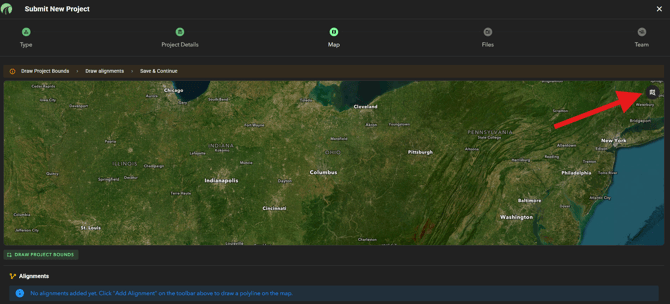
**How to open it:** Look for the small map icon in the top-right corner of the map. Tap or click it to open the Jump to Location panel.
You'll see two options:
**Search** — Type in a street address, intersection, city, or landmark. Hit **Go** and the map will center on that location. This is the quickest way to get to your project area before drawing your bounds or alignments.
**Coordinates** — If you have lat/long coordinates, switch to the Coordinates tab and enter them directly.
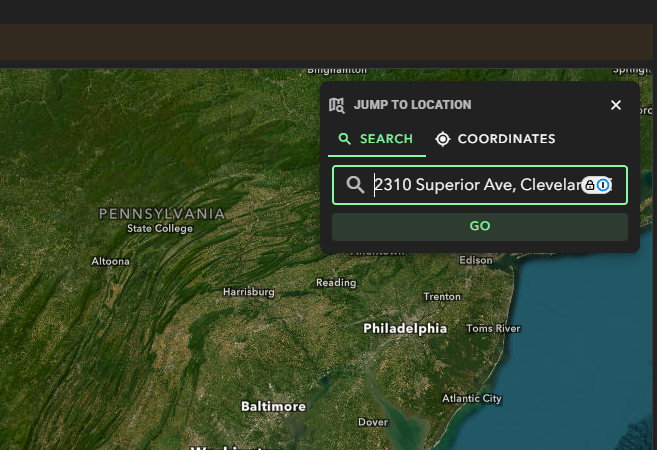
This works the same way whether you're submitting an **Approximate Location** project or a **No Station** project. Use it any time you need to orient the map before drawing your project bounds or alignment.
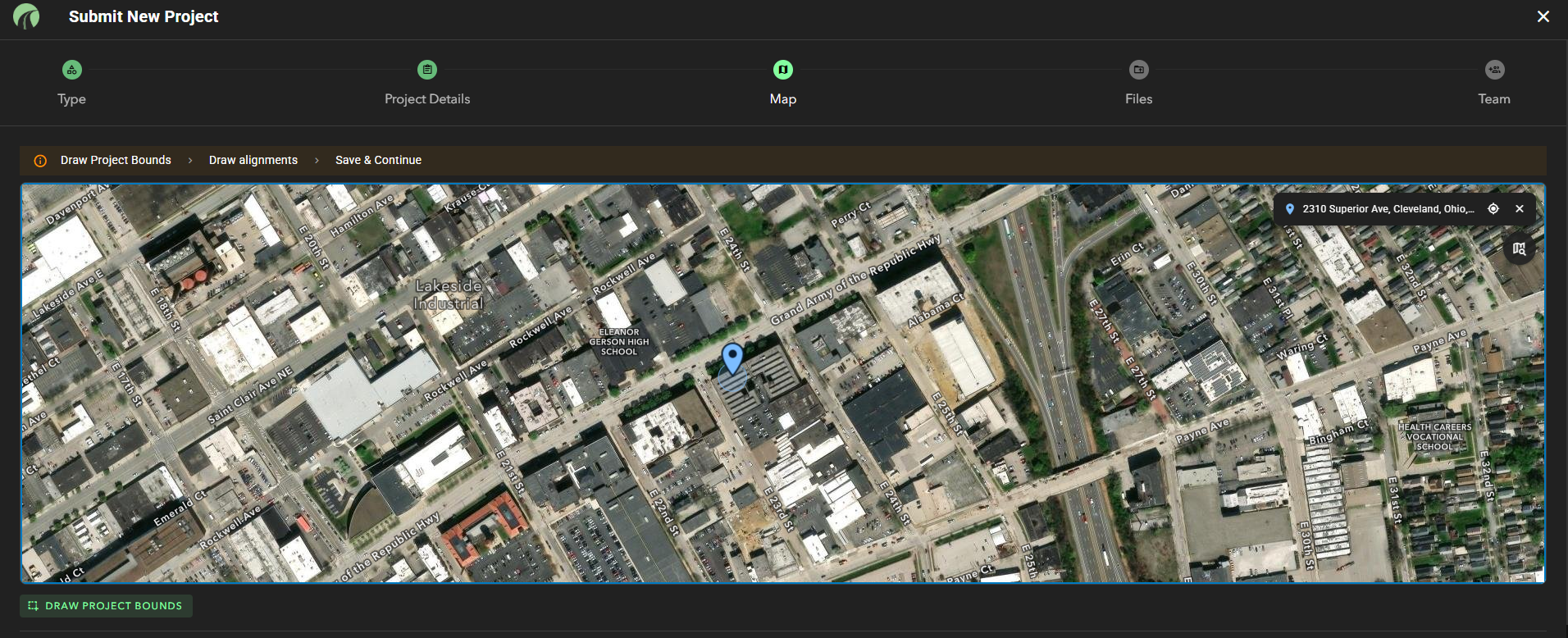
*Jump to Location*
### Drawing Project Bounds
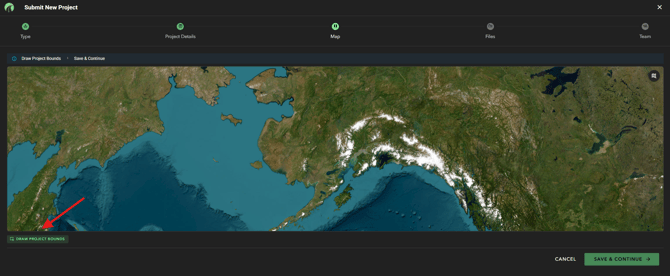
1. Zoom into the area where your project is located.
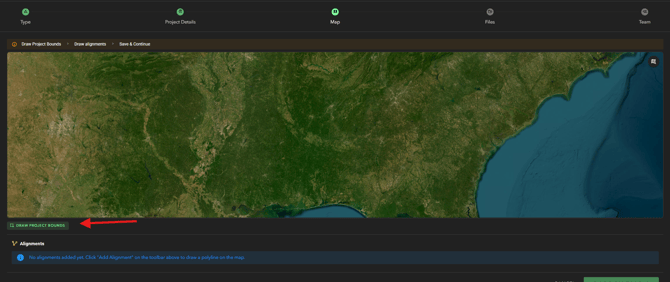
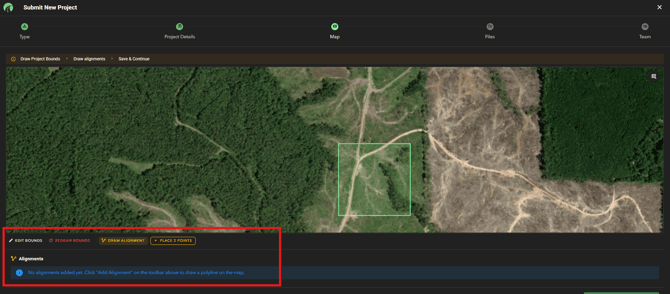
2. Tap **DRAW PROJECT BOUNDS** in the bottom left corner of the map.
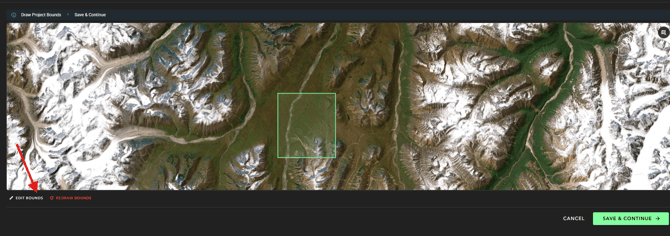
3. Click and drag to draw a rectangle over your project area.
4. Use **EDIT BOUNDS** or **REDRAW BOUNDS** from the toolbar if you need to adjust the shape.
### Drawing Your Alignment
Once your bounds are set, draw your alignment along the route. Two methods are available:
**Draw Alignment (polyline):**
1. Tap **DRAW ALIGNMENT** in the toolbar.
2. Tap once to place your first point.
3. Double-click to place your final point and complete the line.
**Place 2 Points (quick method):**
1. Tap **PLACE 2 POINTS** in the toolbar.
2. Tap once to drop your first point, then double tap to drop your second point.
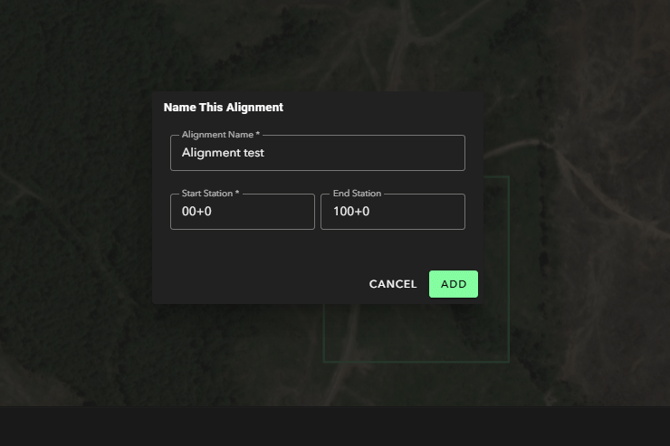
3. A pop-up will appear: *Name this alignment*. Enter a name and set the **Start Station** and **End Station**. Start Station is required.
4. Your alignment will appear in the Alignments section below the map. You can edit it at any time.
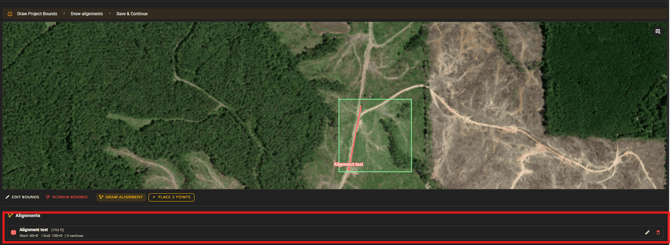
When you're satisfied with the bounds and alignment, tap **SAVE & CONTINUE**. OnStation will generate a KML file from your alignment drawing.
#### No Stationing
No Stationing is similar to Approximate Stationing but skips the alignment step. OnStation will display the available stationing options for your state based on your project location.
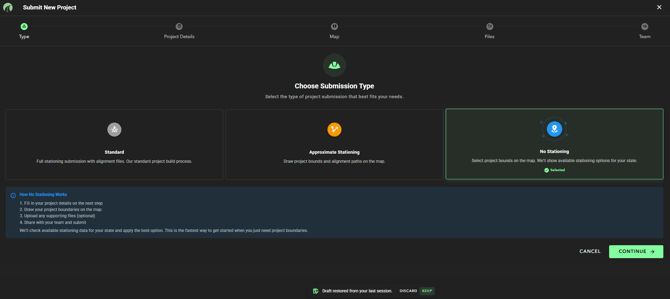
1. Select **No Stationing** from the Choose Submission Type screen and tap **CONTINUE**.
2. Fill in the required project details and tap **CONTINUE** to proceed to the map.
3. Use **[Jump to Location](https://help.onstationapp.com/knowledge/submitting-a-new-project#jump)** or zoom to find project area on map.
4. Draw your project bounds on the map and tap **SAVE & CONTINUE**. No alignment drawing is needed.
#### Step 2 — Files (Optional)
After the map step you'll land on the **Files** page. Attach any supporting files — plans, reports, or other documents. This step is optional. Tap **CONTINUE** when done.
#### Step 3 — Submit & Notify Your Team
1. Review everything and tap **SUBMIT PROJECT**.
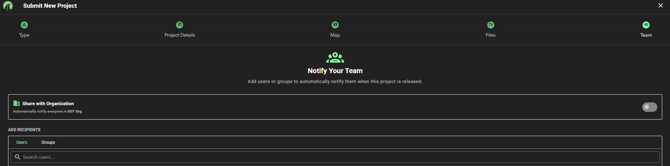
2. On the **Team** tab, search for users or groups to notify. Toggle **Share with Organization** to notify everyone in your org automatically.
3. Tap **SAVE CHANGES** then **DONE**.
**
Your submission will appear under **Project Submissions → Pending** with a status of **NEW** while it's being processed by the OnStation team.
### Video Tutorials
Click the links below to access a walk-thru of these features.
- [Submit a No Station Project](https://help.onstationapp.com/knowledge/video-library-tutorials-product-walkthroughs#submittingNoStationProject)
- [Submit an Approximate Station Project](https://help.onstationapp.com/knowledge/video-library-tutorials-product-walkthroughs#submitApproximateStationProject)
*Questions? Contact support at (216) 503-8554 or visit [help.onstationapp.com](https://help.onstationapp.com/?hsLang=en). Stay safe out there.*
- [Getting Started](https://help.onstationapp.com/knowledge/getting-started?hsLang=en#main-content)
- [New Sign-Up/Onboarding](https://help.onstationapp.com/knowledge/getting-started?hsLang=en#new-sign-up-onboarding)
- [Navigating the App](https://help.onstationapp.com/knowledge/getting-started?hsLang=en#navigating-the-app)
- [Navigating the Portal](https://help.onstationapp.com/knowledge/getting-started?hsLang=en#navigating-the-portal)
- [Project Submissions and Managment](https://help.onstationapp.com/knowledge/getting-started?hsLang=en#project-submissions-and-managment)
- [User Managment](https://help.onstationapp.com/knowledge/getting-started?hsLang=en#user-managment)
- [Troubleshooting](https://help.onstationapp.com/knowledge/getting-started?hsLang=en#troubleshooting)
- [Document the Work](https://help.onstationapp.com/knowledge/document-the-work?hsLang=en#main-content)
- [Flags](https://help.onstationapp.com/knowledge/document-the-work?hsLang=en#flags)
- [Photos](https://help.onstationapp.com/knowledge/document-the-work?hsLang=en#photos)
- [Forms](https://help.onstationapp.com/knowledge/document-the-work?hsLang=en#forms)
- [Measuring Tools](https://help.onstationapp.com/knowledge/document-the-work?hsLang=en#measuring-tools)
- [Troubleshooting](https://help.onstationapp.com/knowledge/document-the-work?hsLang=en#troubleshooting)
- [Finding Your Location](https://help.onstationapp.com/knowledge/finding-your-location?hsLang=en#main-content)
- [Learn More](https://help.onstationapp.com/knowledge/finding-your-location?hsLang=en#learn-more)
- [Troubleshooting](https://help.onstationapp.com/knowledge/finding-your-location?hsLang=en#troubleshooting)
- [Share & Collaborate](https://help.onstationapp.com/knowledge/share-collaborate?hsLang=en#main-content)
- [Learn More](https://help.onstationapp.com/knowledge/share-collaborate?hsLang=en#learn-more)
- [Troubleshooting](https://help.onstationapp.com/knowledge/share-collaborate?hsLang=en#troubleshooting)
- [Export & Report](https://help.onstationapp.com/knowledge/export-report?hsLang=en#main-content)
- [Learn More](https://help.onstationapp.com/knowledge/export-report?hsLang=en#learn-more)
- [Active Worksite™](https://help.onstationapp.com/knowledge/active-worksite?hsLang=en)
- [Integrations](https://help.onstationapp.com/knowledge/integrations?hsLang=en#main-content)
- [TransTech Systems](https://help.onstationapp.com/knowledge/integrations?hsLang=en#transtech-systems)
- [HeavyJob](https://help.onstationapp.com/knowledge/integrations?hsLang=en#heavyjob)
- [GNSS/GPS Receivers](https://help.onstationapp.com/knowledge/integrations?hsLang=en#gnss-gps-receivers)
- [FleetWatcher](https://help.onstationapp.com/knowledge/integrations?hsLang=en#fleetwatcher)
- [Trimble](https://help.onstationapp.com/knowledge/integrations?hsLang=en#trimble)
- [Bad Elf](https://help.onstationapp.com/knowledge/integrations?hsLang=en#bad-elf)
[](http://www.onstationapp.com?hsLang=en)
[mailto:email@email.com](mailto:email@email.com)
Copyright © 2026, OnStation