
OnStation gives you several ways to work with completed form data. Depending on your goal, you can:
- Permissions and Licensing requirements
- View form data across a project
- Export form records or full flag records (CSV or PDF)
- Email completed forms
- Share a flag in the App for internal collaboration
This article walks through each option and where to find it.
1. Viewing Form Data Across a Project (Portal)
Use the Forms Summary tab when you want to review individual form records collected across a project.
How to Access Form Data
- Log into the OnStation Portal
- Select Projects
- Open the project you want to work in
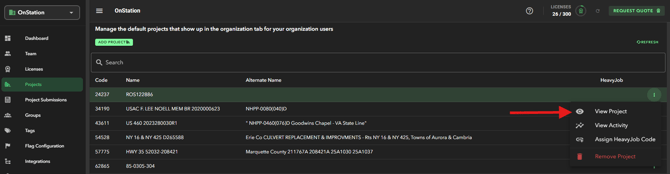
- Select the Forms Summary tab

- Flag counts at a glance — Each form in the dropdown now shows a count of how many flags it's attached to, so no more guessing or opening forms one by one to check.
- Auto-select + clear button — If there's only one form type present, it auto-selects it. A clear button resets the view.Use the Forms dropdown to choose the form type
- Once a form is selected the data map will update to only display those flags associated to the form
- Select individual, many, or all forms to:
-
- Export to CSV
- Export Images
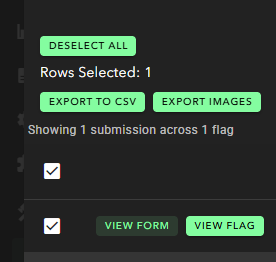
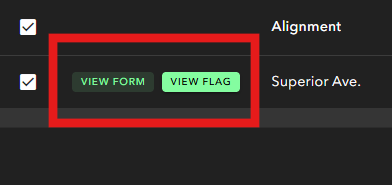
- Tap View Form to view the completed form
- Tap View Flag to open the flag record
Pagination and rows‑per‑page controls allow you to view additional records.
2. Exporting Individual Form Records (Forms Summary – Portal)
Once you’re viewing form data in the Forms Summary tab, you can export specific form records.
Export Form Records to CSV
- Select the form type from the dropdown
- Check the box next to one or more form records
- Click Export to CSV
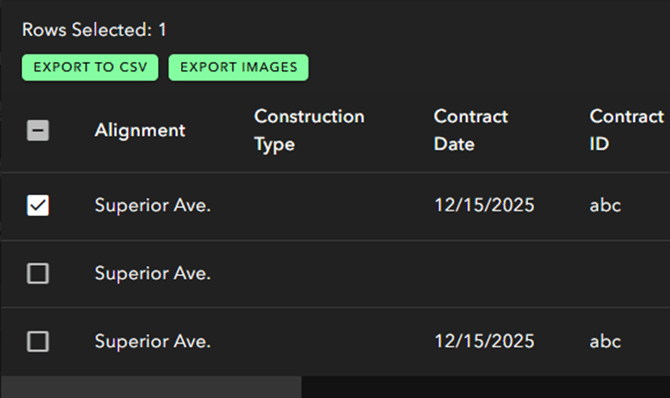
This exports only the selected form records and is best for spreadsheets or reporting.
Export Form Records to PDF
PDF exports are available by opening the flag associated with the form.
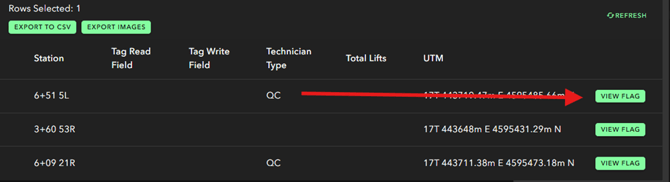
- From the Forms Summary tab, scroll to the right
- Select View Flag
- In the flag view, open the top‑right menu (three‑dot icon)
- Select Download PDF
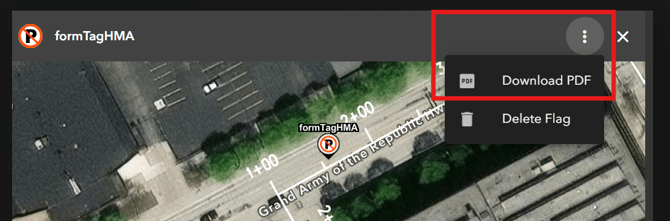
This downloads a PDF containing the form data attached to that flag.
3. Exporting Full Flag Records (Including Form Data) – Portal
If you need the entire flag record—including location details, attachments, and all associated forms—use the Dropped Flags tab.
How to Export Flags
- Go to Portal → Projects
- Select the Dropped Flags tab
- (Optional) Use filters at the top to narrow results by tags, users, dates, etc.
- Check the box next to one or more flags
Learn How to BULK Export Flags here!
Export Flag Records to CSV
- Select Export Flag(s)
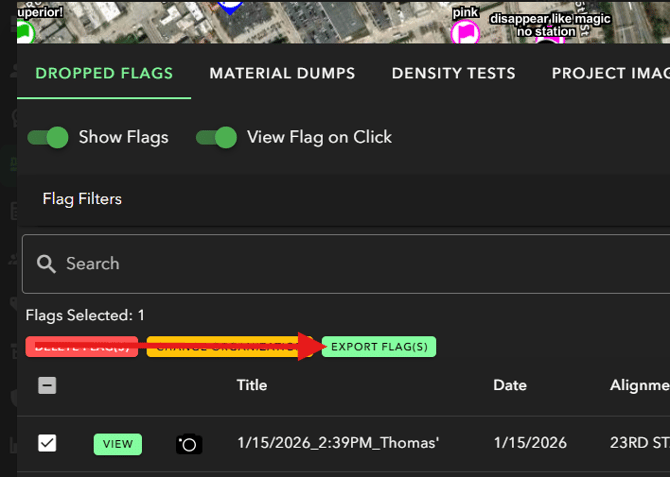
- This exports the full flag record(s), including any form data, to CSV
Export Flag Records to PDF
- Click View Flag
- Open the top‑right menu (three‑dot icon)
- Select Download PDF
4. Emailing Form Data (App and Portal)
Completed forms can be emailed directly from both the OnStation App and the OnStation Portal without downloading files first.
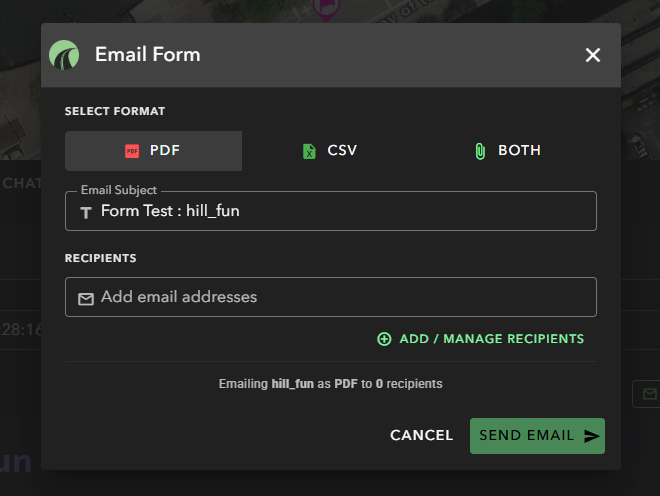
Emailing a Form from the Portal
- Open View Flag
- Select the Forms tab
- Locate the completed form
- Select the envelope icon
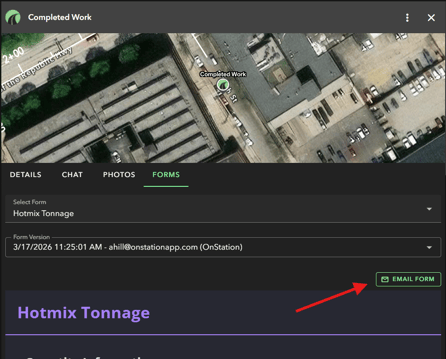
- Choose PDF, CSV, or Both
- Edit subject line (default: Flag name + Form Title)
- Add recipients:
- Email addresses
- Project Users
- My Groups or Organization Groups
Emailing a Form from the App
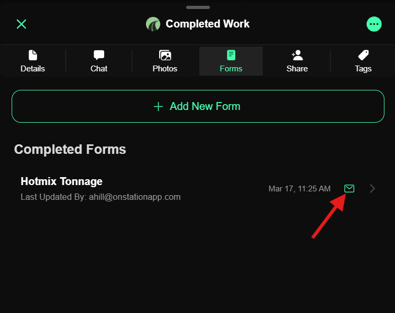
- Open the flag containing the completed form
- Navigate to the Forms tab
- Tap the envelope icon next to the form
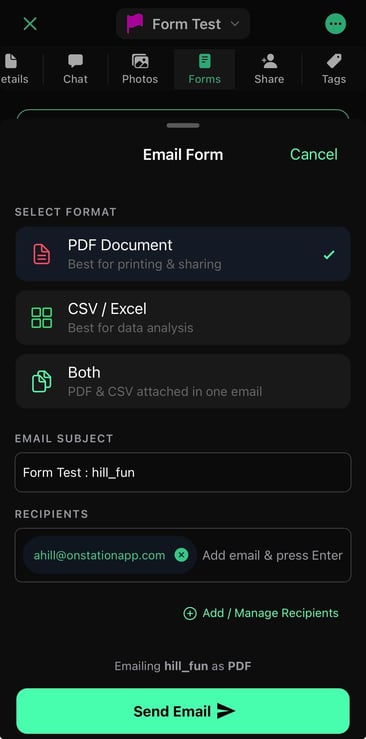
- Choose PDF, CSV, or Both
- Edit subject line (default: Flag name + Form Title)
- Add recipients and send
Forms are emailed as an attachment. The body of the email includes the user who sent it, the project name, the file name, and file type.
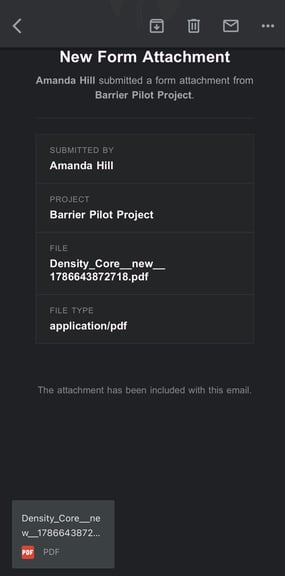
Example PDF export to a Gmail account
5. Sharing a Flag for Internal Viewing (App Only)
If the recipient is part of your organization, exporting or emailing may not be necessary.
In the OnStation App, you can share the flag so another user can view all associated data, including attached forms.
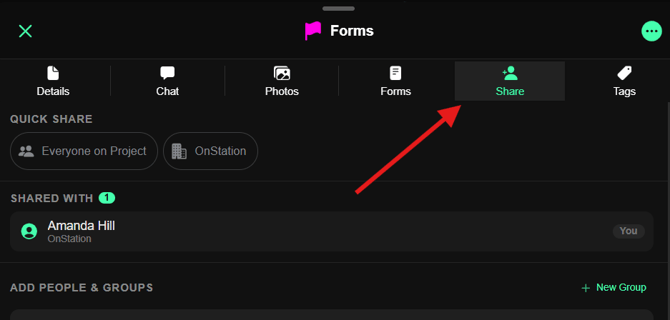
Requirements to View a Shared Flag
- Capture License
- Form Read and/or Form Write permission
Once shared, the recipient can view the flag and its form data directly in the App.
Note: Flag sharing is available in the App only.
6. License and Permission Requirements
Creating, exporting, and managing form data requires the appropriate combination of licensing and permissions.
Capture License (Required to)
- Create and complete forms
- View flags in the App
- View shared flags in the App (with proper permissions)
Data License (Required to)
- Export form data (CSV or PDF)
- Export flag records
- Email forms from the App or Portal
- Move or share project data outside OnStation
Without a Data License, form data may be visible, but export and email options are restricted.
Required Permissions
- View a form: Form Read
- Fill out a form: Form Read + Write
- Email a form: Form Read + Email
- Manage Form Data: Admin or Data Manager
Admins and User Managers can assign these permissions in the Groups tab of the Portal.
To learn more about Groups and Permissions click here.
Why This Matters
With multiple ways to view, export, email, or share form data, teams can choose the workflow that best fits their needs—whether that’s quick CSV exports, clean PDFs, emailing forms from the field or office, or sharing flags in the App for internal collaboration.
For help with licenses or permissions, contact your Account Representative or OnStation Support.