
Before You Begin
- Perform this test on site where you are experiencing the issue, not in an office or vehicle
- Make sure you are outdoors or in an open area if possible — being inside a building can affect results
- The test takes about 30–60 seconds to complete
Steps
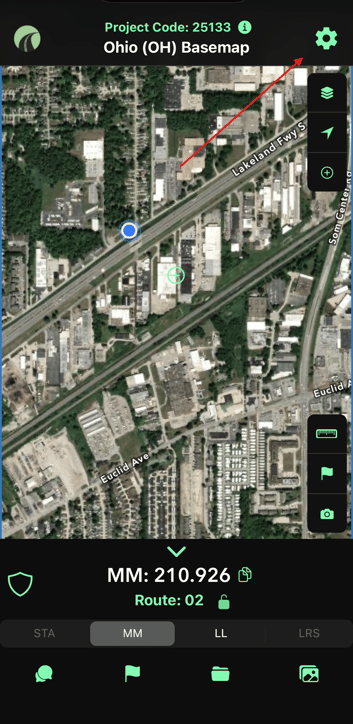
1. Open the Settings Menu
Tap the gear icon in the top-right corner of the main map screen.
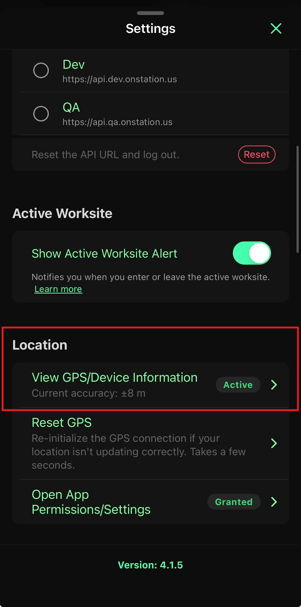
2. Navigate to GPS & Device
Scroll down within the Settings menu and tap View GPS/Device Information under the Location section.
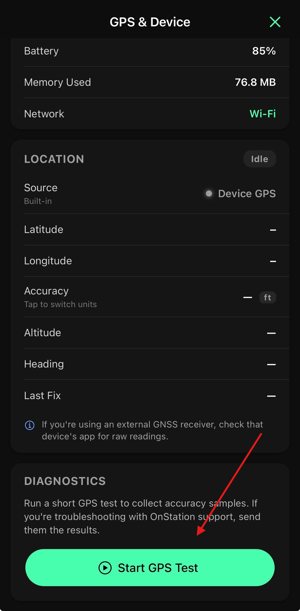
3. Start the GPS Test
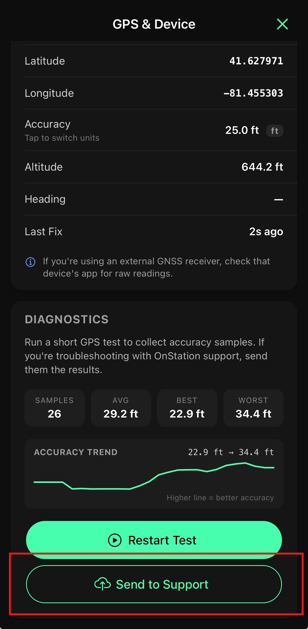
Scroll down to the Diagnostics section and tap Start GPS Test.
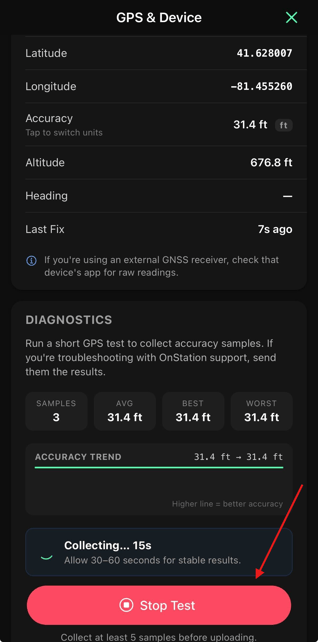
4. Let It Run
Allow the test to run for at least 30–60 seconds. You will see samples collecting and an accuracy trend building on screen. Wait until you have collected at least 5 samples — more is better.
5. Stop the Test
Tap Stop Test when finished.
6. Send to Support
Tap Send to Support, then confirm by tapping Send on the confirmation prompt. You will see a "GPS diagnostics uploaded" confirmation at the bottom of the screen when the report has been sent successfully.
What Gets Sent
The report includes only your GPS location readings (latitude, longitude, accuracy, altitude, and heading samples) collected during the test. No personal content beyond your location readings is included.
After Sending
Let your support contact know you have sent the report and provide the approximate date and time you ran the test. This helps the team locate your submission quickly.
As always if you have any questions or need to reach support call or text us at
216-503-8554. Stay Safe!