
OnStation now supports bulk exporting flags as PDF files directly from the Portal. No more exporting one flag at a time. No more workarounds. Just select what you need and export everything in one go.
Whether you’re preparing project documentation, submitting materials for review, or organizing records, Bulk Flag PDF Export makes it faster and easier than ever.
What You Can Do
With Bulk Flag PDF Export, you can:
- Export one flag, multiple flags, or all flags from a project
- Choose exactly what information appears in each PDF (such as forms and photos)
- Download everything together in one ZIP file
- Close the Portal and receive an email notification when your export is ready
Each flag is exported as its own PDF and clearly named, so files are easy to identify and organize.
How to Export Flags as PDFs
-
Go to your Project
- Open the OnStation Portal
- Select Projects, then open the project you’re working in
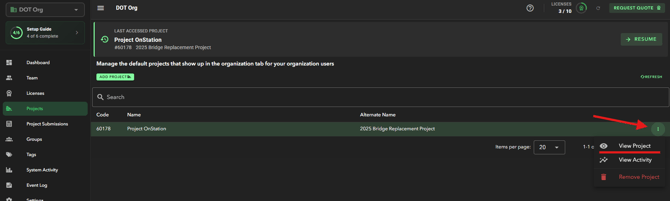
- Navigate to Flags
-
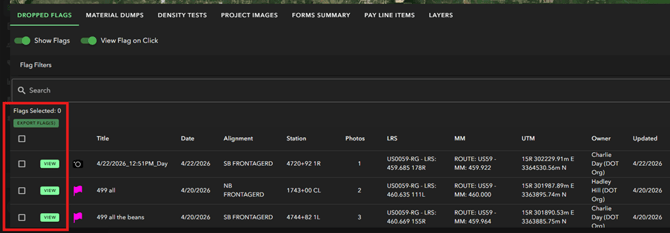
Select Your Flags
- Export a single flag directly from its menu
- Or use Select Flags to choose multiple
- Or choose Select All Flags to grab everything at once
-
Choose “Export to PDF”
- Open the export menu and select Export to PDF
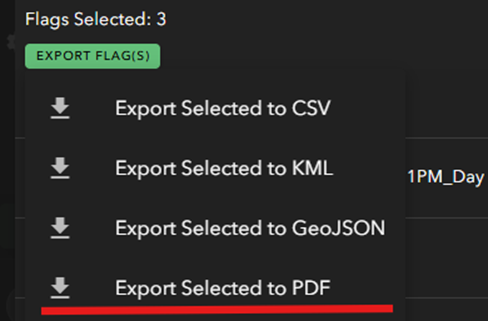
- Open the export menu and select Export to PDF
-
Choose What to Include
- Select any additional content you want included, such as:
- Form data
- Photos
- Pay line items (if applicable)
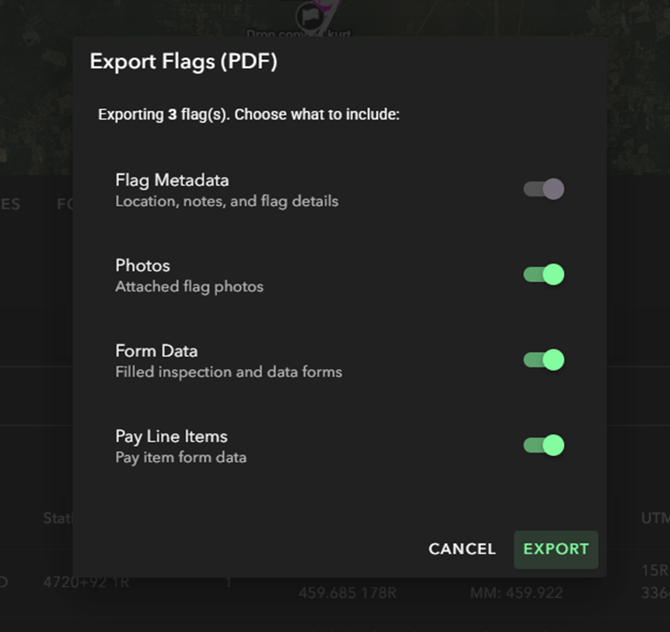
- Select any additional content you want included, such as:
-
Get Your Files
- Download the ZIP file directly when it’s ready.
Keep the export window open. When the export finishes, a download link will appear. Click it to download the zip file.
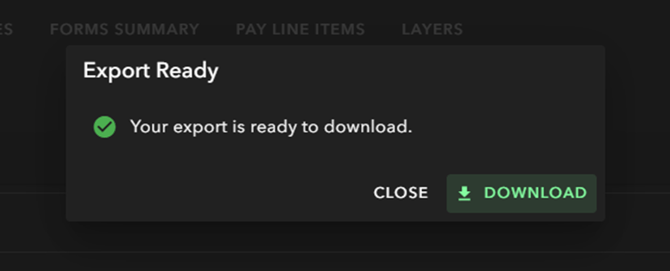
- Or close the dialog and continue working. OnStation will send an email to your registered address when the export is ready. (valid for 7 days)
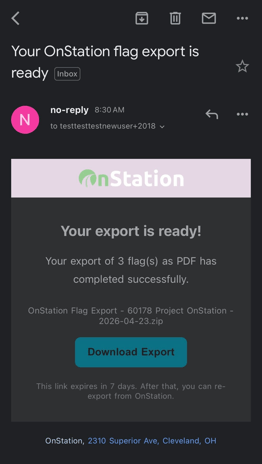
- Download the ZIP file directly when it’s ready.
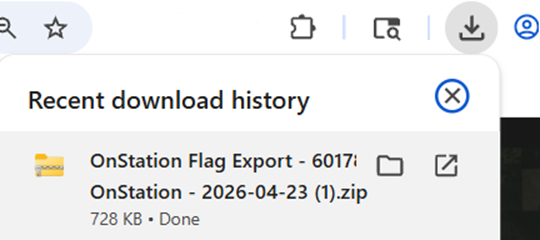
- Open the Zip File
The downloaded zip contains one PDF per exported flag. Each file is named to match the corresponding flag (Flag ID#-Flag Icon-Flag Title), making it easy to identify and organize your exports.
License and Permissions Requirements
- A Data License and Data Manager permissions are required to use Bulk Flag PDF Export
- If you do not have a Data License and Data Manager Permissions, the export option will be unavailable
As always if you have any questions or need help using this feature reach out to our support team here.