
Table of Contents
Overview
Flag Configuration lets your organization standardize how flags are created and tracked across every project. There are two parts:
- Templates — Pre-configure an icon, title prefix, tags, and work items so that when someone drops a flag, the details fill in automatically. No manual tagging. No missed fields. Think of it as a flag lexicon: red always means "Needs Attention," green always means "Done."
- Statuses — Define a workflow for flags in your organization (e.g., New → In Progress → Completed). When a status changes, OnStation can automatically update the flag's icon or apply a template — giving everyone on the project an instant visual on where things stand.
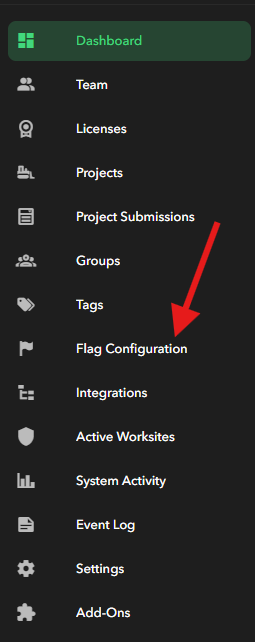
Both are managed under
Flag Configuration in the left navigation of the Portal. Brand-new organizations will start with both tabs empty — an admin or project manager builds them out.
Who can use this:
|
Role |
What they can do |
|
Admin or Project Manager |
Creates and manages Organization Templates and Statuses in the Portal. |
|
Any user with a Capture license |
Use Organization Templates and Statuses in the app. Create and use personal (My Templates) in the app. |
Part 1: Templates — Creating & Managing in the Portal
Go to Flag Configuration and click the
Templates tab. If nothing has been set up yet, you'll see "No data available." Click + Create Template to begin.
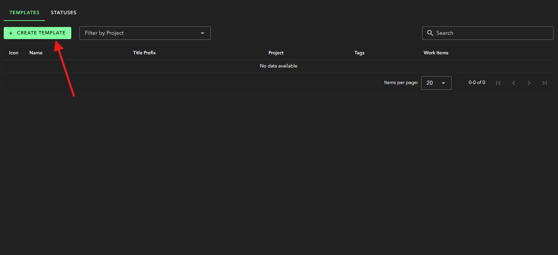
Template creation walks through three steps:
Icon & Details → Select Projects → Work Items
Step 1 — Icon & Details
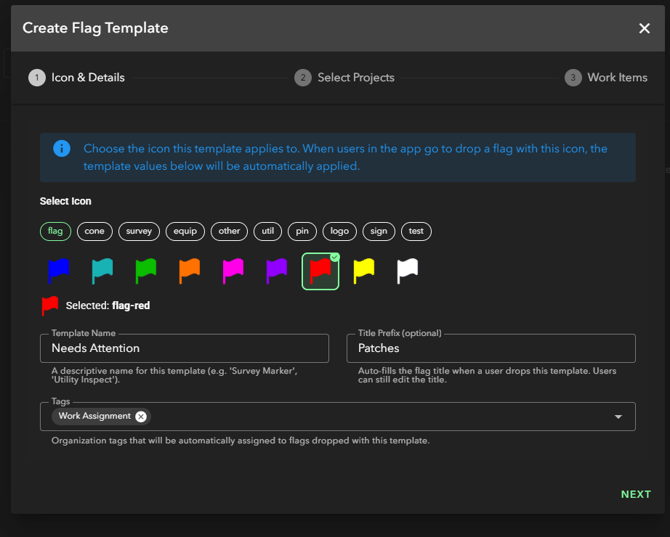
Set up what the template looks like and what it pre-fills when a flag is dropped.
- Select Icon — Browse icon categories (flag, cone, survey, equip, other, util, pin, logo, sign, test) and pick a color. The template fires automatically when a user drops a flag using that icon on a configured project.
- Template Name — The label users see (e.g., "Needs Attention," "Done," "Manhole Repair").
- Title Prefix (optional) — Auto-fills the start of the flag title. A prefix of "Patch" begins a flag drop as Patch. Users can still edit the title after dropping.
- Tags (optional) — Any tags selected here are automatically applied to every flag created with this template. No tagging required in the field.
If a form is assigned to the icon selected you will be notified and able to view which forms.
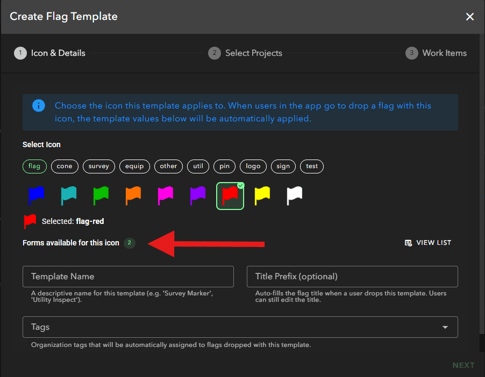
Tap View List to see the title of the form associated to the icon
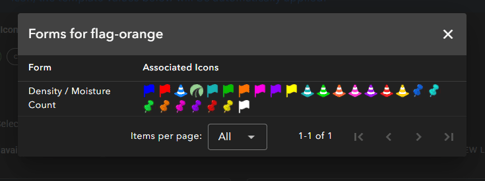
Click Next when ready.
Step 2 — Select Projects
Search for Projects by project code, name, or alternate name
Choose which projects this template applies to. Only projects your organization is assigned to are shown.
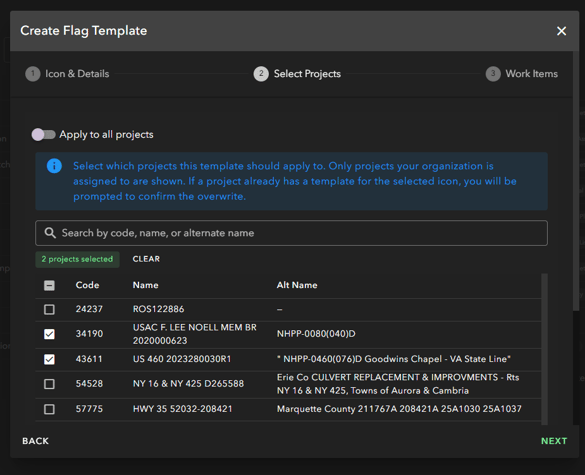
Apply to all projects
When apply to all the template applies to every project in your organization, and it will keep applying to any projects added in the future.
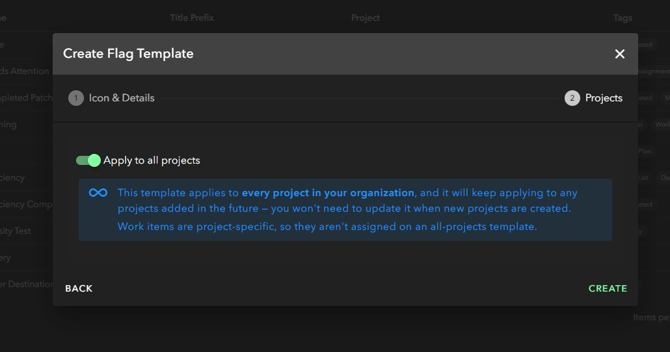
Note that you will be notified an icon has been configured with a template applied to ALL projects by the infinity symbol above the icon on the icon selection page.
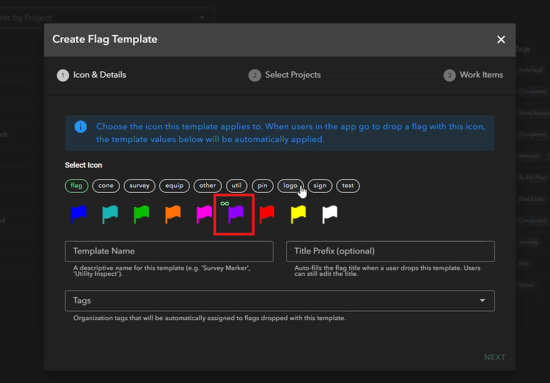
Work items are project-specific, so they aren't assigned on an all-projects template.
|
⚠️ Existing template for the same icon? If a project already has a template configured for the icon you selected, you'll be prompted to confirm before overwriting it. |
Click Next when your projects are selected.
Step 3 — Work Items
Optionally attach work items to the template on a per-project basis. If a selected project has work items, you can choose which ones are pre-linked to every flag dropped with this template on that project. Work items are project-specific — what's available will differ by project.
Click Create to save. If you selected multiple projects, OnStation creates one template entry per project.
Editing & Deleting Templates
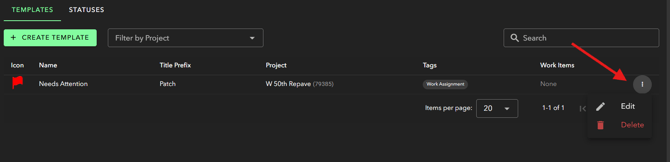
Saved templates appear in the Templates table with their icon, name, title prefix, project, tags, and work items.
Use Filter by Project or the Search bar to find templates quickly.
Use the ⋮ menu on any row to Edit or Delete.
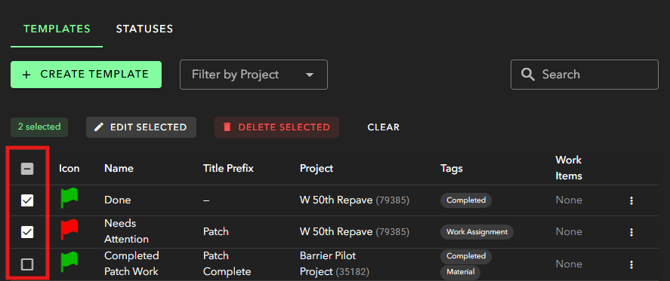
Use the check boxes next to each template to select and bulk edit and delete.
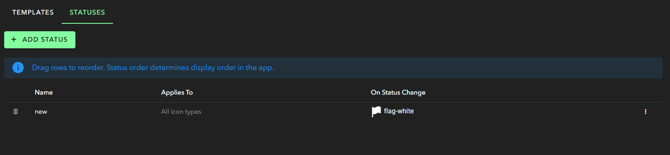
Part 2: Statuses — Creating & Managing in the Portal
Statuses define a flag lifecycle for your organization. Field users can apply statuses from the app, but only Admins and Project Managers can create or manage them in the Portal.
Creating a Status
Click the Statuses tab, then + Add Status.
Status Name — What users will see in the app (e.g., "New," "In Progress," "Completed").
Applies to Icon Types — Controls which flags display this status option.
- Toggle All Types on to make this status available for every flag icon in your organization.
- Toggle it off to select specific icon types — useful when a status only makes sense for certain flag categories.
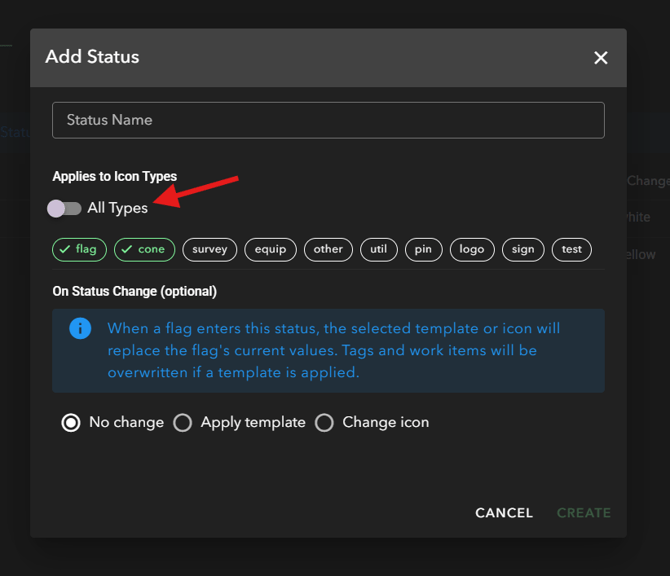
On Status Change (optional) — What happens automatically when a user applies this status:
- No change — Only the status label updates. The flag icon stays the same.
- Change icon — The flag's icon switches automatically to the icon you select. A fast way to show status at a glance on the project map.
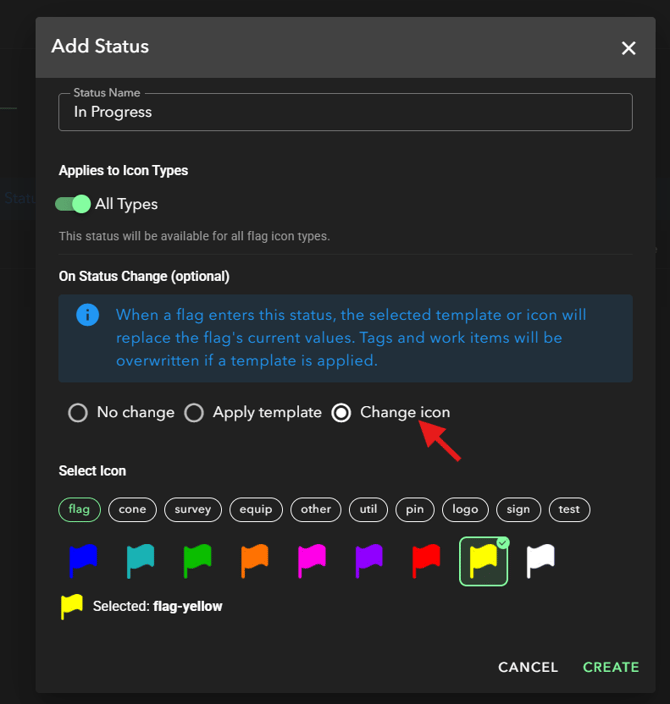
- Apply template — A full template is applied to the flag, updating its icon, tags, and work items all at once. Use this for status changes that represent a complete handoff.
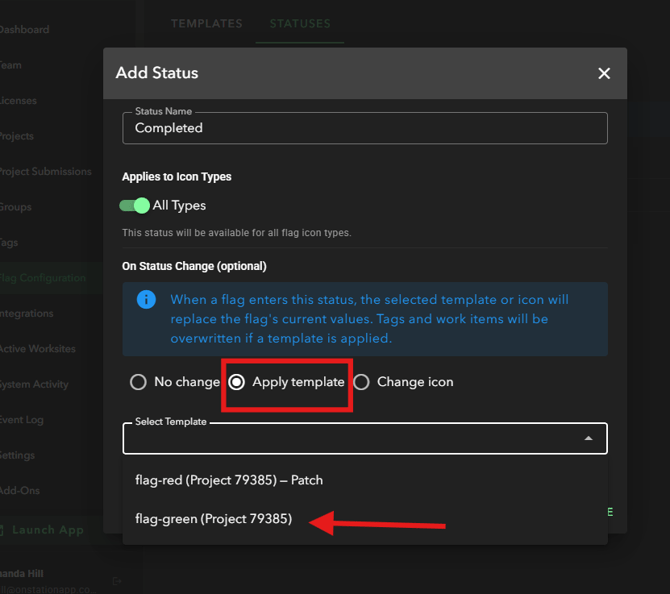
|
⚠️ Apply template overwrites flag values When a flag enters a status with "Apply template" set, the selected template replaces the flag's current icon, tags, and work items. Use this intentionally for handoff or completion states. |
Click Create to save.
Reordering Statuses
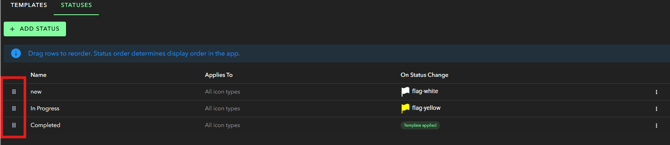
The order statuses appear in this list is the order users see them in the app. Drag rows using the ⠿ handle on the left to reorder. Use the ⋮ menu to edit or delete any status.
Part 3: Creating Personal Templates in the App
Any user with a Capture license can create personal templates — shortcuts that only they can see and use. These live under My Templates in Quick Drop and in Project Settings.
How to Create a Personal Template
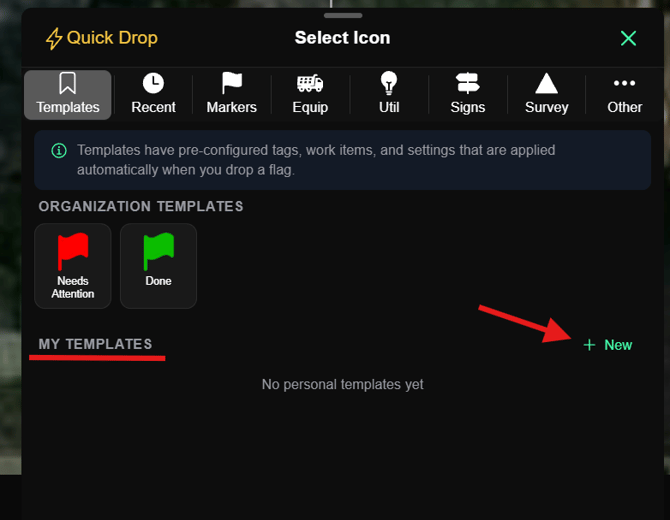
- Open Quick Drop and tap the Templates
- Under My Templates, tap + New.
- Fill in the Create Template screen:
- Icon — Pick an icon type and color.
- Template Name — Visible only to you.
- Title Prefix (optional) — Auto-fills the flag title when you use this template.
- Tags (optional) — Tap + Add to pick from your organization's tags. These apply automatically whenever you use this template.
- Work Items (optional) — Pre-link work items if needed.
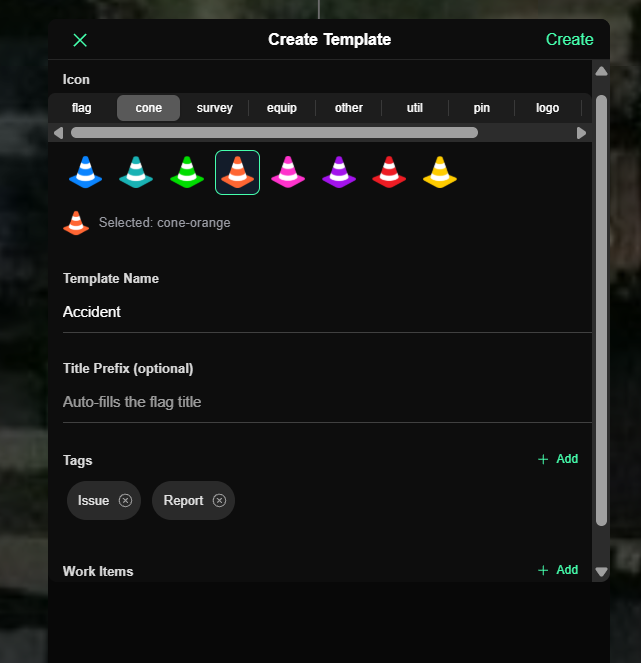
- Tap Create. Your template is now available under My Templates in Flags and in Project Settings.
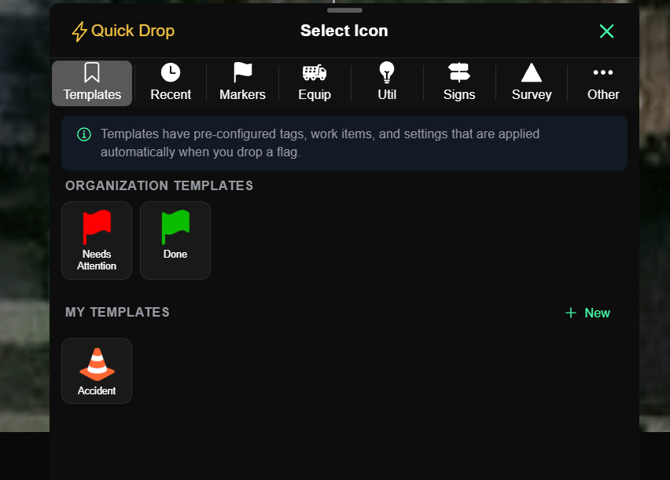
Part 4: Using Templates & Statuses in the App
Once Organization Templates and Statuses are configured in the Portal, any Capture license user sees them in the app automatically — no setup needed on their end.
Viewing Templates from Project Settings
Users can also see the Organization Templates and manage their personal templates directly from the project, without initiating flag creation. This is helpful for reviewing what's available before dropping flags.
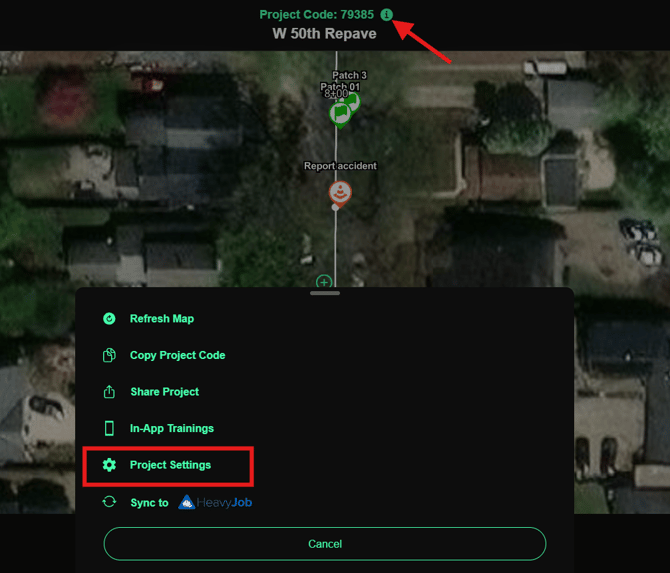
Tap the ⓘ icon next to the project name at the top of the screen, then select Project Settings from the menu.
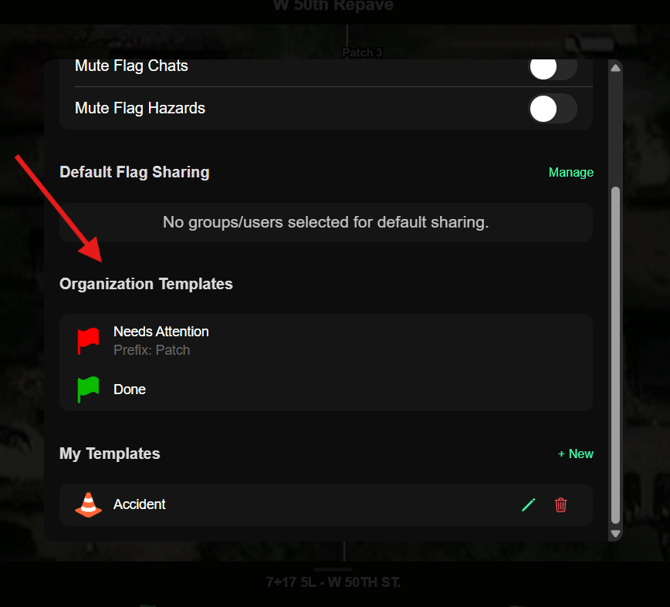
Scroll down in Project Settings to find the Organization Templates section, which lists all templates configured by your admin for this project. Below that, the My Templates section shows your personal templates, with options to edit (✏️) or delete (🗑) each one and a + New button to create a new personal template.
Dropping a Flag with a Template (Normal Flow)
To drop a single flag as a template, tap the flag icon on the right as you normally would to drop a flag. When you drop a flag the standard way, the flag editor opens as usual. From there, tap the Templates tab.
All Organization Templates and your personal templates appear here, the same ones you see in Quick Drop. Tapping a template applies its icon, title prefix, and tags to the flag you're currently editing.
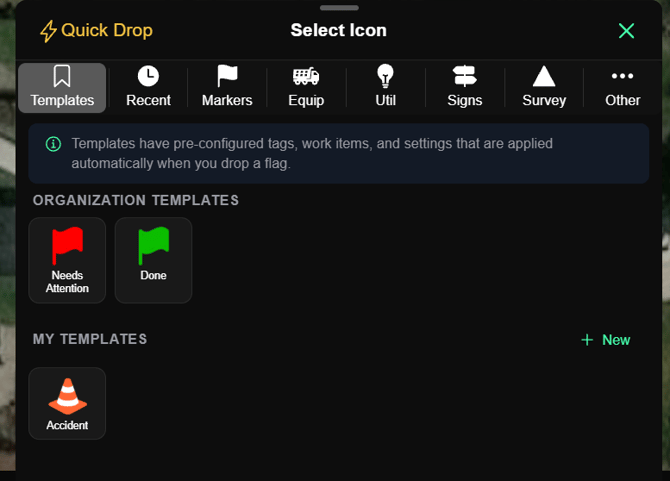
Dropping a Flag with a Template (Quick Drop)
To enter Quick Drop mode, tap Quick Drop at the top of the flag menu.
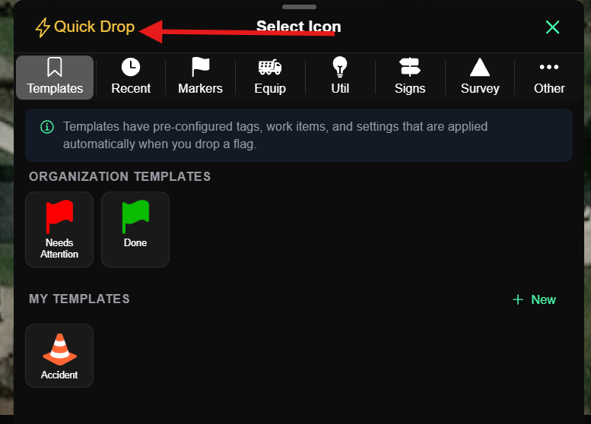
Next, access the icon selector and note the Organization and personal template icons. Chose which template icon you would like to use and start dropping flags!
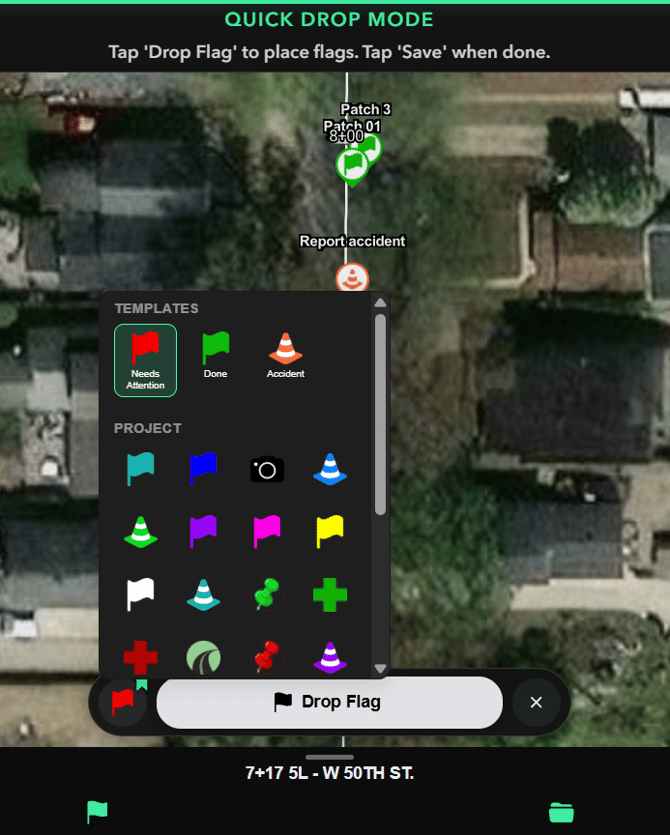
To learn more about Quick Drop mode, click here.
|
💡 Quick Drop + Templates = faster field documentation Combine templates with Quick Drop to place multiple pre-configured flags in a row, then save them all at once. See the Quick Drop article for the full walkthrough. |
Applying a Status to a Flag
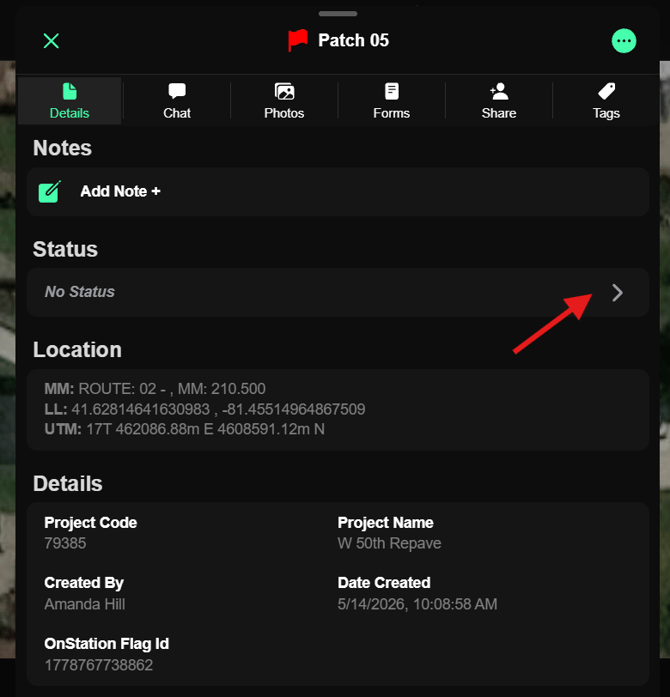
To set or update a flag's status, open the flag and go to the Tags tab. If your organization has at least one status configured, the status options appear here. Tap a status to apply it.
|
ℹ️ Don't see a status menu? Statuses only appear in the app when at least one has been configured for your organization in the Portal. If you don't see any status options, check with your admin or project manager. |
Select status.
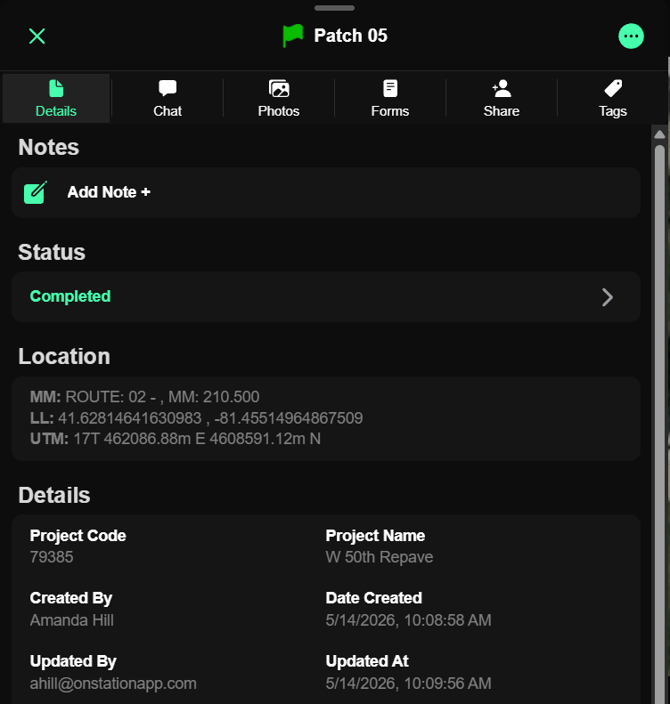
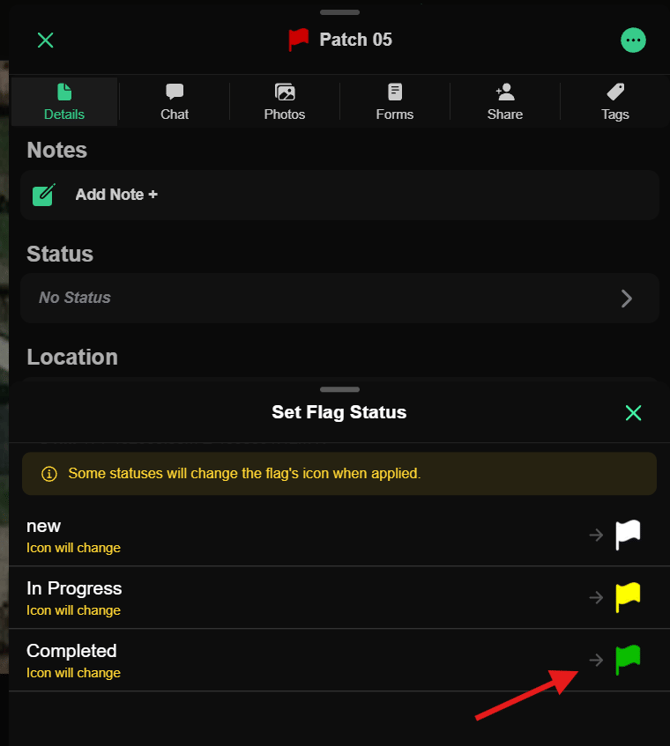 If the status is set to change the icon or apply a template, that happens instantly — no additional steps. The app will indicate when applying a status will change the flag's icon.
Frequently Asked Questions
Does an admin need a specific license to set up templates in the Portal?
No. Configuration in the Portal is permission-based, not license-based. Any Admin or Project Manager can create and manage templates and statuses regardless of their license tier.
What license do field users need to use templates in the app?
A Capture or Data license is required.
What if my org has a template on the same icon as my personal template?
Both show up in Quick Drop — Organization Templates at the top, My Templates below. You pick which to use. You can also skip templates entirely and drop any flag from the regular icon library.
Can I promote a personal template to an Organization Template?
Not directly. An Admin or Project Manager will need to recreate it in the Portal under Flag Configuration.
Will new projects automatically pick up existing templates?
New projects need to be added by editing the template in the Portal.
Why don't I see a status menu on my flags?
The status menu only appears when at least one status has been configured for your organization in the Portal. No statuses configured = no menu.
Can a status apply to only certain flag types?
Yes. When creating a status, toggle off "All Types" to select specific icon categories.
7. Video Tutorials
- Create a Flag Template for your Organization
- Create a Flag Status for your Organization
- Templates and Statuses in App
Questions? Contact support at (216) 503-8554 or visit help.onstationapp.com. Stay safe out there.