
1. Allow location access on your phone
OnStation needs Always On location access and Precise Location enabled to give you an accurate station reading. Set this up once and you won't need to touch it again.
|
ON THIS PAGE 1. Allow location access on your phone 2. Turn on your blue dot in the app 3. Read your station and offset 4. Switch or lock an alignment |
1. Allow location access on your phone
OnStation needs location access and Precise Location enabled to give you an accurate station reading. Set this up once and you won't need to touch it again.
Apple iOS
1. Open the Settings app
2. Tap Privacy & Security
3. Tap Location Services
4. Confirm Location Services is on
5. Scroll down and tap OnStation
6. Set Allow Location Access to Always or Allow While Using
7. Toggle Precise Location on
Android
1. Open the Settings app
2. Tap Location
3. Confirm Location is toggled on
4. Tap App permissions
5. Find and tap OnStation
6. Select Allow While Using
7. Toggle Use precise location on
Have an issue with your GPS? Need help with phone settings? Have Questions? Reach out to Support here.
2. Turn on your blue dot in the app
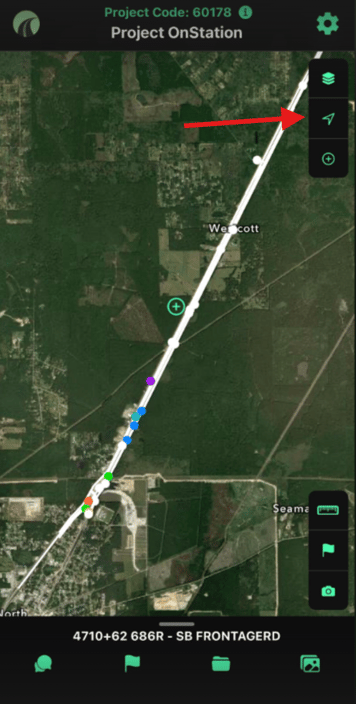
Once you're in the app and on your project, activate your GPS location using the arrow icon in the right toolbar.
-
Tap once to turn the blue dot on. Notice your cross-hair aligns with the dot.
- If you move your cross-hair away from your location and need to realign, tap the arrow again.
 |
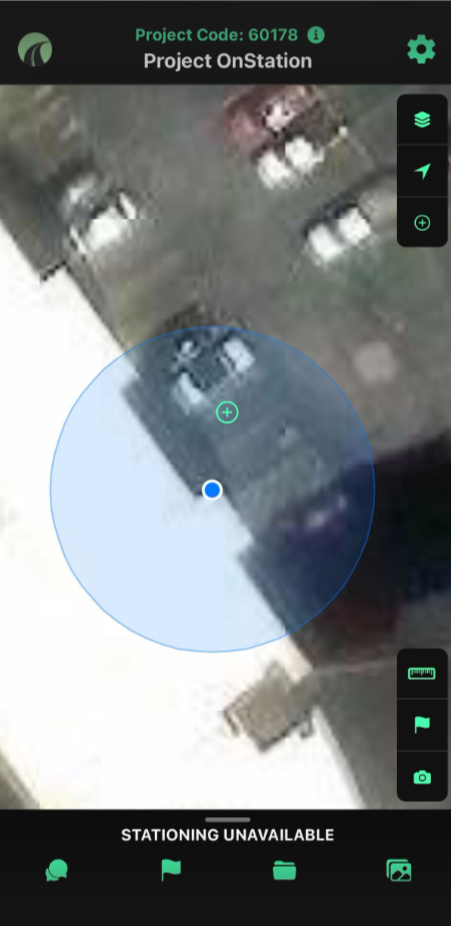 |
- Tap the arrow icon in the right toolbar It turns green when active. Your blue dot appears on the map at your current location.
- Watch for the accuracy ring A larger blue circle surrounds your dot — this is your accuracy ring. The smaller the ring, the more accurate your GPS signal. It tightens as your phone locks onto more satellites.
-
Move around and the dot follows you Your blue dot updates in real time as you walk the project. The station reading at the bottom of the screen updates with it.
| Arrow icon (green) | GPS is active — blue dot is on and following you |
| Arrow icon (white) | GPS is off — tap to activate |
| Arrow icon (amber) | GPS is locating a signal |
| Arrow icon (red) | GPS is disabled on a device/iOS level |
| Crosshair icon | Re-centers the map back to the middle of your project — does not affect GPS |
3. Read your station and offset
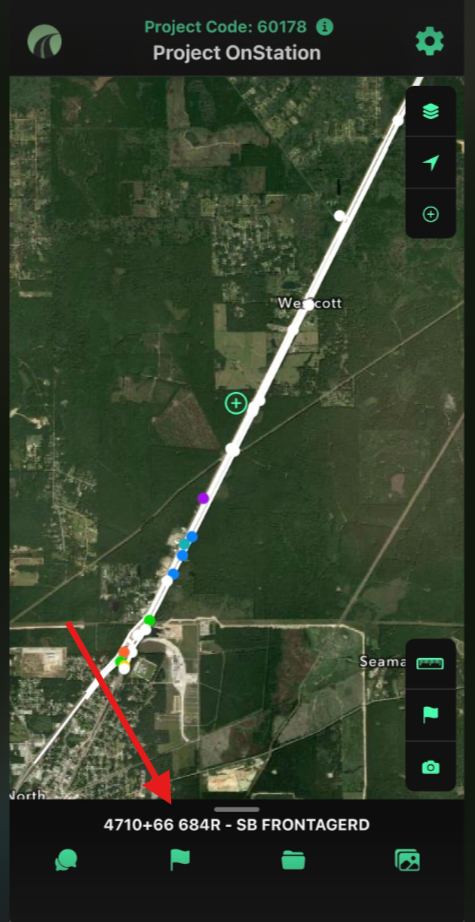
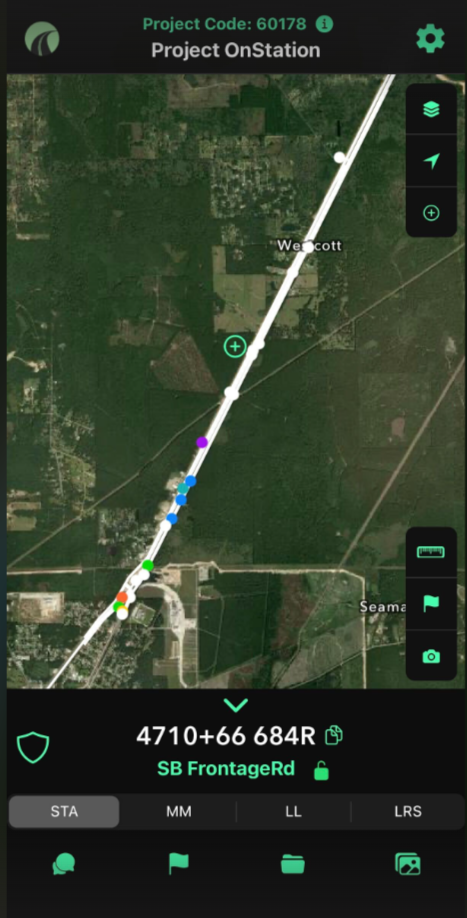
The mini station finder sits at the bottom of the map screen. It shows your current station, offset, and alignment at a glance.
 |
 |
-
Glance at the bottom bar Your station, offset, and alignment name are always visible here while GPS is active.
- Tap the bar to expand the full station finder The expanded view shows your full station and offset reading, the alignment name, and the copy icon to copy your station to clipboard.
- Tap the copy icon to copy your station Copies the full station and offset to your clipboard — useful for pasting into a flag note or a message.
4. Switch or lock an alignment
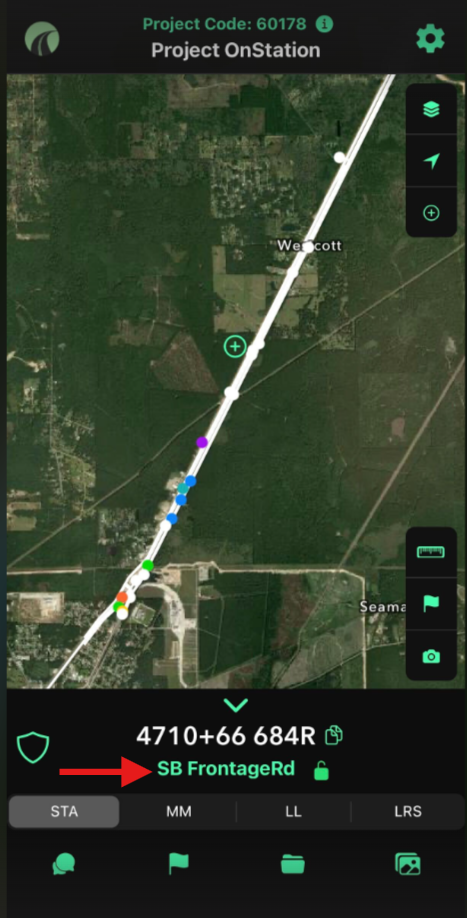
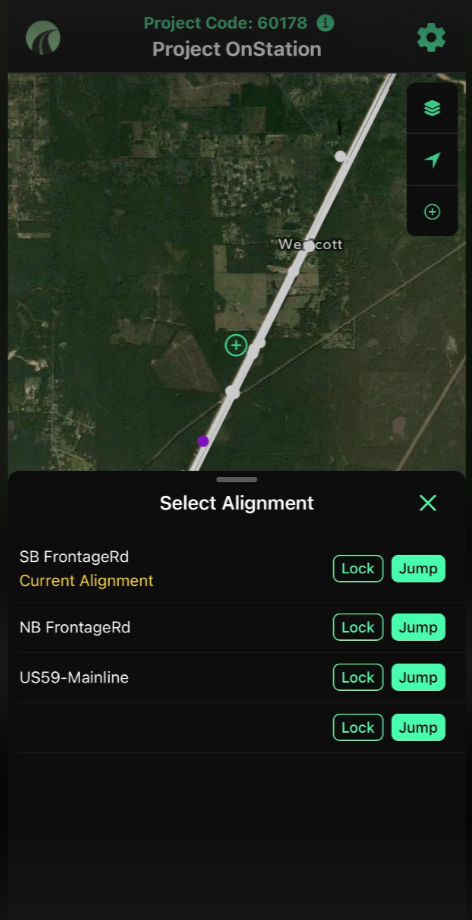
If your project has multiple alignments — a mainline and a frontage road, for example — OnStation will snap to whichever one you're physically closest to. You can also manually lock to a specific alignment or jump to a station on a different one.
 |
 |
-
Tap the alignment name in the station finder Opens the Select Alignment sheet. Your current alignment is highlighted in orange.
- Lock or Jump Tap Lock to pin your station reading to that alignment regardless of where you're standing. Tap Jump to move the map view to a specific station on that alignment.
If your station reading looks wrong, check which alignment is active first. On projects with parallel alignments close together, OnStation may snap to the nearest one — which might not be the one you're working on. Use Lock to pin it.
5. Switch between STA, MM, LL, and LRS
In the expanded station finder, tabs at the bottom let you switch how your location is displayed. Not all options are available on every project — it depends on what your project's design file includes
- STA
- MM
- LL
- LRS
6. Switching to a different project
To move to a different project, tap the OnStation logo in the top left corner of the map. This takes you back to your project list where you can select a new one.
The app always opens to the last project you were working in. If you work across multiple projects, make it a habit to confirm the project name at the top of the screen before dropping flags or filling out forms.