
Filter your flags
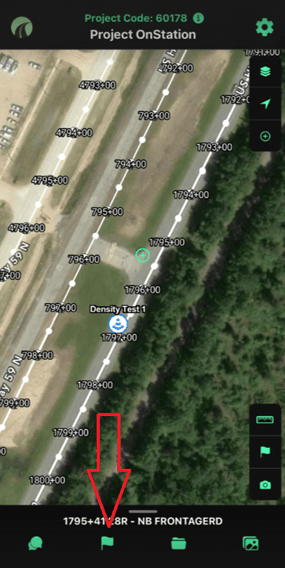
The flag icon sits at the bottom of the screen, under the station finder.
Steps:
- Open the OnStation app and select the project you want to work in. The app automatically reopens the most recent project you were viewing.
- Tap the Flag icon at the bottom of the screen, under the station finder.
- Tap the Filter tab to see your filter options.
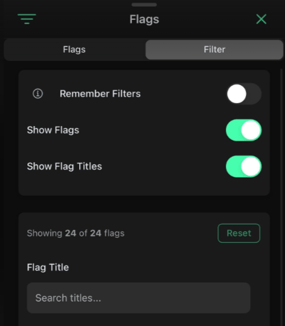
Filter options — Remember Filters, Show Flags, and Show Flag Titles.
- Remember Filters — if you want the same filters applied every time you open this project, set your filters, then switch this toggle on (it turns green when active).
- Search by Flag Title — type a word or phrase to show only flags with matching titles. For example, searching "flag" shows only flags with "flag" in the title and hides the rest from the map.
- Show Flags — on by default, showing every flag you have access to (created by you or shared with you). Turn this off to view the map with no flags at all.
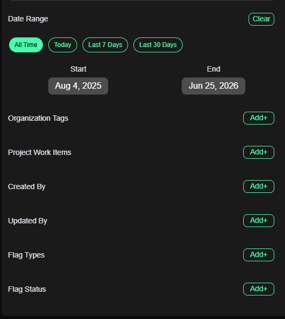
Additional filters — date range, tags, work items, created/updated by, flag type, and flag status. Tap Add+ on any section to apply it.
For each filter section, tap Add+ to view and apply the available options. Filters you apply only affect your own account — every user sets their own flag filter preferences.
- Date filter
- Tag filters
- Selected work item filters
- Created By filters
- Updated By filters
- Flag type filters
- Flag status filters
Flag Status Sort
By default, flags sort in the workflow order your admin set up in the Portal (Flag Configuration → Statuses, where rows can be dragged to reorder).
Tap the sort icon to cycle through three views:
- Workflow order (up arrow) — top-to-bottom, matching the order set in the Portal
- Reverse order — the same list, flipped
- No sort — tap a third time to remove status sorting
Flags with no status assigned always sort to the bottom, regardless of which view you're in.
Select and bulk edit multiple flags
Once you've filtered down to the flags you want, you can edit several of them at once instead of opening each one individually. This is available exclusively to users with a Capture or Data license.
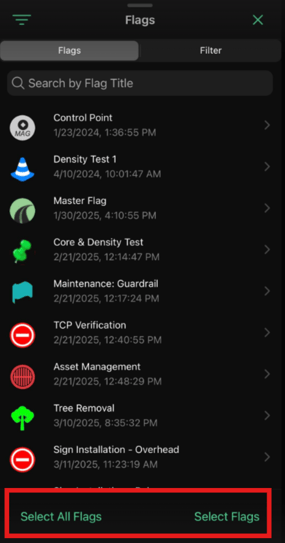
From the Flags tab, tap Select All Flags or Select Flags to choose which ones to edit.
Steps:
- From the Flags tab, tap Select All Flags to choose every flag currently showing, or Select Flags to choose specific ones.
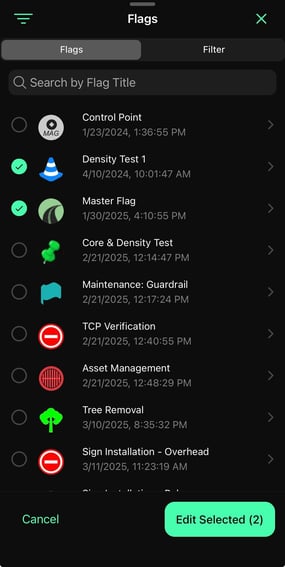
Tap flags to check them, then tap Edit Selected to open the bulk editor.
- Tap each flag you want to include — a green checkmark appears next to selected flags.
- Tap Edit Selected to open the bulk editor.
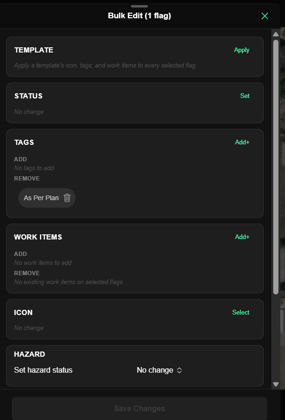
Bulk Edit — apply template, set status, add or remove tags, work items, change the icon, or set hazard status across all selected flags.
From the Bulk Edit screen, you can:
- Templates — apply template across all selected flags.
- Statuses — set status across all selected flags.
- Tags — add or remove tags across all selected flags.
- Work Items — add or remove work items across all selected flags.
- Icon — change the icon for all selected flags at once.
- Hazard — set hazard status across all selected flags.
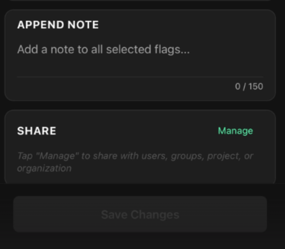
Append a note to all selected flags, or manage sharing — all in one bulk action.
- Append Note — add a note to all selected flags (up to 150 characters).
- Share — tap Manage to share all selected flags with users, groups, a project, or an organization at once.
- When you're done, tap Save Changes to apply your edits to every selected flag.
To learn more about bulk editing click here.
Need help? Call or text us at (216) 503-8554, or reach out online.