---
title: "OnStation Form Sharing: How to Email Forms"
description: Learn how to export or email completed OnStation forms as PDF or CSV in both the app and portal, add recipients, and understand required licenses.
---
[Skip to content](https://help.onstationapp.com/knowledge/export-forms-via-email#main-content)
English
Show submenu for translations
[More support](https://help.onstationapp.com/knowledge/kb-tickets/new?hsLang=en) [Support Portal](https://help.onstationapp.com/support-portal?hsLang=en)
[](https://www.onstationapp.com?hsLang=en)
- Support Tools
Show submenu for Support Tools
- [Updates & Bug Fixes](https://www.onstationapp.com/whats-new)
- [Training Webinars](https://www.onstationapp.com/training-webinars)
- [General Stationing Training](https://www.onstationapp.com/stationing-training-series)
- [Submit A Ticket](https://share.hsforms.com/291l4uAzdR0C-hDSgSZKqUQ3053t)
- [Schedule Training](https://meetings.hubspot.com/aubrey-hadney/training-scheduler)
- [Visit Official Website](https://www.onstationapp.com/)
Open main navigation
Close main navigation
- Support Tools
Show submenu for Support Tools
- [Updates & Bug Fixes](https://www.onstationapp.com/whats-new)
- [Training Webinars](https://www.onstationapp.com/training-webinars)
- [General Stationing Training](https://www.onstationapp.com/stationing-training-series)
- [Submit A Ticket](https://share.hsforms.com/291l4uAzdR0C-hDSgSZKqUQ3053t)
- [Schedule Training](https://meetings.hubspot.com/aubrey-hadney/training-scheduler)
- [Visit Official Website](https://www.onstationapp.com/)
- English
Show submenu for translations
- [More support](https://help.onstationapp.com/knowledge/kb-tickets/new)
- [Support Portal](https://help.onstationapp.com/support-portal)
- [Contact Us](https://www.onstationapp.com/contact-us)
[Contact Us](https://www.onstationapp.com/contact-us?hsLang=en)
How can we help you?
- There are no suggestions because the search field is empty.
1. [Knowledge Base](https://help.onstationapp.com/knowledge?hsLang=en)
2. [Export & Report](https://help.onstationapp.com/knowledge/export-report?hsLang=en)
3. [Learn More](https://help.onstationapp.com/knowledge/export-report?hsLang=en#learn-more)
August 13, 2026
# OnStation Form Sharing: How to Email Forms
## How to Email Forms from OnStation: In the App and in the Portal
OnStation makes it easy to share completed forms—whether you're out in the field or working from the office. You can send forms directly from the **OnStation app** or through the **web portal**, depending on how you work. Here’s how it works and what licenses you need.
---
#### **Emailing a Form from the OnStation App**
When you complete a form inside a flag, OnStation gives you a quick way to send it out for documentation, record‑keeping, or team communication.
### **Where to Find the Email Option**
### **1. Select the Flag**
Open the flag that contains the form you want to share.
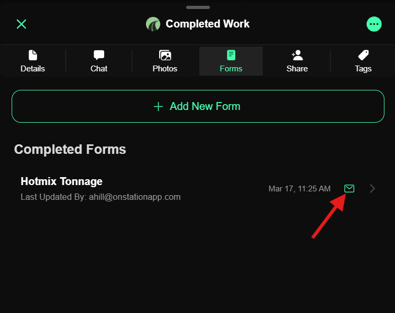
### **2. Tap the Envelope Icon**
Under the **Forms** tab, look for the **envelope icon** next to the completed form.
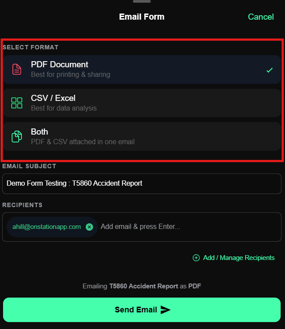
### **3. Choose Your Format: PDF or CSV**
You’ll be prompted to choose how you want to export:
- **PDF** for clean, easy‑to‑read documentation
- **CSV** for spreadsheet or data‑analysis use
- **Both** PDF and CSV attached in one email
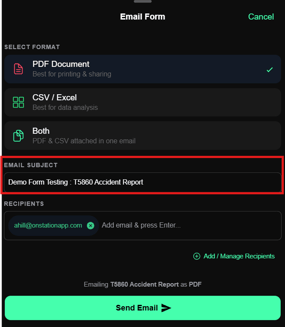
### **4. Edit Subject Field**
You can choose to edit the subject field of the email. The default field is Flag Title: Form Title
### **5. Add Recipients**
You can send the form directly from the export window by:
- Typing in **email addresses** in the Recipients text box, and/or
- Searching your **Project Users**, **My Groups**, or **Organization Groups **by tapping "+ Add/Manage recipients"
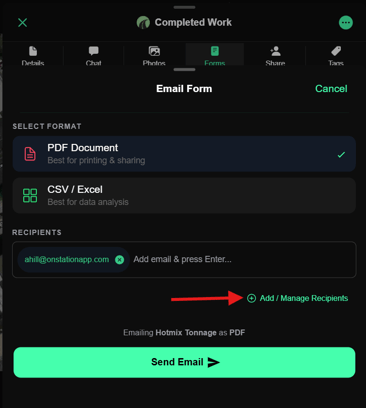
Once you’ve sent your first form, your **Recent Recipients** will appear automatically to save time on future sends.
This is perfect for crews who need to send updates from the field, inspectors tracking work progress, or supervisors requesting immediate documentation.
---
#### **Emailing a Form from the OnStation Portal**
If you're working from the office or reviewing multiple flags, emailing forms from the **Portal** is just as simple.
### **How to Email a Form in the Portal**
### **1. Open the Project and Select the Flag**
Navigate to the **OnStation Portal**. Select "Projects" from the menu on the left. Locate the project you want to work in and view the flag that contains the completed form.
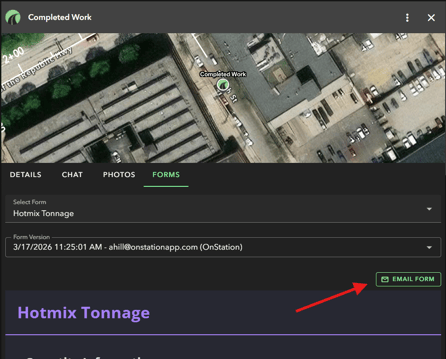
### **2. Select the Form and Tap “Email Form”**
You’ll see an envelope similar to the mobile app.
### **3. Export as PDF or CSV or Both**
Choose the format that fits your reporting or documentation needs.
### **4. Edit Subject Field**
You can choose to edit the subject field of the email. The default field is Flag Title: Form Title

### **5. Add Recipients**
Just like in the app, you can:
- Enter email addresses
- Search **Project Users**, **My Groups**, or **Org Groups**
- Use your **Recent Recipients** after your first send
This workflow is ideal for project managers, DOT reviewers, or office staff organizing documentation or exporting records.
Forms are emailed as an attachment. The body of the email includes the user who sent it, the project name, the file name, and file type.
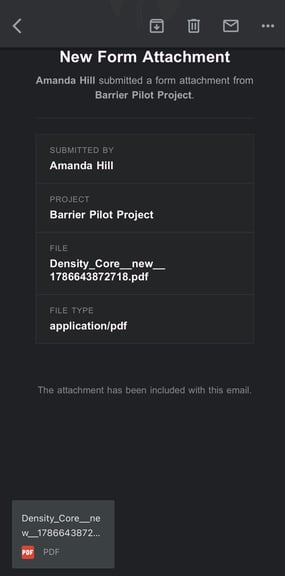
*Example PDF export to a Gmail account*
---
#### **License and Permission Requirements**
To keep project data secure and ensure proper access control, OnStation uses licenses and permissions:
### **Capture License**
A **Capture License** is required to:
- Create forms
- Complete forms
- Share a flag
### **Data License**
A **Data License**, **plus activated permissions**, is required to:
- Email forms from the Portal
- Move, export, or share any project data outside the app or Portal
- Access higher‑level data management tools
**Without a Data License, the form will still be visible, but sharing/export options will be restricted**.
### **Assigned Permissions**
The ability to email a form requires the following permissions. The user must be a member of the groups:
- **Legacy User and/or a group with "Form Reader" permissions assigned**
- **AND group permission "Form Email User" **
Admins and User Managers can create groups and assign permissions. To assign "Form Email User" to a group:
1. Navigate to the Groups tab in the OnStation Portal.
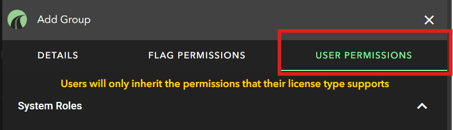
2. Select a group to edit or create a new group.
3. Tap User permissions.
4. Ensure Form Reader and Form Email User are selected.
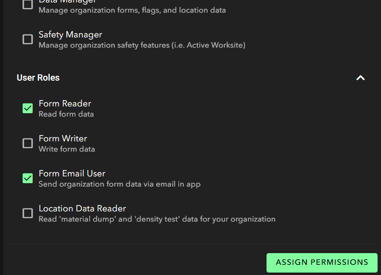
5. Tap Assign Permissions
6. Assign users to the group
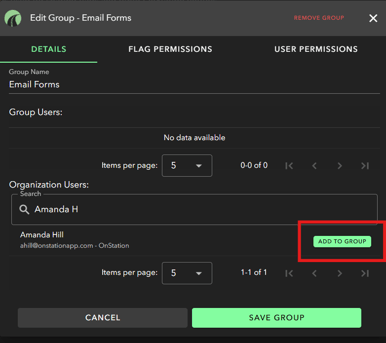
7. Finally, tap Save Group
---
#### **Why This Matters**
Whether you're a field worker, inspector, contractor, or DOT staff member, having the ability to send completed forms directly from the location where they're captured helps you:
- Improve communication
- Speed up approvals
- Maintain accurate records
- Keep teams aligned in real time
And with the Portal options, office staff can manage documentation without interrupting field productivity.
- [Getting Started](https://help.onstationapp.com/knowledge/getting-started?hsLang=en#main-content)
- [New Sign-Up/Onboarding](https://help.onstationapp.com/knowledge/getting-started?hsLang=en#new-sign-up-onboarding)
- [Navigating the App](https://help.onstationapp.com/knowledge/getting-started?hsLang=en#navigating-the-app)
- [Navigating the Portal](https://help.onstationapp.com/knowledge/getting-started?hsLang=en#navigating-the-portal)
- [Project Submissions and Managment](https://help.onstationapp.com/knowledge/getting-started?hsLang=en#project-submissions-and-managment)
- [User Managment](https://help.onstationapp.com/knowledge/getting-started?hsLang=en#user-managment)
- [Troubleshooting](https://help.onstationapp.com/knowledge/getting-started?hsLang=en#troubleshooting)
- [Document the Work](https://help.onstationapp.com/knowledge/document-the-work?hsLang=en#main-content)
- [Flags](https://help.onstationapp.com/knowledge/document-the-work?hsLang=en#flags)
- [Photos](https://help.onstationapp.com/knowledge/document-the-work?hsLang=en#photos)
- [Forms](https://help.onstationapp.com/knowledge/document-the-work?hsLang=en#forms)
- [Measuring Tools](https://help.onstationapp.com/knowledge/document-the-work?hsLang=en#measuring-tools)
- [Troubleshooting](https://help.onstationapp.com/knowledge/document-the-work?hsLang=en#troubleshooting)
- [Finding Your Location](https://help.onstationapp.com/knowledge/finding-your-location?hsLang=en#main-content)
- [Learn More](https://help.onstationapp.com/knowledge/finding-your-location?hsLang=en#learn-more)
- [Troubleshooting](https://help.onstationapp.com/knowledge/finding-your-location?hsLang=en#troubleshooting)
- [Share & Collaborate](https://help.onstationapp.com/knowledge/share-collaborate?hsLang=en#main-content)
- [Learn More](https://help.onstationapp.com/knowledge/share-collaborate?hsLang=en#learn-more)
- [Troubleshooting](https://help.onstationapp.com/knowledge/share-collaborate?hsLang=en#troubleshooting)
- [Export & Report](https://help.onstationapp.com/knowledge/export-report?hsLang=en#main-content)
- [Learn More](https://help.onstationapp.com/knowledge/export-report?hsLang=en#learn-more)
- [Active Worksite™](https://help.onstationapp.com/knowledge/active-worksite?hsLang=en)
- [Integrations](https://help.onstationapp.com/knowledge/integrations?hsLang=en#main-content)
- [TransTech Systems](https://help.onstationapp.com/knowledge/integrations?hsLang=en#transtech-systems)
- [HeavyJob](https://help.onstationapp.com/knowledge/integrations?hsLang=en#heavyjob)
- [GNSS/GPS Receivers](https://help.onstationapp.com/knowledge/integrations?hsLang=en#gnss-gps-receivers)
- [FleetWatcher](https://help.onstationapp.com/knowledge/integrations?hsLang=en#fleetwatcher)
- [Trimble](https://help.onstationapp.com/knowledge/integrations?hsLang=en#trimble)
- [Bad Elf](https://help.onstationapp.com/knowledge/integrations?hsLang=en#bad-elf)
[](http://www.onstationapp.com?hsLang=en)
[mailto:email@email.com](mailto:email@email.com)
Copyright © 2026, OnStation