
- Open the OnStation app, and select the project you want to work in.
Note: The app will automatically re open the most recent project you were viewing in the app.
- Tap the Flag icon
 located at the bottom of the screen , under the station finder.
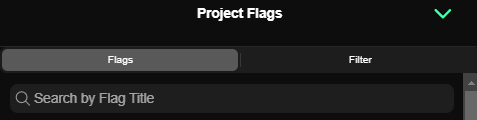
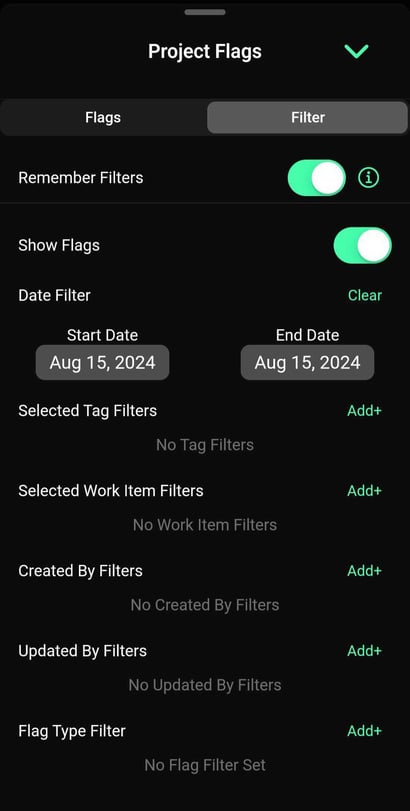
- Tap the Filters menu to see the following filter options.
- Remember Filters
- If you want to customize which flags you see every time you open this project, you can select the options detailed below and then move the toggle to "Remember Filters". (The toggle will be highlighted green when turned on)
- If you want to customize which flags you see every time you open this project, you can select the options detailed below and then move the toggle to "Remember Filters". (The toggle will be highlighted green when turned on)
- Search by Flag Title
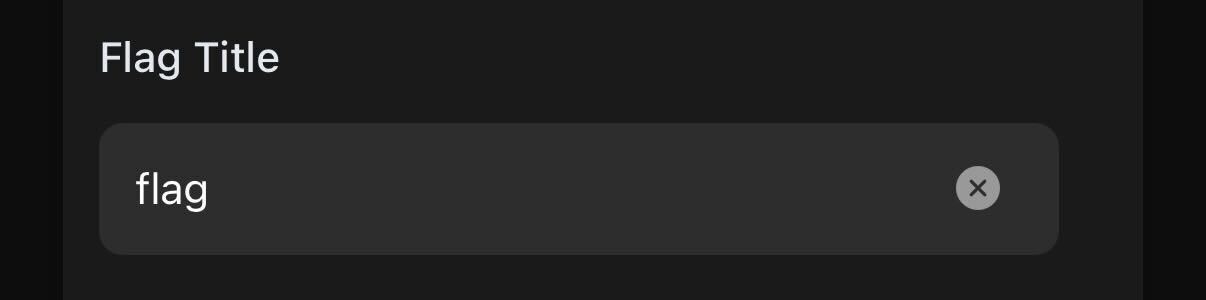 When filtering flags by title you can chose to display only flags that match your title search. In this example we have searched for flags with "flag" in the title. Notice in the screen shot how the flag filter eliminates unwanted flags from the map.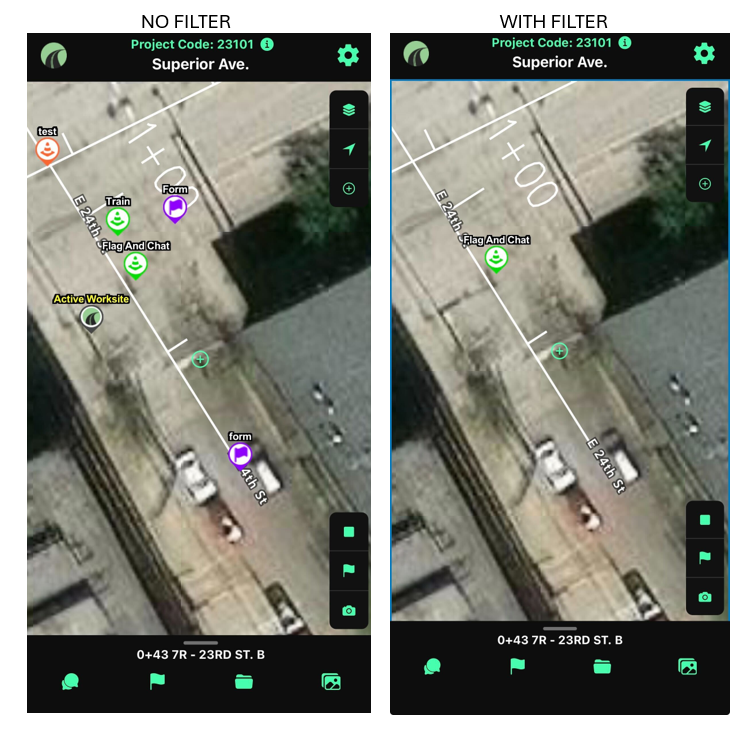
- Show Flags
- By default we show you all flags that you have access to. These may be flags you created as well as flags that were shared with you. If you want to see the map without any flags simply move the toggle to the left. In the examples below Green indicates the toggle is ON
- By default we show you all flags that you have access to. These may be flags you created as well as flags that were shared with you. If you want to see the map without any flags simply move the toggle to the left. In the examples below Green indicates the toggle is ON
- Date Filter
- Tag Filters
- Selected Work Item Filters
- Created By Filters
- Updated By Filters
- Flag Type Filters
- Remember Filters
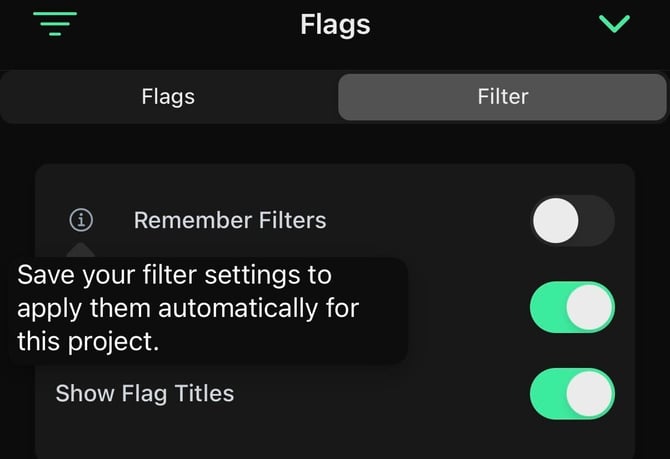



Sample Below:
-
- For each section of filters, tap the "Add+" option to view and apply available filter options
All filters that you apply will only reflect on your account. Each individual user can set their own flag filter preferences.