
Have more to say, or need to go back and forth with your team on the flag? Need to drop a pic worth 1000 words? Head over to the Chat tab. Learn more about Chat here.
How to add a note
- Open the flag you want to add a note to.
- On the Flag Details page, find the Notes section and tap Add Note.
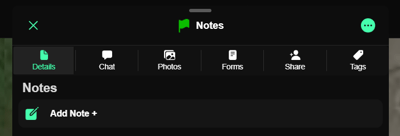
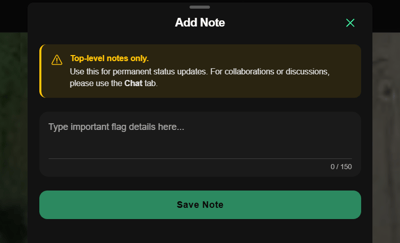
- Type the flag detail you want to stand out (150 characters max).
- Tap Save Note.
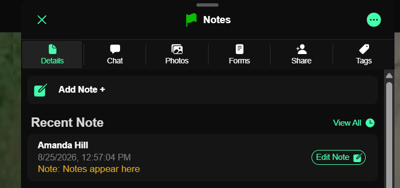
Your note appears on the Flag Details page with your username, date, and time. Anyone the flag is shared with can see it.
Adding more than one note
You can add multiple notes to the same flag by tapping Add Note again. The most recent note is the one shown on the Flag Details page.
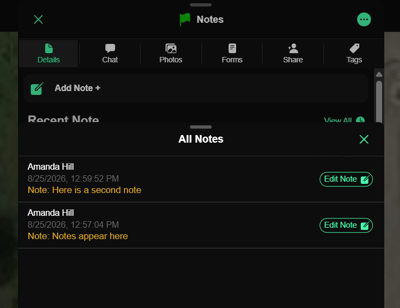
To see every note that's been added, tap View all.
Editing or deleting a note
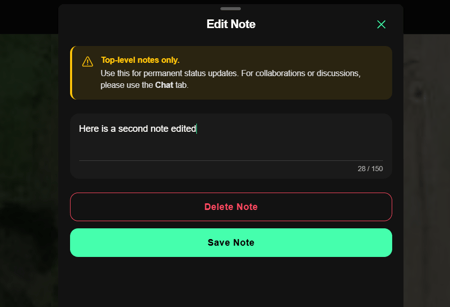
Tap Edit Note on any note to change its text or delete it.
Notes vs. Chat vs. Statuses
These can sound alike, but they do different jobs:
- Note — a prominent, top-level update on the flag itself, capped at 150 characters and stamped with username, date, and time. Shows on the Flag Details page. Can be edited or deleted.
- Chat — the message thread on a flag, for collaboration, discussion, and images, including Camera Notes (photos automatically stamped with station, date, time, and your name).
- Status — a quick visual indicator of where a flag stands at a glance. Learn more here.
Need help? Call or text us at (216) 503-8554, or reach out online.