---
title: "Submit a New Project: Standard Submission"
description: You can submit your new projects via our OnStation Portal. Follow this how-to-guide to seamlessly upload your projects into OnStation!
---
[Skip to content](https://help.onstationapp.com/knowledge/submit-a-new-project#main-content)
English
Show submenu for translations
[More support](https://help.onstationapp.com/knowledge/kb-tickets/new?hsLang=en) [Support Portal](https://help.onstationapp.com/support-portal?hsLang=en)
[](https://www.onstationapp.com?hsLang=en)
- Support Tools
Show submenu for Support Tools
- [Updates & Bug Fixes](https://www.onstationapp.com/whats-new)
- [Webinars](https://www.youtube.com/@onstationapp/videos)
- [Training](https://help.onstationapp.com/knowledge/getting-started)
- [Submit A Ticket](https://share.hsforms.com/291l4uAzdR0C-hDSgSZKqUQ3053t)
- [Schedule Training](https://meetings.hubspot.com/aubrey-hadney/training-scheduler)
- [Visit Official Website](https://www.onstationapp.com/)
Open main navigation
Close main navigation
- Support Tools
Show submenu for Support Tools
- [Updates & Bug Fixes](https://www.onstationapp.com/whats-new)
- [Webinars](https://www.youtube.com/@onstationapp/videos)
- [Training](https://help.onstationapp.com/knowledge/getting-started)
- [Submit A Ticket](https://share.hsforms.com/291l4uAzdR0C-hDSgSZKqUQ3053t)
- [Schedule Training](https://meetings.hubspot.com/aubrey-hadney/training-scheduler)
- [Visit Official Website](https://www.onstationapp.com/)
- English
Show submenu for translations
- [More support](https://help.onstationapp.com/knowledge/kb-tickets/new)
- [Support Portal](https://help.onstationapp.com/support-portal)
- [Contact Us](https://www.onstationapp.com/contact-us)
[Contact Us](https://www.onstationapp.com/contact-us?hsLang=en)
How can we help you?
- There are no suggestions because the search field is empty.
1. [Knowledge Base](https://help.onstationapp.com/knowledge?hsLang=en)
2. [Getting Started](https://help.onstationapp.com/knowledge/getting-started?hsLang=en)
3. [Project Submissions and Managment](https://help.onstationapp.com/knowledge/getting-started?hsLang=en#project-submissions-and-managment)
July 22, 2026
# Submit a New Project: Standard Submission
## You can submit your new projects via our OnStation Portal. Follow this how-to-guide to seamlessly upload your projects into OnStation!
### Steps to Access Project Submissions to View and Submit
1. Log in to the [OnStation Portal](https://portal.onstation.us/login)
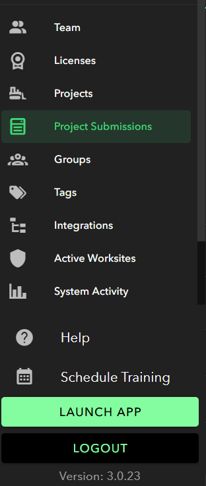
2. On the left hand side of your screen click the "**Project Submissions"** tab
3. You will now see your project submission dashboard page. After submitting your projects you will see the full list here, along with their upload status
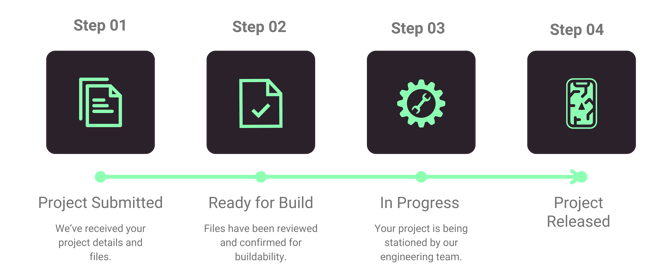
### Steps to Submit New Project
If you are requesting a new project you will want to follow this steps to enter your request.
The below steps are for submitting a standard station project. To learn about submitting a no station or approximate station project click [here](https://help.onstationapp.com/knowledge/submitting-a-new-project?hsLang=en).
1. At the top of the **Project Submissions** page click "**Submit new project" **
2. Select Standard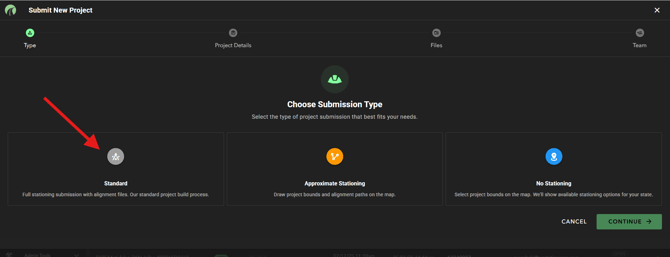
3. You will now be prompted to input all project details.
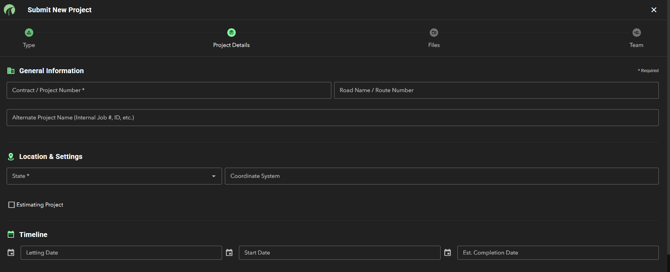
4. You can request your project build be expedited here.

Next tap, Continue.
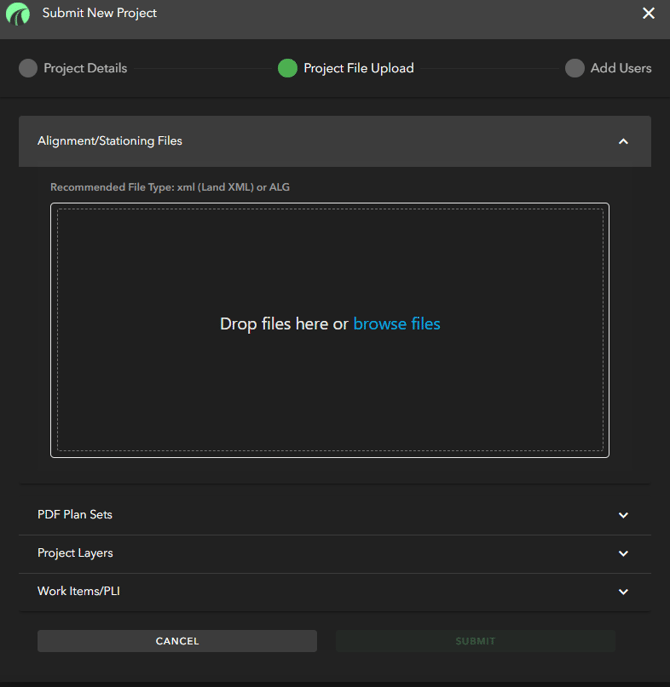
5. After clicking the createbutton you will be taken to the **"project file upload"** page with 4 dropdown menus consisting of: Alignment/Station Files, PDF Plans, Project Layers, and Work Items/PLI
6. Each dropdown menu will give you the option to add your files via **"Browse files"** or by dragging and dropping files from your saved folders
7. 
8. ### Recommended File Types by Category
| **Category** | **File Type** |
| --- | --- |
| Alignment / Stationing files | xml (Land XML) or ALG |
| PDF Plan Sets | PDF |
| Project Layers | DGN, DWG, DXF |
| Work Items / PLI | Excel or txt |
6\. Once you have uploaded all of your files into the applicable section, and you have added any additional persons you want to be notified of project release, you will then want to click "SUBMIT"
9. 7\. You will then get a second prompt asking you to confirm your submission. It will read: "Wait!
Are you sure you want to submit your project? Once you submit, you won't be able to modify any project details/files." You will then be able to click **Cancel** or **Submit Project**.
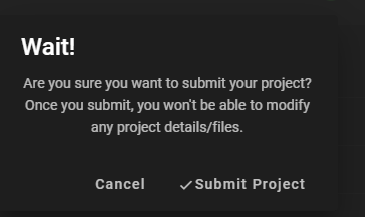
10. 8\. After clicking "Submit Project" you should then see your project under the Project Submissions section listed as type NEW and with a status of "SUBMITTED".
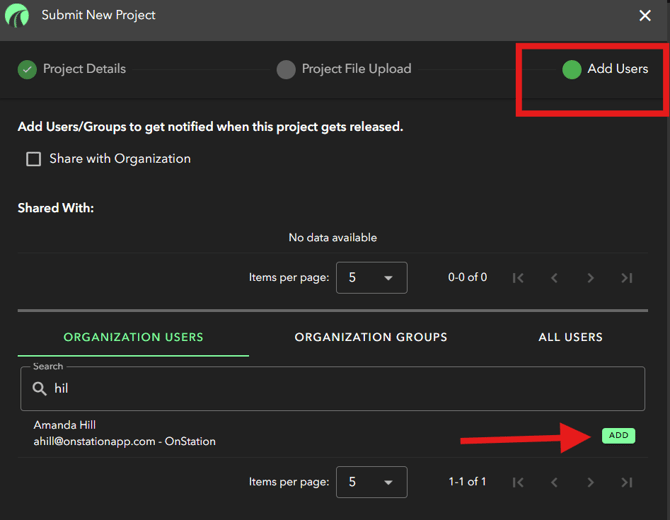
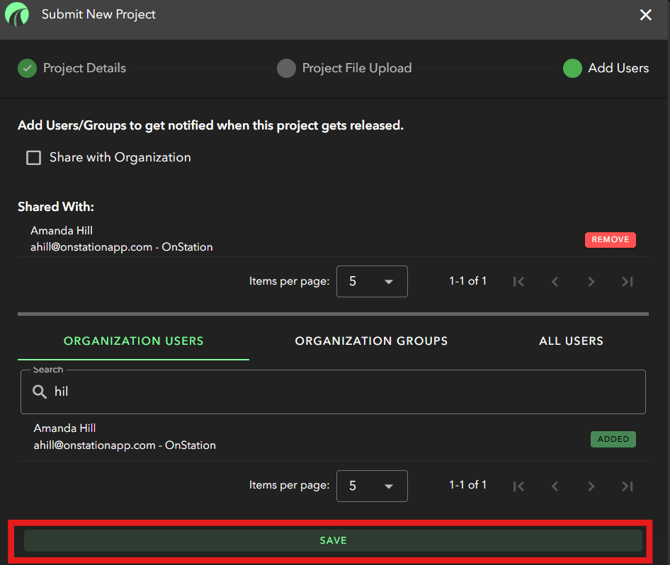
**QUESTION: Do you want to add other users to be notified when the project gets released?**
If so, follow the steps in the [Add Users](https://help.onstationapp.com/knowledge/submit-a-new-project#Notify) section:
1. Search for the user(s) you wish to notify.
2. Add user(s).
3. Click "Save" at bottom of screen
For our FAQ page on Project Submissions and Updates click [HERE](https://help.onstationapp.com/knowledge/faq-project-submissions-and-updates?hsLang=en)
Project Submission guideline details are available [HERE](https://help.onstationapp.com/knowledge/project-submission-guidelines?hsLang=en)
To learn how to submit a Project Update click [HERE](https://help.onstationapp.com/knowledge/project--update-submissions-process?hsLang=en)
- [Getting Started](https://help.onstationapp.com/knowledge/getting-started?hsLang=en#main-content)
- [New Sign-Up/Onboarding](https://help.onstationapp.com/knowledge/getting-started?hsLang=en#new-sign-up-onboarding)
- [Navigating the App](https://help.onstationapp.com/knowledge/getting-started?hsLang=en#navigating-the-app)
- [Navigating the Portal](https://help.onstationapp.com/knowledge/getting-started?hsLang=en#navigating-the-portal)
- [Project Submissions and Managment](https://help.onstationapp.com/knowledge/getting-started?hsLang=en#project-submissions-and-managment)
- [User Managment](https://help.onstationapp.com/knowledge/getting-started?hsLang=en#user-managment)
- [Troubleshooting](https://help.onstationapp.com/knowledge/getting-started?hsLang=en#troubleshooting)
- [Document the Work](https://help.onstationapp.com/knowledge/document-the-work?hsLang=en#main-content)
- [Flags](https://help.onstationapp.com/knowledge/document-the-work?hsLang=en#flags)
- [Photos](https://help.onstationapp.com/knowledge/document-the-work?hsLang=en#photos)
- [Forms](https://help.onstationapp.com/knowledge/document-the-work?hsLang=en#forms)
- [Measuring Tools](https://help.onstationapp.com/knowledge/document-the-work?hsLang=en#measuring-tools)
- [Troubleshooting](https://help.onstationapp.com/knowledge/document-the-work?hsLang=en#troubleshooting)
- [Finding Your Location](https://help.onstationapp.com/knowledge/finding-your-location?hsLang=en#main-content)
- [Learn More](https://help.onstationapp.com/knowledge/finding-your-location?hsLang=en#learn-more)
- [Troubleshooting](https://help.onstationapp.com/knowledge/finding-your-location?hsLang=en#troubleshooting)
- [Share & Collaborate](https://help.onstationapp.com/knowledge/share-collaborate?hsLang=en#main-content)
- [Learn More](https://help.onstationapp.com/knowledge/share-collaborate?hsLang=en#learn-more)
- [Troubleshooting](https://help.onstationapp.com/knowledge/share-collaborate?hsLang=en#troubleshooting)
- [Export & Report](https://help.onstationapp.com/knowledge/export-report?hsLang=en#main-content)
- [Learn More](https://help.onstationapp.com/knowledge/export-report?hsLang=en#learn-more)
- [Active Worksite™](https://help.onstationapp.com/knowledge/active-worksite?hsLang=en)
- [Integrations](https://help.onstationapp.com/knowledge/integrations?hsLang=en#main-content)
- [TransTech Systems](https://help.onstationapp.com/knowledge/integrations?hsLang=en#transtech-systems)
- [HeavyJob](https://help.onstationapp.com/knowledge/integrations?hsLang=en#heavyjob)
- [GNSS/GPS Receivers](https://help.onstationapp.com/knowledge/integrations?hsLang=en#gnss-gps-receivers)
- [FleetWatcher](https://help.onstationapp.com/knowledge/integrations?hsLang=en#fleetwatcher)
- [Trimble](https://help.onstationapp.com/knowledge/integrations?hsLang=en#trimble)
- [Bad Elf](https://help.onstationapp.com/knowledge/integrations?hsLang=en#bad-elf)
[](http://www.onstationapp.com?hsLang=en)
[mailto:email@email.com](mailto:email@email.com)
Copyright © 2026, OnStation