---
title: Station Reading Off? Check Your Settings and Send Us a GPS Report
description: Station reading off? Check these Android and iPhone settings, then run OnStation's GPS test and send it to support.
---
[Skip to content](https://help.onstationapp.com/knowledge/station-reading-off-check-your-settings-and-send-us-a-gps-report#main-content)
English
Show submenu for translations
[More support](https://help.onstationapp.com/knowledge/kb-tickets/new?hsLang=en) [Support Portal](https://help.onstationapp.com/support-portal?hsLang=en)
[](https://www.onstationapp.com?hsLang=en)
- Support Tools
Show submenu for Support Tools
- [Updates & Bug Fixes](https://www.onstationapp.com/whats-new)
- [Training Webinars](https://www.onstationapp.com/training-webinars)
- [General Stationing Training](https://www.onstationapp.com/stationing-training-series)
- [Submit A Ticket](https://share.hsforms.com/291l4uAzdR0C-hDSgSZKqUQ3053t)
- [Schedule Training](https://meetings.hubspot.com/aubrey-hadney/training-scheduler)
- [Visit Official Website](https://www.onstationapp.com/)
Open main navigation
Close main navigation
- Support Tools
Show submenu for Support Tools
- [Updates & Bug Fixes](https://www.onstationapp.com/whats-new)
- [Training Webinars](https://www.onstationapp.com/training-webinars)
- [General Stationing Training](https://www.onstationapp.com/stationing-training-series)
- [Submit A Ticket](https://share.hsforms.com/291l4uAzdR0C-hDSgSZKqUQ3053t)
- [Schedule Training](https://meetings.hubspot.com/aubrey-hadney/training-scheduler)
- [Visit Official Website](https://www.onstationapp.com/)
- English
Show submenu for translations
- [More support](https://help.onstationapp.com/knowledge/kb-tickets/new)
- [Support Portal](https://help.onstationapp.com/support-portal)
- [Contact Us](https://www.onstationapp.com/contact-us)
[Contact Us](https://www.onstationapp.com/contact-us?hsLang=en)
How can we help you?
- There are no suggestions because the search field is empty.
1. [Knowledge Base](https://help.onstationapp.com/knowledge?hsLang=en)
2. [Finding Your Location](https://help.onstationapp.com/knowledge/finding-your-location?hsLang=en)
3. [Troubleshooting](https://help.onstationapp.com/knowledge/finding-your-location?hsLang=en#troubleshooting)
August 26, 2026
# Station Reading Off? Check Your Settings and Send Us a GPS Report
## Readings off? Work through the checks below first — they solve most GPS issues. If it's still off after that, let us help. The last section shows you how to send a GPS report our way, and we'll take it from there.
**Need troubleshooting support? Please reach out to us by sending a text or calling (216) 503-8554, or reach out online [here](https://www.onstationapp.com/contact-us?hsLang=en).**
### Step 1: Reset your GPS
Reset your GPS in the OnStation App via the settings menu 
1. From the project screen, tap the gear icon in the top right corner to access the settings menu.
2. Scroll to Location, then tap **Reset GPS**
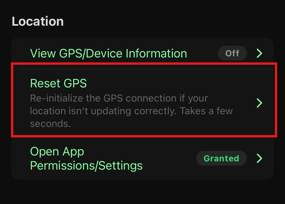
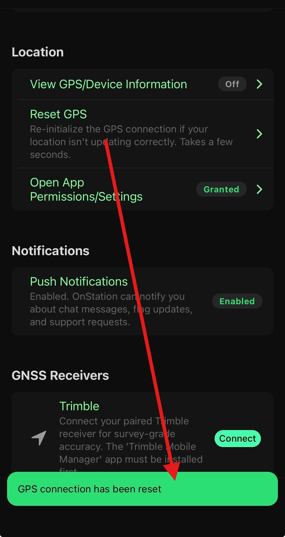
3. You will see a notification once the reset is complete
### Step 2: Check your location settings
GPS accuracy depends on your device's hardware, its settings, and the signal available where you're standing. Settings are the quickest thing to rule out, so start there.
Settings are the part you have the most control over. Check these first.
**On Android:**
1. Open your phone's Settings app and go to **Apps \> OnStation \> Permissions \> Location**.
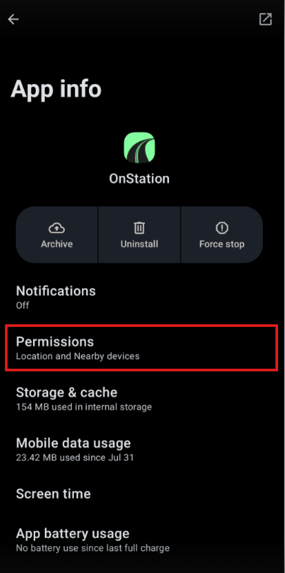
2. Set location access to **Allow only while using the app**.
3. Make sure **Use precise location** is turned on. Android will sometimes default to approximate location, which isn't accurate enough for stationing.
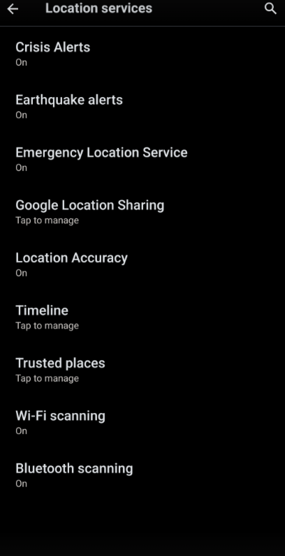
4. Go to **Settings \> Location \> Location Services** and confirm **Wi-Fi scanning** and **Bluetooth scanning** are turned on.
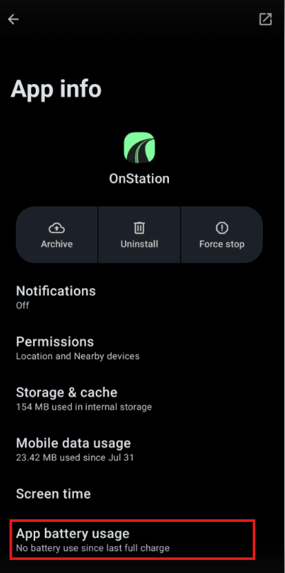
5. Check **Apps \> OnStation \> App Battery Usage** and allow background usage. Your device may have additional battery optimization settings. Be sure to exclude OnStation from any optimization or "sleeping apps" list. Aggressive battery management can throttle GPS in the background.
**On iPhone / iPad:**
1. Open **Settings \> OnStation \> Location**.
2. Set this to **Always** or **While Using the App** .
3. Turn on **Precise Location**. If this is off, iOS gives OnStation a general area instead of an exact point — not accurate enough for stationing.
4. Go to **Settings \> Privacy & Security \> Location Services \> System Services** and make sure **Compass Calibration, Networking & Wireless, and Motion Calibration & Distance** are turned on.
5. Confirm **Low Power Mode** is off while you're working — it can reduce how often your device checks GPS.
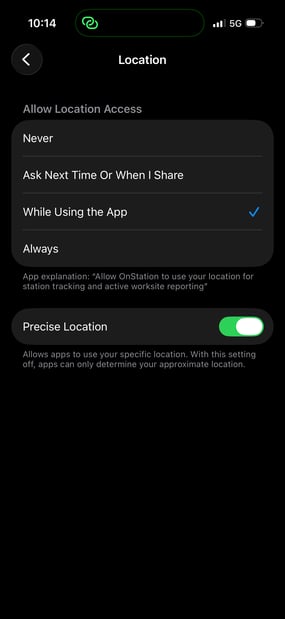
*"Always" or "While Using the App" access with Precise Location on gives OnStation the accuracy it needs.*
Open sky matters as much as settings. GPS runs on satellite, so tree cover, parking garages, and nearby tall equipment or structures can weaken signal. If you can, move to open sky and check your reading again before moving to the steps below.
### If, after Steps 1 & 2 are complete, you are still not seeing an improvement in accuracy, please reach out to support by following the steps below.
### Step 3: Pull your GPS/Device Information
If your settings look right and the reading is still off, pull up OnStation's diagnostic view.
1. In the app, go to **Settings \> Location \> View GPS/Device Information**.
2. Take a screenshot of this screen.
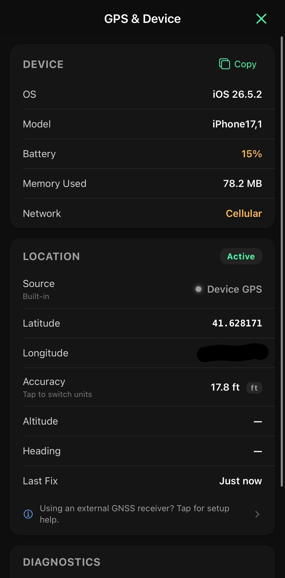
*This screen shows what your device is reporting about its GPS signal — have the screenshot ready before you reach out.*
### Step 4: Run the GPS test so support can see what's happening
Running OnStation's built-in GPS test gives support the details they need to tell what's actually going on with your signal.
1. Still in **Settings \> Location**, scroll to **Diagnostics** and tap **Start GPS Test**.
2. Let the test run without closing the app or switching screens.
3. When it finishes, tap **Send to Support**.
### Step 5: Let us know you sent it
Once you've sent the GPS test report, reach out with your GPS/Device Information screenshot. Support will review what your device is reporting and follow up with what we find and what we recommend from there.
- Text or call us at (216) 503-8554, or
- [Reach out online](https://www.onstationapp.com/contact-us?hsLang=en)
- [Getting Started](https://help.onstationapp.com/knowledge/getting-started?hsLang=en#main-content)
- [New Sign-Up/Onboarding](https://help.onstationapp.com/knowledge/getting-started?hsLang=en#new-sign-up-onboarding)
- [Navigating the App](https://help.onstationapp.com/knowledge/getting-started?hsLang=en#navigating-the-app)
- [Navigating the Portal](https://help.onstationapp.com/knowledge/getting-started?hsLang=en#navigating-the-portal)
- [Project Submissions and Managment](https://help.onstationapp.com/knowledge/getting-started?hsLang=en#project-submissions-and-managment)
- [User Managment](https://help.onstationapp.com/knowledge/getting-started?hsLang=en#user-managment)
- [Troubleshooting](https://help.onstationapp.com/knowledge/getting-started?hsLang=en#troubleshooting)
- [Document the Work](https://help.onstationapp.com/knowledge/document-the-work?hsLang=en#main-content)
- [Flags](https://help.onstationapp.com/knowledge/document-the-work?hsLang=en#flags)
- [Photos](https://help.onstationapp.com/knowledge/document-the-work?hsLang=en#photos)
- [Forms](https://help.onstationapp.com/knowledge/document-the-work?hsLang=en#forms)
- [Measuring Tools](https://help.onstationapp.com/knowledge/document-the-work?hsLang=en#measuring-tools)
- [Troubleshooting](https://help.onstationapp.com/knowledge/document-the-work?hsLang=en#troubleshooting)
- [Finding Your Location](https://help.onstationapp.com/knowledge/finding-your-location?hsLang=en#main-content)
- [Learn More](https://help.onstationapp.com/knowledge/finding-your-location?hsLang=en#learn-more)
- [Troubleshooting](https://help.onstationapp.com/knowledge/finding-your-location?hsLang=en#troubleshooting)
- [Share & Collaborate](https://help.onstationapp.com/knowledge/share-collaborate?hsLang=en#main-content)
- [Learn More](https://help.onstationapp.com/knowledge/share-collaborate?hsLang=en#learn-more)
- [Troubleshooting](https://help.onstationapp.com/knowledge/share-collaborate?hsLang=en#troubleshooting)
- [Export & Report](https://help.onstationapp.com/knowledge/export-report?hsLang=en#main-content)
- [Learn More](https://help.onstationapp.com/knowledge/export-report?hsLang=en#learn-more)
- [Active Worksite™](https://help.onstationapp.com/knowledge/active-worksite?hsLang=en)
- [Integrations](https://help.onstationapp.com/knowledge/integrations?hsLang=en#main-content)
- [TransTech Systems](https://help.onstationapp.com/knowledge/integrations?hsLang=en#transtech-systems)
- [HeavyJob](https://help.onstationapp.com/knowledge/integrations?hsLang=en#heavyjob)
- [GNSS/GPS Receivers](https://help.onstationapp.com/knowledge/integrations?hsLang=en#gnss-gps-receivers)
- [FleetWatcher](https://help.onstationapp.com/knowledge/integrations?hsLang=en#fleetwatcher)
- [Trimble](https://help.onstationapp.com/knowledge/integrations?hsLang=en#trimble)
- [Bad Elf](https://help.onstationapp.com/knowledge/integrations?hsLang=en#bad-elf)
[](http://www.onstationapp.com?hsLang=en)
[mailto:email@email.com](mailto:email@email.com)
Copyright © 2026, OnStation