---
title: "Station Finder: Switch Alignments, Jump to a Station, and Copy Your Location"
description: See your live station and offset in OnStation, switch between alignments, jump to a specific station, and copy your location in seconds.
---
[Skip to content](https://help.onstationapp.com/knowledge/station-finder-switch-alignments-jump-to-a-station-and-copy-your-location#main-content)
English
Show submenu for translations
[More support](https://help.onstationapp.com/knowledge/kb-tickets/new?hsLang=en) [Support Portal](https://help.onstationapp.com/support-portal?hsLang=en)
[](https://www.onstationapp.com?hsLang=en)
- Support Tools
Show submenu for Support Tools
- [Updates & Bug Fixes](https://www.onstationapp.com/whats-new)
- [Webinars](https://www.youtube.com/@onstationapp/videos)
- [Training](https://help.onstationapp.com/knowledge/getting-started)
- [Submit A Ticket](https://share.hsforms.com/291l4uAzdR0C-hDSgSZKqUQ3053t)
- [Schedule Training](https://meetings.hubspot.com/aubrey-hadney/training-scheduler)
- [Visit Official Website](https://www.onstationapp.com/)
Open main navigation
Close main navigation
- Support Tools
Show submenu for Support Tools
- [Updates & Bug Fixes](https://www.onstationapp.com/whats-new)
- [Webinars](https://www.youtube.com/@onstationapp/videos)
- [Training](https://help.onstationapp.com/knowledge/getting-started)
- [Submit A Ticket](https://share.hsforms.com/291l4uAzdR0C-hDSgSZKqUQ3053t)
- [Schedule Training](https://meetings.hubspot.com/aubrey-hadney/training-scheduler)
- [Visit Official Website](https://www.onstationapp.com/)
- English
Show submenu for translations
- [More support](https://help.onstationapp.com/knowledge/kb-tickets/new)
- [Support Portal](https://help.onstationapp.com/support-portal)
- [Contact Us](https://www.onstationapp.com/contact-us)
[Contact Us](https://www.onstationapp.com/contact-us?hsLang=en)
How can we help you?
- There are no suggestions because the search field is empty.
1. [Knowledge Base](https://help.onstationapp.com/knowledge?hsLang=en)
2. [Finding Your Location](https://help.onstationapp.com/knowledge/finding-your-location?hsLang=en)
3. [Learn More](https://help.onstationapp.com/knowledge/finding-your-location?hsLang=en#learn-more)
July 17, 2026
# Station Finder: Switch Alignments, Jump to a Station, and Copy Your Location
## Station Finder shows you exactly where you are on the project — live station and offset, updating in real time as you move. This page covers what's on that screen, how to switch or lock onto an alignment, jump straight to a station, and copy your location to paste anywhere else.
#### Your live location, always on screen
This is the core of OnStation: your exact station and offset, live, tied to the project's design file. No typing, no guessing — as you move, the reading updates on its own.
The bar at the bottom of the map is always showing this — you don't have to open anything to see your current station. Everything below is about doing more with it: switching alignments, jumping to a station, or copying it out to somewhere else.
---
#### Expand the station finder
The bar at the bottom of the map always shows your current station and alignment — for example, **798+43 5R - US59-Mainline**. Tap it to expand the full station finder.
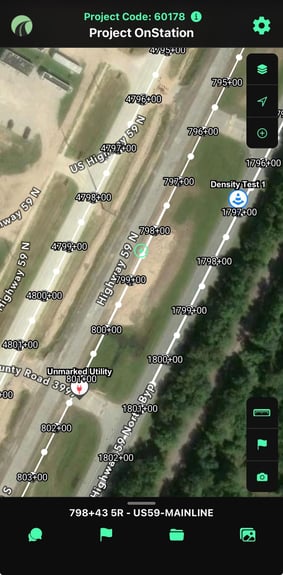
*The collapsed station finder — your current station and alignment, always visible at the bottom of the map.*
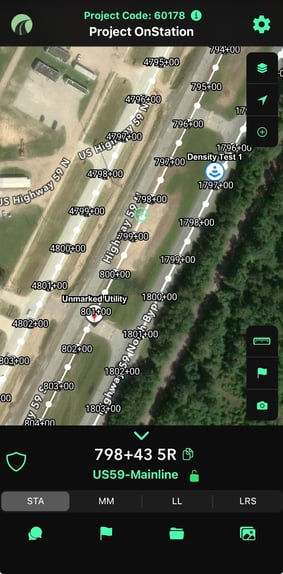
*Expanded view — station, alignment (with lock status), and unit tabs (STA / MM / LL / LRS).*
---
#### Switch or lock onto an alignment
Tap the alignment name (for example, **US59-Mainline**) in the expanded station finder to see every alignment on the project.
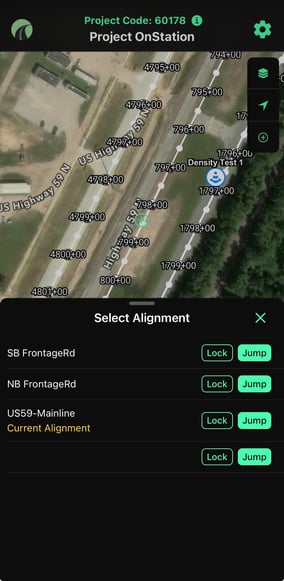
*Select Alignment — every alignment on the project, each with its own Lock and Jump option.*
**Steps:**
1. **Tap the alignment name** to open Select Alignment. Every alignment on the project is listed here. Your current one is marked "Current Alignment."
2. **Tap Lock to stay on that alignment.** Locking ties your station reading to that specific alignment, no matter where your crosshairs move on the map. This matters most when two alignments run close together — like a highway mainline and its frontage road — where OnStation might otherwise read the nearest one instead of the one you actually want.
When to lock: if you're working near where two alignments run side by side and your station keeps jumping between them as you move, lock onto the one you're actually referencing.
---
#### Jump to a specific station
Need to go straight to a station instead of walking or driving to it? Use Jump.
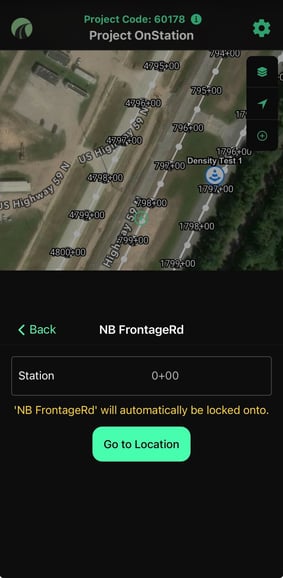
*Enter a station and tap Go to Location. Jumping to an alignment automatically locks onto it.*
**Steps:**
1. **Tap Jump** next to the alignment you want, from the Select Alignment list.
2. **Enter the station** you want to jump to on that alignment.
3. **Tap Go to Location.** The map recenters on that station. The alignment you jumped to is automatically locked — no extra step needed.
---
#### Copy a station or offset
Need your location in another system — a report, a text to the office, a form outside OnStation? Copy it directly instead of retyping it.
**Steps:**
1. **Open the project.** OnStation opens to the last project you were working in.
2. **Tap the station finder to expand it.** Same panel as above.
3. **Choose which measurement to copy.** Switch between STA, MM, LL, or LRS using the unit tabs before copying, if needed.
4. **Tap the copy icon.** Copies the current station, alignment, and offset reading.
5. **Paste it wherever you need it** — a text, an email, a report — anywhere.
Need help? Call or text us at (216) 503-8554, or [reach out online](https://www.onstationapp.com/contact-us?hsLang=en).
- [Getting Started](https://help.onstationapp.com/knowledge/getting-started?hsLang=en#main-content)
- [New Sign-Up/Onboarding](https://help.onstationapp.com/knowledge/getting-started?hsLang=en#new-sign-up-onboarding)
- [Navigating the App](https://help.onstationapp.com/knowledge/getting-started?hsLang=en#navigating-the-app)
- [Navigating the Portal](https://help.onstationapp.com/knowledge/getting-started?hsLang=en#navigating-the-portal)
- [Project Submissions and Managment](https://help.onstationapp.com/knowledge/getting-started?hsLang=en#project-submissions-and-managment)
- [User Managment](https://help.onstationapp.com/knowledge/getting-started?hsLang=en#user-managment)
- [Troubleshooting](https://help.onstationapp.com/knowledge/getting-started?hsLang=en#troubleshooting)
- [Document the Work](https://help.onstationapp.com/knowledge/document-the-work?hsLang=en#main-content)
- [Flags](https://help.onstationapp.com/knowledge/document-the-work?hsLang=en#flags)
- [Photos](https://help.onstationapp.com/knowledge/document-the-work?hsLang=en#photos)
- [Forms](https://help.onstationapp.com/knowledge/document-the-work?hsLang=en#forms)
- [Measuring Tools](https://help.onstationapp.com/knowledge/document-the-work?hsLang=en#measuring-tools)
- [Troubleshooting](https://help.onstationapp.com/knowledge/document-the-work?hsLang=en#troubleshooting)
- [Finding Your Location](https://help.onstationapp.com/knowledge/finding-your-location?hsLang=en#main-content)
- [Learn More](https://help.onstationapp.com/knowledge/finding-your-location?hsLang=en#learn-more)
- [Troubleshooting](https://help.onstationapp.com/knowledge/finding-your-location?hsLang=en#troubleshooting)
- [Share & Collaborate](https://help.onstationapp.com/knowledge/share-collaborate?hsLang=en#main-content)
- [Learn More](https://help.onstationapp.com/knowledge/share-collaborate?hsLang=en#learn-more)
- [Troubleshooting](https://help.onstationapp.com/knowledge/share-collaborate?hsLang=en#troubleshooting)
- [Export & Report](https://help.onstationapp.com/knowledge/export-report?hsLang=en#main-content)
- [Learn More](https://help.onstationapp.com/knowledge/export-report?hsLang=en#learn-more)
- [Active Worksite™](https://help.onstationapp.com/knowledge/active-worksite?hsLang=en)
- [Integrations](https://help.onstationapp.com/knowledge/integrations?hsLang=en#main-content)
- [TransTech Systems](https://help.onstationapp.com/knowledge/integrations?hsLang=en#transtech-systems)
- [HeavyJob](https://help.onstationapp.com/knowledge/integrations?hsLang=en#heavyjob)
- [GNSS/GPS Receivers](https://help.onstationapp.com/knowledge/integrations?hsLang=en#gnss-gps-receivers)
- [FleetWatcher](https://help.onstationapp.com/knowledge/integrations?hsLang=en#fleetwatcher)
- [Trimble](https://help.onstationapp.com/knowledge/integrations?hsLang=en#trimble)
- [Bad Elf](https://help.onstationapp.com/knowledge/integrations?hsLang=en#bad-elf)
[](http://www.onstationapp.com?hsLang=en)
[mailto:email@email.com](mailto:email@email.com)
Copyright © 2026, OnStation