---
title: "Flags: How To Use Quick Drop Mode"
description: Learn how OnStation’s Quick Drop mode lets you rapidly place multiple flags, choose project‑based icons, auto‑trigger forms, and streamline field documentation.
---
[Skip to content](https://help.onstationapp.com/knowledge/quick-drop#main-content)
English
Show submenu for translations
[More support](https://help.onstationapp.com/knowledge/kb-tickets/new?hsLang=en) [Support Portal](https://help.onstationapp.com/support-portal?hsLang=en)
[](https://www.onstationapp.com?hsLang=en)
- Support Tools
Show submenu for Support Tools
- [Updates & Bug Fixes](https://www.onstationapp.com/whats-new)
- [Training Webinars](https://www.onstationapp.com/training-webinars)
- [General Stationing Training](https://www.onstationapp.com/stationing-training-series)
- [Submit A Ticket](https://share.hsforms.com/291l4uAzdR0C-hDSgSZKqUQ3053t)
- [Schedule Training](https://meetings.hubspot.com/aubrey-hadney/training-scheduler)
- [Visit Official Website](https://www.onstationapp.com/)
Open main navigation
Close main navigation
- Support Tools
Show submenu for Support Tools
- [Updates & Bug Fixes](https://www.onstationapp.com/whats-new)
- [Training Webinars](https://www.onstationapp.com/training-webinars)
- [General Stationing Training](https://www.onstationapp.com/stationing-training-series)
- [Submit A Ticket](https://share.hsforms.com/291l4uAzdR0C-hDSgSZKqUQ3053t)
- [Schedule Training](https://meetings.hubspot.com/aubrey-hadney/training-scheduler)
- [Visit Official Website](https://www.onstationapp.com/)
- English
Show submenu for translations
- [More support](https://help.onstationapp.com/knowledge/kb-tickets/new)
- [Support Portal](https://help.onstationapp.com/support-portal)
- [Contact Us](https://www.onstationapp.com/contact-us)
[Contact Us](https://www.onstationapp.com/contact-us?hsLang=en)
How can we help you?
- There are no suggestions because the search field is empty.
1. [Knowledge Base](https://help.onstationapp.com/knowledge?hsLang=en)
2. [Document the Work](https://help.onstationapp.com/knowledge/document-the-work?hsLang=en)
3. [Flags](https://help.onstationapp.com/knowledge/document-the-work?hsLang=en#flags)
March 24, 2026
# Flags: How To Use Quick Drop Mode
## The Fastest Way to Place Multiple Flags in OnStation! When you're moving fast in the field, you don’t always have time to open a full flag menu for every mark you need to make. That’s why OnStation now includes Quick Drop Mode—a streamlined way to place one or multiple flags in seconds.
**Quick Drop is perfect for field crews who need to rapidly document locations, defects, materials, utilities, or any item that needs quick mapping**.
---
**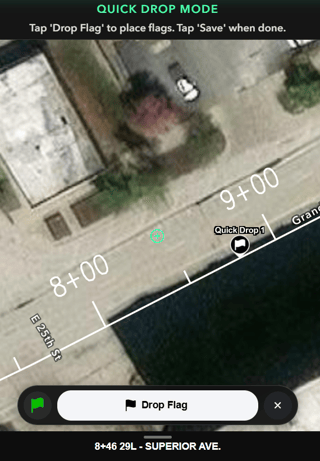**
**Quick Drop Mode** gives you a fast, flexible way to:
- Drop multiple flags
- Use recent or project icons
- Auto‑generate form‑ready flags
- Speed up documentation
- Pair with Bulk Updates for end‑of‑task cleanup
It’s built for real field workflows—helping crews capture accurate data without slowing down.
#### **How to Enter Quick Drop Mode**
You can activate Quick Drop in two easy ways:
### **Option 1: Long‑Press the Flag Button**
- Press and hold the **Flag button** on the right side of the screen
- The **Quick Drop menu** will appear instantly
### **Option 2: Tap the Flag Button → Select “Quick Drop”**
- Tap the **Flag button**
- Choose **Quick Drop** from the menu
Either method takes you directly into Quick Drop mode so you can start placing flags immediately.
---
#### **Choosing Your Flag Icons**
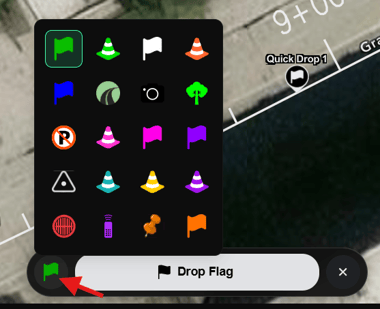
Quick Drop allows you to choose **one or multiple flag icons** before dropping.
Your icon list is built from:
- **Recent icons you've used** (stored locally on your device)
- **All icons used on the current project**
Just like Bulk Flag Update, the icon list **dynamically changes** depending on the project—making it faster to work with the flags that matter most.
To choose or change icons:
- Tap the **flag icon** on the Quick Drop menu bar
- The full Quick Drop icon list appears
- Select you preferred icon
---
#### **How to Drop Flags in Quick Drop Mode**
Once you’ve picked your icon:
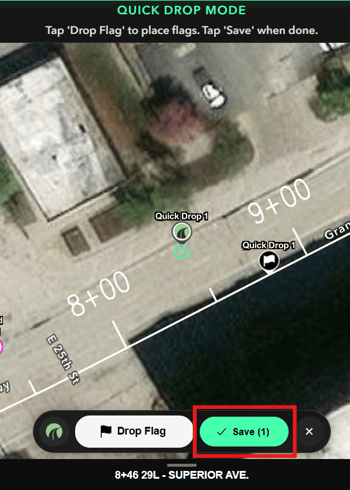
1. Move the **crosshair** to the location on the map
2. Tap **Drop Flag** to place it
You can repeat this as many times as needed to create a quick sequence of flags.
When you're done, just tap **Save**.
To exit Quick Drop mode, tap the "X".
---
#### **Flag Titles & Editing**
Flags created in Quick Drop Mode will be automatically named:
**Quick Drop 1, Quick Drop 2, Quick Drop 3**, and so on.
After they’re created, you can open and edit them just like any other flag:
- Add notes
- Chat
- Apply tags
- Update hazard status
- Add photos
- Complete forms
- Include them in **Bulk Flag Updates**
To learn how to View/Edit a flag tap [here](https://help.onstationapp.com/knowledge/new-flag-experience?hsLang=en).
To learn about Bulk Flag Updates click [here](https://help.onstationapp.com/knowledge/onstation-bulk-flag-update-faster-group-editing-tools?hsLang=en).
---
#### **Why Quick Drop Is So Useful**
### **1. Perfect for Rapid Field Documentation**
If you're walking or driving a site and need to quickly mark:
- Potholes
- Cracks
- Utilities
- Signage
- Safety concerns
- Asphalt defects
- Material drop locations
Quick Drop lets you place flags instantly without breaking workflow.
---
### **2. Great for Flags That Trigger Forms**
**OnStation forms are tied to specific flag icons configured for your organization**.
That means: When you Quick Drop using the correct icon, the **form automatically appears inside the flag**—ready to complete.
This is a huge time‑saver for:
- Inspection checklists
- Material tickets
- Safety forms
- Work verification forms
- Load tracking
- Crew task logs
Drop first → Form appears → Fill it out later or on the spot.
---
### **3. Ideal for Bulk Updates Later**
Quick Drop pairs perfectly with **Bulk Flag Update**.
You can:
1. Rapidly drop multiple flags
2. Select them using Bulk Update
3. Apply:
- Tags
- Notes
- Hazard statuses
- Icons
- Share options
This keeps your workflow clean and efficient.
---
### **4. Excellent for Fast, Repetitive Tasks**
If you're flagging a series of:
- Core locations
- Survey points
- Guardrail segments
- Repair locations
- Crack sealing marks
- Sign installations
Quick Drop keeps you moving without having to open the full flag editor each time.
Any questions?
Reach out to [OnStation Customer Support](https://www.onstationapp.com/contact-us?hsLang=en).
We're here to help!
- [Getting Started](https://help.onstationapp.com/knowledge/getting-started?hsLang=en#main-content)
- [New Sign-Up/Onboarding](https://help.onstationapp.com/knowledge/getting-started?hsLang=en#new-sign-up-onboarding)
- [Navigating the App](https://help.onstationapp.com/knowledge/getting-started?hsLang=en#navigating-the-app)
- [Navigating the Portal](https://help.onstationapp.com/knowledge/getting-started?hsLang=en#navigating-the-portal)
- [Project Submissions and Managment](https://help.onstationapp.com/knowledge/getting-started?hsLang=en#project-submissions-and-managment)
- [User Managment](https://help.onstationapp.com/knowledge/getting-started?hsLang=en#user-managment)
- [Troubleshooting](https://help.onstationapp.com/knowledge/getting-started?hsLang=en#troubleshooting)
- [Document the Work](https://help.onstationapp.com/knowledge/document-the-work?hsLang=en#main-content)
- [Flags](https://help.onstationapp.com/knowledge/document-the-work?hsLang=en#flags)
- [Photos](https://help.onstationapp.com/knowledge/document-the-work?hsLang=en#photos)
- [Forms](https://help.onstationapp.com/knowledge/document-the-work?hsLang=en#forms)
- [Measuring Tools](https://help.onstationapp.com/knowledge/document-the-work?hsLang=en#measuring-tools)
- [Troubleshooting](https://help.onstationapp.com/knowledge/document-the-work?hsLang=en#troubleshooting)
- [Finding Your Location](https://help.onstationapp.com/knowledge/finding-your-location?hsLang=en#main-content)
- [Learn More](https://help.onstationapp.com/knowledge/finding-your-location?hsLang=en#learn-more)
- [Troubleshooting](https://help.onstationapp.com/knowledge/finding-your-location?hsLang=en#troubleshooting)
- [Share & Collaborate](https://help.onstationapp.com/knowledge/share-collaborate?hsLang=en#main-content)
- [Learn More](https://help.onstationapp.com/knowledge/share-collaborate?hsLang=en#learn-more)
- [Troubleshooting](https://help.onstationapp.com/knowledge/share-collaborate?hsLang=en#troubleshooting)
- [Export & Report](https://help.onstationapp.com/knowledge/export-report?hsLang=en#main-content)
- [Learn More](https://help.onstationapp.com/knowledge/export-report?hsLang=en#learn-more)
- [Active Worksite™](https://help.onstationapp.com/knowledge/active-worksite?hsLang=en)
- [Integrations](https://help.onstationapp.com/knowledge/integrations?hsLang=en#main-content)
- [TransTech Systems](https://help.onstationapp.com/knowledge/integrations?hsLang=en#transtech-systems)
- [HeavyJob](https://help.onstationapp.com/knowledge/integrations?hsLang=en#heavyjob)
- [GNSS/GPS Receivers](https://help.onstationapp.com/knowledge/integrations?hsLang=en#gnss-gps-receivers)
- [FleetWatcher](https://help.onstationapp.com/knowledge/integrations?hsLang=en#fleetwatcher)
- [Trimble](https://help.onstationapp.com/knowledge/integrations?hsLang=en#trimble)
- [Bad Elf](https://help.onstationapp.com/knowledge/integrations?hsLang=en#bad-elf)
[](http://www.onstationapp.com?hsLang=en)
[mailto:email@email.com](mailto:email@email.com)
Copyright © 2026, OnStation