---
title: "OnStation Chat: How to View, Send & Manage Flag Conversations + Images"
description: Learn how to access chats in the OnStation app, view conversations from the chat list or flag record, share photos, and improve communication across your project.
---
[Skip to content](https://help.onstationapp.com/knowledge/onstation-chat-how-to-view-send-manage-flag-conversations-images#main-content)
English
Show submenu for translations
[More support](https://help.onstationapp.com/knowledge/kb-tickets/new?hsLang=en) [Support Portal](https://help.onstationapp.com/support-portal?hsLang=en)
[](https://www.onstationapp.com?hsLang=en)
- Support Tools
Show submenu for Support Tools
- [Updates & Bug Fixes](https://www.onstationapp.com/whats-new)
- [Training Webinars](https://www.onstationapp.com/training-webinars)
- [General Stationing Training](https://www.onstationapp.com/stationing-training-series)
- [Submit A Ticket](https://share.hsforms.com/291l4uAzdR0C-hDSgSZKqUQ3053t)
- [Schedule Training](https://meetings.hubspot.com/aubrey-hadney/training-scheduler)
- [Visit Official Website](https://www.onstationapp.com/)
Open main navigation
Close main navigation
- Support Tools
Show submenu for Support Tools
- [Updates & Bug Fixes](https://www.onstationapp.com/whats-new)
- [Training Webinars](https://www.onstationapp.com/training-webinars)
- [General Stationing Training](https://www.onstationapp.com/stationing-training-series)
- [Submit A Ticket](https://share.hsforms.com/291l4uAzdR0C-hDSgSZKqUQ3053t)
- [Schedule Training](https://meetings.hubspot.com/aubrey-hadney/training-scheduler)
- [Visit Official Website](https://www.onstationapp.com/)
- English
Show submenu for translations
- [More support](https://help.onstationapp.com/knowledge/kb-tickets/new)
- [Support Portal](https://help.onstationapp.com/support-portal)
- [Contact Us](https://www.onstationapp.com/contact-us)
[Contact Us](https://www.onstationapp.com/contact-us?hsLang=en)
How can we help you?
- There are no suggestions because the search field is empty.
1. [Knowledge Base](https://help.onstationapp.com/knowledge?hsLang=en)
2. [Share & Collaborate](https://help.onstationapp.com/knowledge/share-collaborate?hsLang=en)
3. [Learn More](https://help.onstationapp.com/knowledge/share-collaborate?hsLang=en#learn-more)
July 23, 2026
# OnStation Chat: How to View, Send & Manage Flag Conversations + Images
## Using Chats in the OnStation App: Chats in OnStation make it easy to communicate with your team, share updates, and attach photos directly to a flag. Whether you’re in the field or reviewing a project, the chat feature keeps all communication tied to the exact map location where the work is happening.
OnStation chat can be accessed in two ways:
#### **1. Accessing Chats From the Main Chat Icon**
At the bottom of the OnStation app, you’ll find the **Chat icon **.
Tapping this icon opens a list of **all flags shared with you that contain active chats**.
Each chat preview shows:
- The **flag title**
- A **short snippet** of the most recent message in that chat
Just tap any chat in the list, and OnStation will open the chat record.
This makes it quick to jump right into any ongoing conversation without needing to find the flag manually on the map.
---
#### **2. Accessing Chats From the Flag Record**
You can also open chats directly from the flag itself.
1. Open the **flag**
2. Tap the **Chat tab** at the top of the flag details
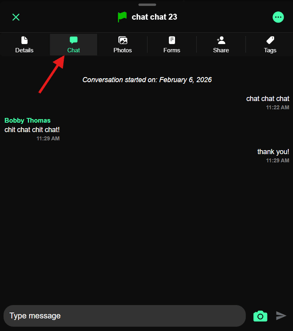
This is helpful when you’re already reviewing a flag’s information and want to add comments, updates, or images in context.
### Chat Records in the Portal
You can view chats when viewing flag records in the portal.
1. Navigate to the **OnStation Portal**.
2. Tap the **Projects Tab**.
3. Select the project you'd like to work in.
4. Select a flag to view.
5. Tap the **Chat** tab to view chats on that flag.
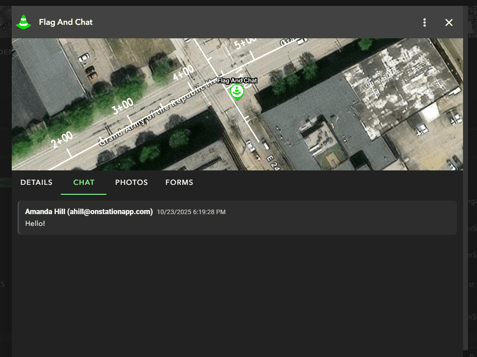
---
### **Why Chats Are Great to Use in OnStation**
Chats are more than simple messages—they’re a powerful tool for project communication and field documentation.
### **1. Attach Photos Easily**
Chats are how you add images to a flag.
Within any chat, you can:
- **Take a photo** directly
- **Upload from your gallery**
**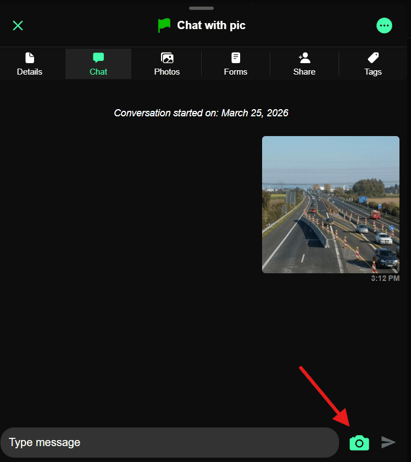**
These images become part of that flag’s communication history, making it easy to document:
- Field conditions
- Safety concerns
- Completed work
- Materials
- Measurements
- Before/after comparisons
### **2. Keep Flag Communication in One Place**
Every message stays tied to the exact flag location.
No more guessing:
- Which photo belongs to which spot
- What update goes with what part of the project
- Who said what and where
Chats create a clean, centralized conversation thread for each flag.
### **3. Improve Team Coordination**
Since chats stay with the flag:
- Crews, inspectors, supervisors, and staff all stay aligned
- Anyone opening the flag can see the full conversation history
- No need to chase texts, emails, or group messages
### **4. Notifications That Keep You Updated**
OnStation notifies you when a new chat message appears on a shared flag.
While you can **mute flag notifications**, chat messages are still part of the activity for that flag and cannot be muted separately.
This helps ensure important conversations are not missed.
When exporting flags to PDF, chats are included in the record.
Chats are time/date stamped and include the users email for accurate record keeping and auditing purposes.
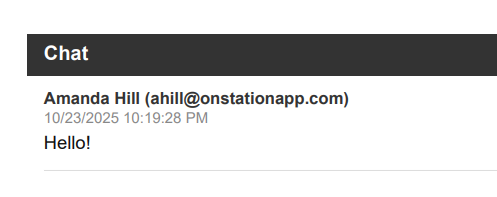
---
### **Summary**
The Chat feature in OnStation provides:
- Two ways to access conversations in the OnStation App (main Chat icon or flag record)
- Direct photo capture and upload
- Clear, location‑anchored communication
- Better documentation and teamwork
- Integrated notifications (with option to mute flag-level alerts)
Chats keep your field communication organized, accurate, and tied to the exact map data your project depends on.
- [Getting Started](https://help.onstationapp.com/knowledge/getting-started?hsLang=en#main-content)
- [New Sign-Up/Onboarding](https://help.onstationapp.com/knowledge/getting-started?hsLang=en#new-sign-up-onboarding)
- [Navigating the App](https://help.onstationapp.com/knowledge/getting-started?hsLang=en#navigating-the-app)
- [Navigating the Portal](https://help.onstationapp.com/knowledge/getting-started?hsLang=en#navigating-the-portal)
- [Project Submissions and Managment](https://help.onstationapp.com/knowledge/getting-started?hsLang=en#project-submissions-and-managment)
- [User Managment](https://help.onstationapp.com/knowledge/getting-started?hsLang=en#user-managment)
- [Troubleshooting](https://help.onstationapp.com/knowledge/getting-started?hsLang=en#troubleshooting)
- [Document the Work](https://help.onstationapp.com/knowledge/document-the-work?hsLang=en#main-content)
- [Flags](https://help.onstationapp.com/knowledge/document-the-work?hsLang=en#flags)
- [Photos](https://help.onstationapp.com/knowledge/document-the-work?hsLang=en#photos)
- [Forms](https://help.onstationapp.com/knowledge/document-the-work?hsLang=en#forms)
- [Measuring Tools](https://help.onstationapp.com/knowledge/document-the-work?hsLang=en#measuring-tools)
- [Troubleshooting](https://help.onstationapp.com/knowledge/document-the-work?hsLang=en#troubleshooting)
- [Finding Your Location](https://help.onstationapp.com/knowledge/finding-your-location?hsLang=en#main-content)
- [Learn More](https://help.onstationapp.com/knowledge/finding-your-location?hsLang=en#learn-more)
- [Troubleshooting](https://help.onstationapp.com/knowledge/finding-your-location?hsLang=en#troubleshooting)
- [Share & Collaborate](https://help.onstationapp.com/knowledge/share-collaborate?hsLang=en#main-content)
- [Learn More](https://help.onstationapp.com/knowledge/share-collaborate?hsLang=en#learn-more)
- [Troubleshooting](https://help.onstationapp.com/knowledge/share-collaborate?hsLang=en#troubleshooting)
- [Export & Report](https://help.onstationapp.com/knowledge/export-report?hsLang=en#main-content)
- [Learn More](https://help.onstationapp.com/knowledge/export-report?hsLang=en#learn-more)
- [Active Worksite™](https://help.onstationapp.com/knowledge/active-worksite?hsLang=en)
- [Integrations](https://help.onstationapp.com/knowledge/integrations?hsLang=en#main-content)
- [TransTech Systems](https://help.onstationapp.com/knowledge/integrations?hsLang=en#transtech-systems)
- [HeavyJob](https://help.onstationapp.com/knowledge/integrations?hsLang=en#heavyjob)
- [GNSS/GPS Receivers](https://help.onstationapp.com/knowledge/integrations?hsLang=en#gnss-gps-receivers)
- [FleetWatcher](https://help.onstationapp.com/knowledge/integrations?hsLang=en#fleetwatcher)
- [Trimble](https://help.onstationapp.com/knowledge/integrations?hsLang=en#trimble)
- [Bad Elf](https://help.onstationapp.com/knowledge/integrations?hsLang=en#bad-elf)
[](http://www.onstationapp.com?hsLang=en)
[mailto:email@email.com](mailto:email@email.com)
Copyright © 2026, OnStation