---
title: Get Your Crew Job Ready
description: "Learn how to set up an OnStation user in the Portal: create or approve their account, then assign a license, project, and permissions."
---
[Skip to content](https://help.onstationapp.com/knowledge/get-your-crew-job-ready#main-content)
English
Show submenu for translations
[More support](https://help.onstationapp.com/knowledge/kb-tickets/new?hsLang=en) [Support Portal](https://help.onstationapp.com/support-portal?hsLang=en)
[](https://www.onstationapp.com?hsLang=en)
- Support Tools
Show submenu for Support Tools
- [Updates & Bug Fixes](https://www.onstationapp.com/whats-new)
- [Webinars](https://www.youtube.com/@onstationapp/videos)
- [Training](https://help.onstationapp.com/knowledge/getting-started)
- [Submit A Ticket](https://share.hsforms.com/291l4uAzdR0C-hDSgSZKqUQ3053t)
- [Schedule Training](https://meetings.hubspot.com/aubrey-hadney/training-scheduler)
- [Visit Official Website](https://www.onstationapp.com/)
Open main navigation
Close main navigation
- Support Tools
Show submenu for Support Tools
- [Updates & Bug Fixes](https://www.onstationapp.com/whats-new)
- [Webinars](https://www.youtube.com/@onstationapp/videos)
- [Training](https://help.onstationapp.com/knowledge/getting-started)
- [Submit A Ticket](https://share.hsforms.com/291l4uAzdR0C-hDSgSZKqUQ3053t)
- [Schedule Training](https://meetings.hubspot.com/aubrey-hadney/training-scheduler)
- [Visit Official Website](https://www.onstationapp.com/)
- English
Show submenu for translations
- [More support](https://help.onstationapp.com/knowledge/kb-tickets/new)
- [Support Portal](https://help.onstationapp.com/support-portal)
- [Contact Us](https://www.onstationapp.com/contact-us)
[Contact Us](https://www.onstationapp.com/contact-us?hsLang=en)
How can we help you?
- There are no suggestions because the search field is empty.
1. [Knowledge Base](https://help.onstationapp.com/knowledge?hsLang=en)
2. [Getting Started](https://help.onstationapp.com/knowledge/getting-started?hsLang=en)
3. [User Managment](https://help.onstationapp.com/knowledge/getting-started?hsLang=en#user-managment)
August 21, 2026
# Get Your Crew Job Ready
## Getting a team member set up right the first time means they can log in, see their project, and use the right features from day one.
#### **Four moves and your crew is ready to work: get the user into your organization, assign a license, permissions, and projects. Here's the full process.**
Need help? Call or text us at (216) 503-8554, or [reach out online](https://www.onstationapp.com/contact-us?hsLang=en).
#### **Get the user into your organization**
There are three ways to do this depending on where they're starting from: creating a brand new user, adding someone who already has an OnStation account elsewhere, or approving a request they've already submitted. See [How to Add New or Existing Users to Your Organization](https://help.onstationapp.com/knowledge/adding-users-0?hsLang=en) for the full steps on all three.
#### **Assign a license**
If a license wasn't auto-assigned when the account was created, assign one now. A user needs a license before they can access projects or any project data.
1. View the user from the Teams menu.
2. Tap the license column for the user ("unlicensed" in the screenshot below).

3. Choose a license tier from your organization's available licenses: Locate, Capture, or Data.
#### **Assign Permissions**
Permissions in OnStation live in Groups. Groups can be permission-based, share-based, or a combination of both, so the group you add someone to may determine their permissions, what gets shared with them, or both at once.
If the right group already exists, add the user to it directly:
1. Open the Groups menu
2. Find the right group and tap edit
3. Add the user to the group
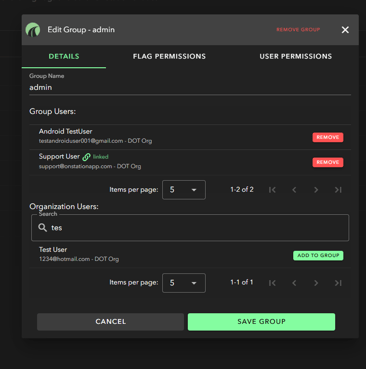
4. **Save** your changes.
Don't have a group set up yet for this role? See [Create Groups and Assign Permissions](https://help.onstationapp.com/knowledge/create-user-permission-groups?hsLang=en) to create one and assign its permissions before adding this user.
#### **Assign projects**
Assign projects your user will be working on. These assigned projects will appear in the users' project list in their mobile app.
1. Access the user's profile from the Teams menu

2. Tap the Projects tab
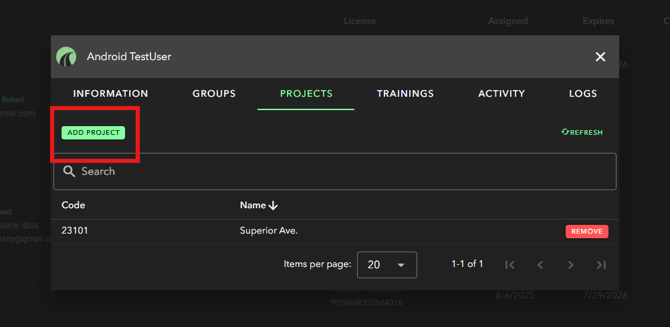
3. Tap Add Project
**Reusing a phone number for a new employee? Contact us first.**
When someone leaves and a new employee takes over their work phone number, it's tempting to just edit the old employee's existing account: updating the name and trying to change the email to match the new person. Only OnStation Support can edit a user's email, org admins can't make that change themselves.
If a new hire is taking over a phone number that belonged to a previous employee, call or text us before making any changes to the old account. We'll retire the old one and get the new employee set up correctly the first time.
Call or text us at (216) 503-8554, or [reach out online](https://www.onstationapp.com/contact-us?hsLang=en).
- [Getting Started](https://help.onstationapp.com/knowledge/getting-started?hsLang=en#main-content)
- [New Sign-Up/Onboarding](https://help.onstationapp.com/knowledge/getting-started?hsLang=en#new-sign-up-onboarding)
- [Navigating the App](https://help.onstationapp.com/knowledge/getting-started?hsLang=en#navigating-the-app)
- [Navigating the Portal](https://help.onstationapp.com/knowledge/getting-started?hsLang=en#navigating-the-portal)
- [Project Submissions and Managment](https://help.onstationapp.com/knowledge/getting-started?hsLang=en#project-submissions-and-managment)
- [User Managment](https://help.onstationapp.com/knowledge/getting-started?hsLang=en#user-managment)
- [Troubleshooting](https://help.onstationapp.com/knowledge/getting-started?hsLang=en#troubleshooting)
- [Document the Work](https://help.onstationapp.com/knowledge/document-the-work?hsLang=en#main-content)
- [Flags](https://help.onstationapp.com/knowledge/document-the-work?hsLang=en#flags)
- [Photos](https://help.onstationapp.com/knowledge/document-the-work?hsLang=en#photos)
- [Forms](https://help.onstationapp.com/knowledge/document-the-work?hsLang=en#forms)
- [Measuring Tools](https://help.onstationapp.com/knowledge/document-the-work?hsLang=en#measuring-tools)
- [Troubleshooting](https://help.onstationapp.com/knowledge/document-the-work?hsLang=en#troubleshooting)
- [Finding Your Location](https://help.onstationapp.com/knowledge/finding-your-location?hsLang=en#main-content)
- [Learn More](https://help.onstationapp.com/knowledge/finding-your-location?hsLang=en#learn-more)
- [Troubleshooting](https://help.onstationapp.com/knowledge/finding-your-location?hsLang=en#troubleshooting)
- [Share & Collaborate](https://help.onstationapp.com/knowledge/share-collaborate?hsLang=en#main-content)
- [Learn More](https://help.onstationapp.com/knowledge/share-collaborate?hsLang=en#learn-more)
- [Troubleshooting](https://help.onstationapp.com/knowledge/share-collaborate?hsLang=en#troubleshooting)
- [Export & Report](https://help.onstationapp.com/knowledge/export-report?hsLang=en#main-content)
- [Learn More](https://help.onstationapp.com/knowledge/export-report?hsLang=en#learn-more)
- [Active Worksite™](https://help.onstationapp.com/knowledge/active-worksite?hsLang=en)
- [Integrations](https://help.onstationapp.com/knowledge/integrations?hsLang=en#main-content)
- [TransTech Systems](https://help.onstationapp.com/knowledge/integrations?hsLang=en#transtech-systems)
- [HeavyJob](https://help.onstationapp.com/knowledge/integrations?hsLang=en#heavyjob)
- [GNSS/GPS Receivers](https://help.onstationapp.com/knowledge/integrations?hsLang=en#gnss-gps-receivers)
- [FleetWatcher](https://help.onstationapp.com/knowledge/integrations?hsLang=en#fleetwatcher)
- [Trimble](https://help.onstationapp.com/knowledge/integrations?hsLang=en#trimble)
- [Bad Elf](https://help.onstationapp.com/knowledge/integrations?hsLang=en#bad-elf)
[](http://www.onstationapp.com?hsLang=en)
[mailto:email@email.com](mailto:email@email.com)
Copyright © 2026, OnStation