---
title: Enhanced Measurement Tools
description: This article details the OnStation enhanced measurement tools showcasing the ability to create shapes and attach flags to the shapes and lines.
---
[Skip to content](https://help.onstationapp.com/knowledge/enhanced-measurement-tools#main-content)
English
Show submenu for translations
[More support](https://help.onstationapp.com/knowledge/kb-tickets/new?hsLang=en) [Support Portal](https://help.onstationapp.com/support-portal?hsLang=en)
[](https://www.onstationapp.com?hsLang=en)
- Support Tools
Show submenu for Support Tools
- [Updates & Bug Fixes](https://www.onstationapp.com/whats-new)
- [Webinars](https://www.youtube.com/@onstationapp/videos)
- [Training](https://help.onstationapp.com/knowledge/getting-started)
- [Submit A Ticket](https://share.hsforms.com/291l4uAzdR0C-hDSgSZKqUQ3053t)
- [Schedule Training](https://meetings.hubspot.com/aubrey-hadney/training-scheduler)
- [Visit Official Website](https://www.onstationapp.com/)
Open main navigation
Close main navigation
- Support Tools
Show submenu for Support Tools
- [Updates & Bug Fixes](https://www.onstationapp.com/whats-new)
- [Webinars](https://www.youtube.com/@onstationapp/videos)
- [Training](https://help.onstationapp.com/knowledge/getting-started)
- [Submit A Ticket](https://share.hsforms.com/291l4uAzdR0C-hDSgSZKqUQ3053t)
- [Schedule Training](https://meetings.hubspot.com/aubrey-hadney/training-scheduler)
- [Visit Official Website](https://www.onstationapp.com/)
- English
Show submenu for translations
- [More support](https://help.onstationapp.com/knowledge/kb-tickets/new)
- [Support Portal](https://help.onstationapp.com/support-portal)
- [Contact Us](https://www.onstationapp.com/contact-us)
[Contact Us](https://www.onstationapp.com/contact-us?hsLang=en)
How can we help you?
- There are no suggestions because the search field is empty.
1. [Knowledge Base](https://help.onstationapp.com/knowledge?hsLang=en)
2. [Document the Work](https://help.onstationapp.com/knowledge/document-the-work?hsLang=en)
3. [Measuring Tools](https://help.onstationapp.com/knowledge/document-the-work?hsLang=en#measuring-tools)
April 29, 2026
# Enhanced Measurement Tools
## We have enhanced our measuring tool to include drawing polygon shapes and lines. Not only can you draw these shapes and associate a flag with all the features of an OnStation flag (photos, tags, forms, mark as hazardous) AND share them, but you also have start and stop points, area of shape, and center point of the shape listed in the flag details. Follow the steps below to create shapes in the app or check out the video demonstrations far below.
**Requirements**:
- Capture license to create shape in the app
- Data license + plus permissions for Data Admin to extract flag and shape data
### Table of Contents
1. Steps to use in App
1. [Creating Shapes](https://help.onstationapp.com/knowledge/enhanced-measurement-tools#shape)
2. [Cut-Outs](https://help.onstationapp.com/knowledge/enhanced-measurement-tools#cutout)
2. [Video Tutorials](https://help.onstationapp.com/knowledge/enhanced-measurement-tools#Videos)
1. [Line](https://help.onstationapp.com/knowledge/enhanced-measurement-tools#Line)
2. [Circle](https://help.onstationapp.com/knowledge/enhanced-measurement-tools#Cirlce)
3. [Follow Me](https://help.onstationapp.com/knowledge/enhanced-measurement-tools#FollowMe)
4. [Cut-Outs](https://help.onstationapp.com/knowledge/enhanced-measurement-tools#cutoutvid)
3. [Use Cases](https://help.onstationapp.com/knowledge/enhanced-measurement-tools#use)
4. [About the Portal](https://help.onstationapp.com/knowledge/enhanced-measurement-tools#Portal)
### **Steps**:
#### **Creating Shapes in the App**
1. Log into the OnStation app and access the project you wish to work in.
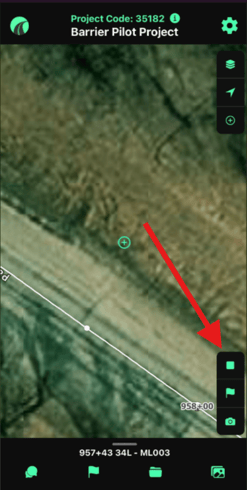
2. Select the measurement tool in the bottom right corner
3. Notice the line drawing icon that appears in the bottom left corner, select this to open the measurement options.
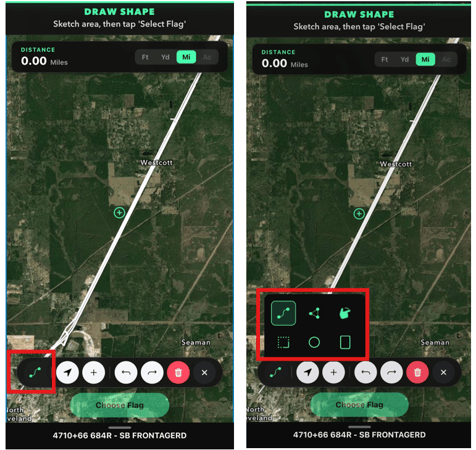
4. For example, you can use the circle shape by selecting the circle, then double tap the area you would like to place the shape. To enlarge or depress the shape size, click the shape and adjust.
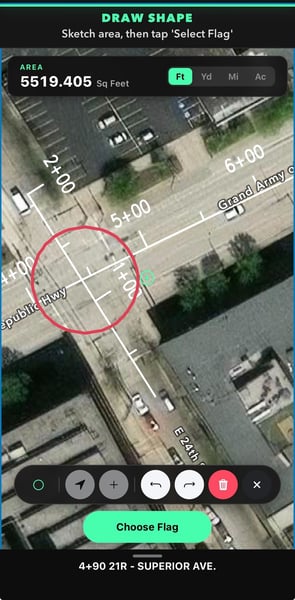
5. On the measurement menu bar you have the option to move forward and backward with your shape edits, delete the shape, or exit shape measurement via the X.
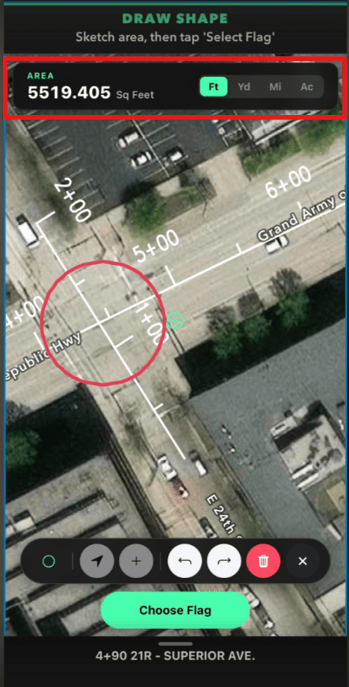
6. Located at the top of the page is your measurement and unit selection. This will display the measurement of your shape in the unit you select .
7. Once done drawing your shape, select Choose Flag. Here you can select an icon and name your shape as you would any flag in OnStation.
8. After dropping the flag, the details page will appear where you can add a tag, form, photo, pay-line items, or create a chat and share your shape.
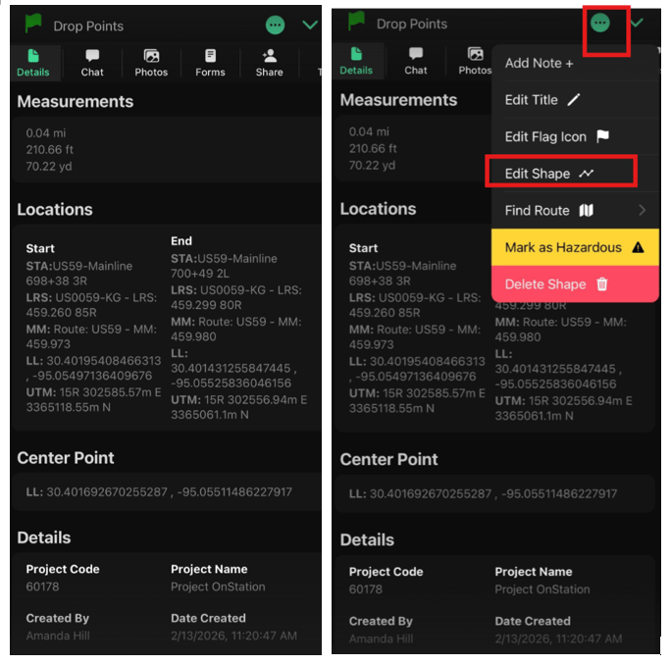
9. Notice the details also display the center point of your shape and measurements. Once complete the user can interact with the shape to make edits to the geometry by tapping on the "Edit Shape Geometry". This is similar to the "Move Flag" option for flags a a point. Additionally, they can interact with the flag to adjust other flag parameters exactly the way they would interact with flags at a position.
#### **Creating Cut-Outs in Shapes**
1. Log into the OnStation app and access the project you wish to work in.
2. Select the measurement tool in the bottom right corner

3. Follow through step 7 above to create and flag your shape.
4. From the flag Details access the Flag Menu.
5. Select **Add Cutouts**
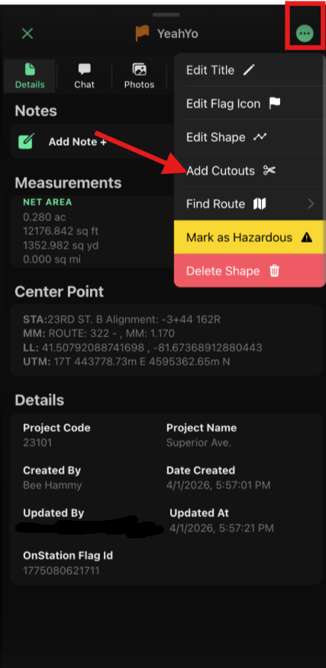
6. You will now have access to the cutout menus. Choose your shape or freestyle drawing tool.
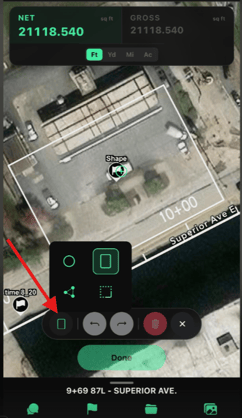
7. Draw and place your shape. Notice the measurement of the area to be subtracted is noted about. The unit of measurement can be changed to Feet, Yard, Mile, or Acre.
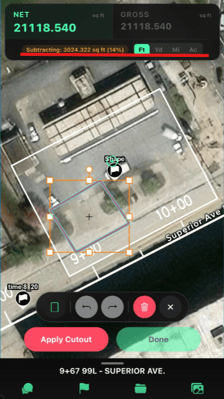
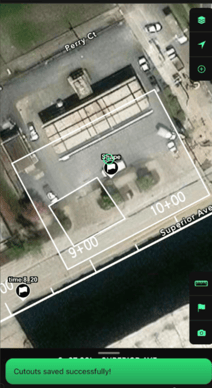
8. Tap Apply Cutout and notice the new net total of the area.
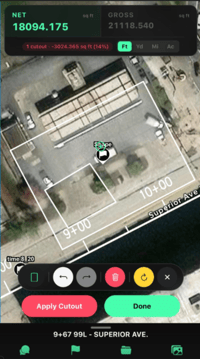
9. When you are complete, tap done to save your new shape.
#### Using the "Follow Me" feature
Use your GPS and active location to measure on the move!
1. Activate your GPS by selecting the arrow on the right side of your screen.
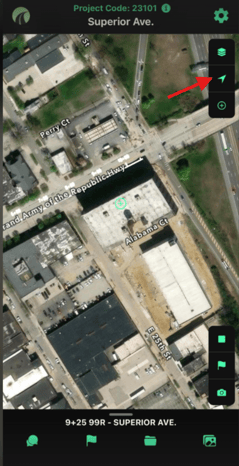
2. Your location is indicated by a Blue Dot. You will notice the crosshair aligns with your location. As you move the Blue Dot will follow you!
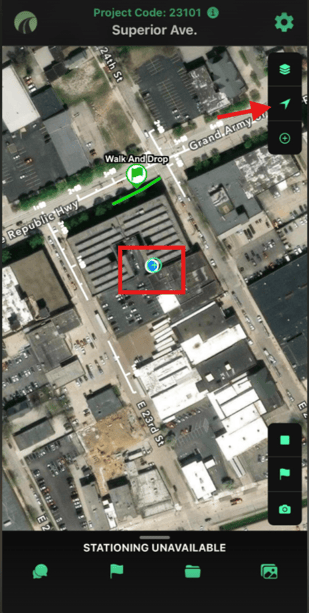
3. Select the Measurement tool menu
4. The measurement + Follow Me feature is only available with the polyline and polygon shapes-indicated in red below:
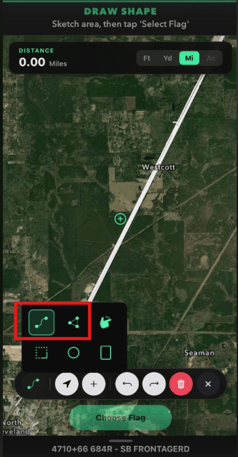
5. Select the arrow icon
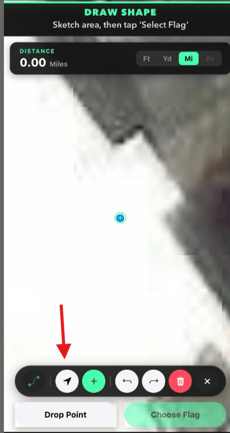
6. Drop a staring point and continue to drop as necessary or just at your end point to measure and save your movement as a flag.
### Video Demonstrations
#### Creating a straight line
#### Creating a Circle
#### Follow Me
#### **Cut-Outs**
### **Use Cases**
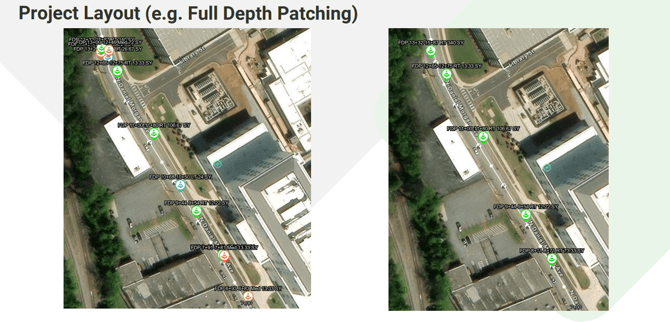
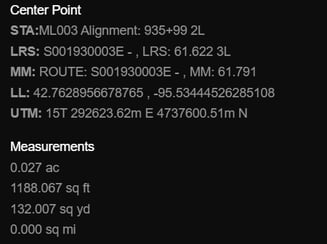
In the above photos you can see how a customer used the flag title to identify the measurement location for the scheduled work. With enhanced measurement, each flag could be dropped as a shape as in the image below, providing center point, area, and stationing information.
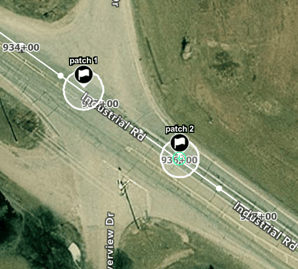
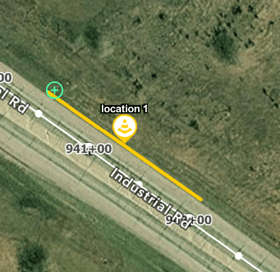
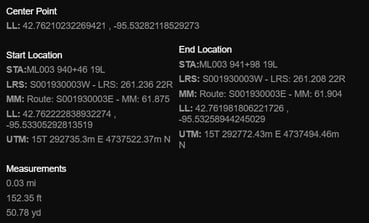
Additionally, measurement tools include the ability to draw lines providing stop and start points within the flag features.
### **Exporting Flag & Form Data in the Portal**
- Please see this article: [View and Exporting Flag Data](https://help.onstationapp.com/knowledge/exporting-flag-data?hsLang=en) and [View and Export Project Form Data](https://help.onstationapp.com/knowledge/export-form-data?hsLang=en) for more information
- [Getting Started](https://help.onstationapp.com/knowledge/getting-started?hsLang=en#main-content)
- [New Sign-Up/Onboarding](https://help.onstationapp.com/knowledge/getting-started?hsLang=en#new-sign-up-onboarding)
- [Navigating the App](https://help.onstationapp.com/knowledge/getting-started?hsLang=en#navigating-the-app)
- [Navigating the Portal](https://help.onstationapp.com/knowledge/getting-started?hsLang=en#navigating-the-portal)
- [Project Submissions and Managment](https://help.onstationapp.com/knowledge/getting-started?hsLang=en#project-submissions-and-managment)
- [User Managment](https://help.onstationapp.com/knowledge/getting-started?hsLang=en#user-managment)
- [Troubleshooting](https://help.onstationapp.com/knowledge/getting-started?hsLang=en#troubleshooting)
- [Document the Work](https://help.onstationapp.com/knowledge/document-the-work?hsLang=en#main-content)
- [Flags](https://help.onstationapp.com/knowledge/document-the-work?hsLang=en#flags)
- [Photos](https://help.onstationapp.com/knowledge/document-the-work?hsLang=en#photos)
- [Forms](https://help.onstationapp.com/knowledge/document-the-work?hsLang=en#forms)
- [Measuring Tools](https://help.onstationapp.com/knowledge/document-the-work?hsLang=en#measuring-tools)
- [Troubleshooting](https://help.onstationapp.com/knowledge/document-the-work?hsLang=en#troubleshooting)
- [Finding Your Location](https://help.onstationapp.com/knowledge/finding-your-location?hsLang=en#main-content)
- [Learn More](https://help.onstationapp.com/knowledge/finding-your-location?hsLang=en#learn-more)
- [Troubleshooting](https://help.onstationapp.com/knowledge/finding-your-location?hsLang=en#troubleshooting)
- [Share & Collaborate](https://help.onstationapp.com/knowledge/share-collaborate?hsLang=en#main-content)
- [Learn More](https://help.onstationapp.com/knowledge/share-collaborate?hsLang=en#learn-more)
- [Troubleshooting](https://help.onstationapp.com/knowledge/share-collaborate?hsLang=en#troubleshooting)
- [Export & Report](https://help.onstationapp.com/knowledge/export-report?hsLang=en#main-content)
- [Learn More](https://help.onstationapp.com/knowledge/export-report?hsLang=en#learn-more)
- [Active Worksite™](https://help.onstationapp.com/knowledge/active-worksite?hsLang=en)
- [Integrations](https://help.onstationapp.com/knowledge/integrations?hsLang=en#main-content)
- [TransTech Systems](https://help.onstationapp.com/knowledge/integrations?hsLang=en#transtech-systems)
- [HeavyJob](https://help.onstationapp.com/knowledge/integrations?hsLang=en#heavyjob)
- [GNSS/GPS Receivers](https://help.onstationapp.com/knowledge/integrations?hsLang=en#gnss-gps-receivers)
- [FleetWatcher](https://help.onstationapp.com/knowledge/integrations?hsLang=en#fleetwatcher)
- [Trimble](https://help.onstationapp.com/knowledge/integrations?hsLang=en#trimble)
- [Bad Elf](https://help.onstationapp.com/knowledge/integrations?hsLang=en#bad-elf)
[](http://www.onstationapp.com?hsLang=en)
[mailto:email@email.com](mailto:email@email.com)
Copyright © 2026, OnStation
```json
{
"@context" : "https://schema.org",
"@type" : "VideoObject",
"contentUrl" : "https://5045465.fs1.hubspotusercontent-na1.net/hubfs/5045465/video_assets/207725061994/inherited/web_optimized.mp4",
"dateModified" : "2026-02-16T14:53:47.676Z",
"duration" : "PT32S",
"height" : 1080,
"name" : "measure",
"thumbnailUrl" : "https://5045465.fs1.hubspotusercontent-na1.net/hubfs/5045465/measure.mp4/medium.jpg",
"uploadDate" : "2026-02-16T14:49:30.358Z",
"width" : 1920
}
```
```json
{
"@context" : "https://schema.org",
"@type" : "VideoObject",
"contentUrl" : "https://5045465.fs1.hubspotusercontent-na1.net/hubfs/5045465/video_assets/207725070343/inherited/web_optimized.mp4",
"dateModified" : "2026-02-16T14:59:18.768Z",
"duration" : "PT29S",
"height" : 1080,
"name" : "circle",
"thumbnailUrl" : "https://5045465.fs1.hubspotusercontent-na1.net/hubfs/5045465/circle.mp4/medium.jpg",
"uploadDate" : "2026-02-16T14:59:07.068Z",
"width" : 1920
}
```
```json
{
"@context" : "https://schema.org",
"@type" : "VideoObject",
"contentUrl" : "https://5045465.fs1.hubspotusercontent-na1.net/hubfs/5045465/video_assets/207743250194/inherited/web_optimized.mp4",
"dateModified" : "2026-02-16T15:56:44.895Z",
"duration" : "PT55S",
"height" : 1080,
"name" : "followShape",
"thumbnailUrl" : "https://5045465.fs1.hubspotusercontent-na1.net/hubfs/5045465/followShape.mp4/medium.jpg",
"uploadDate" : "2026-02-16T15:56:18.474Z",
"width" : 1920
}
```
```json
{
"@context" : "https://schema.org",
"@type" : "VideoObject",
"contentUrl" : "https://5045465.fs1.hubspotusercontent-na1.net/hubfs/5045465/video_assets/211860786232/inherited/web_optimized.mp4",
"dateModified" : "2026-04-28T12:57:43.739Z",
"duration" : "PT1M6.067S",
"height" : 1564,
"name" : "ScreenRecording_04-28-2026 08-54-20_1",
"thumbnailUrl" : "https://5045465.fs1.hubspotusercontent-na1.net/hubfs/5045465/ScreenRecording_04-28-2026%2008-54-20_1.mp4/medium.jpg",
"uploadDate" : "2026-04-28T12:57:31.154Z",
"width" : 718
}
```