---
title: Custom Layers and Enhanced Design Features
description: Understand and use custom layer feature in OnStation
---
[Skip to content](https://help.onstationapp.com/knowledge/custom-layers-and-enhanced-design-features-a#main-content)
English
Show submenu for translations
[More support](https://help.onstationapp.com/knowledge/kb-tickets/new?hsLang=en) [Support Portal](https://help.onstationapp.com/support-portal?hsLang=en)
[](https://www.onstationapp.com?hsLang=en)
- Support Tools
Show submenu for Support Tools
- [Updates & Bug Fixes](https://www.onstationapp.com/whats-new)
- [Webinars](https://www.youtube.com/@onstationapp/videos)
- [Training](https://help.onstationapp.com/knowledge/getting-started)
- [Submit A Ticket](https://share.hsforms.com/291l4uAzdR0C-hDSgSZKqUQ3053t)
- [Schedule Training](https://meetings.hubspot.com/aubrey-hadney/training-scheduler)
- [Visit Official Website](https://www.onstationapp.com/)
Open main navigation
Close main navigation
- Support Tools
Show submenu for Support Tools
- [Updates & Bug Fixes](https://www.onstationapp.com/whats-new)
- [Webinars](https://www.youtube.com/@onstationapp/videos)
- [Training](https://help.onstationapp.com/knowledge/getting-started)
- [Submit A Ticket](https://share.hsforms.com/291l4uAzdR0C-hDSgSZKqUQ3053t)
- [Schedule Training](https://meetings.hubspot.com/aubrey-hadney/training-scheduler)
- [Visit Official Website](https://www.onstationapp.com/)
- English
Show submenu for translations
- [More support](https://help.onstationapp.com/knowledge/kb-tickets/new)
- [Support Portal](https://help.onstationapp.com/support-portal)
- [Contact Us](https://www.onstationapp.com/contact-us)
[Contact Us](https://www.onstationapp.com/contact-us?hsLang=en)
How can we help you?
- There are no suggestions because the search field is empty.
1. [Knowledge Base](https://help.onstationapp.com/knowledge?hsLang=en)
2. [Getting Started](https://help.onstationapp.com/knowledge/getting-started?hsLang=en)
3. [Navigating the App](https://help.onstationapp.com/knowledge/getting-started?hsLang=en#navigating-the-app)
April 27, 2026
# Custom Layers and Enhanced Design Features
## OnStation enhances digital as-built workflows by allowing users to view the original digital project design while creating custom layers to edit features, update metadata, add new features, and flag features.
This layered approach allows users to document construction seamlessly by preserving the original design data while maintaining a separate, clearly defined record of what was actually built. Unlike traditional redline markups on PDF plans, all changes are captured digitally, spatially referenced, and exportable, creating an auditable history of design modifications and construction decisions.
This comprehensive documentation not only supports accurate payment and accountability during construction, but also ensures that finalized as-built data can be easily transitioned into asset management systems for long-term maintenance and future planning.
### Check out the article below and learn how to
- [Create a custom layer](https://help.onstationapp.com/knowledge/custom-layers-and-enhanced-design-features-a#layer)
- [View custom layers in the App and Portal](https://help.onstationapp.com/knowledge/custom-layers-and-enhanced-design-features-a#steps)
- [Edit meta data](https://help.onstationapp.com/knowledge/custom-layers-and-enhanced-design-features-a#edit)
- [Flag a feature](https://help.onstationapp.com/knowledge/custom-layers-and-enhanced-design-features-a#flag)
- [Edit a feature](https://help.onstationapp.com/knowledge/custom-layers-and-enhanced-design-features-a#editFeature)
- [Create a new feature](https://help.onstationapp.com/knowledge/custom-layers-and-enhanced-design-features-a#new)
- [Snap](https://help.onstationapp.com/knowledge/custom-layers-and-enhanced-design-features-a#snap)
### Custom Layers:
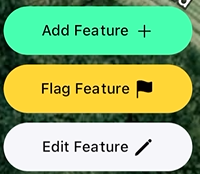
Users can copy project layers that are not Vector Tiles (only Stationing layers usually) by clicking “Copy” and naming the layer to the new name desired. This Copy will reside in a new section in the Layers menu entitled "Custom Layers". These Custom Layers will allow users to:
1. [**Edit Popup Data on a Layer**](https://help.onstationapp.com/knowledge/custom-layers-and-enhanced-design-features-a#EditingPopUpData)
1. This allows one to edit attributes (i.e. metadata) about that layer
2. **[Add Feature](https://help.onstationapp.com/knowledge/custom-layers-and-enhanced-design-features-a#CustomLayers_Steps_AddNewFeature):**
1. This allows one to create a new feature that was not on the original layer and account for that in the field on the custom layer.
2. Snap Feature- connect a new feature to an existing feature and assign/copy attributes.
3. **[Flag Feature](https://help.onstationapp.com/knowledge/custom-layers-and-enhanced-design-features-a#CustomLayers_Steps_CreateFlag)**
1. This allows one to copy an object from the GIS map to a flag object. The flag object will take on the length / size / shape of the object and allow the user to:
1. Associate Pay Line Items, Tags, Work Items
2. Create Forms
3. Export this data out of OnStation via the portal on an individual or bulk flags without having to export the entire layer
4. [**Edit Feature**](https://help.onstationapp.com/knowledge/custom-layers-and-enhanced-design-features-a#CustomLayers_Steps_EditExisting):
1. This allows one to take an existing feature from that layer (ex. guard rail, utility line, etc.) and edit it to represent the changes actually needed and/or made on the field
#### ***\*Requires***
- *Capture license to create and/or edit Custom Layer*
- *Data License to extract Custom Layer + plus permissions for Data Admin*
#### **Steps**:
##### **Creating a New Layer**
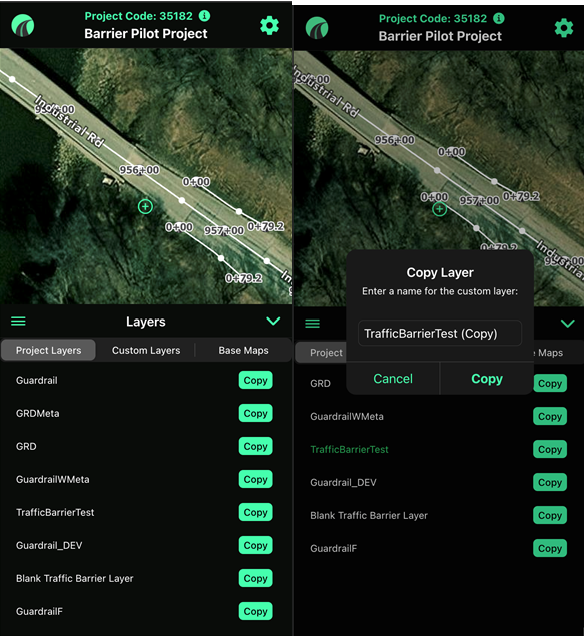
1. Log into OnStation App and open up project
2. Tap on the Layers menu on the right hand side  to reveal the available Layers for that project
3. Choose the Layer of interest and select "Copy". Enter the name of the new layer as desired.
1. 
##### **Viewing The Custom Layers**
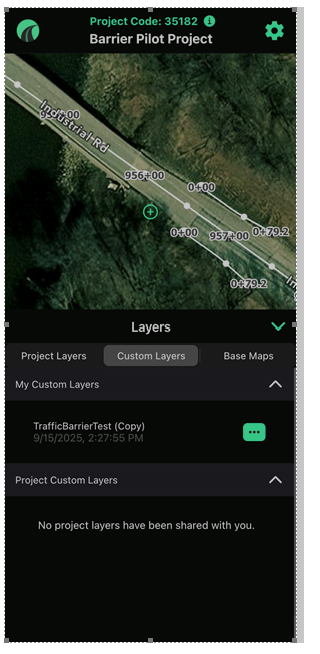
1. This new Custom Layer will appear in the "My Custom Layers" for the person who created it. Similar to flags, the creator is the only one with permissions to delete this Custom Layer.
1. 
2. 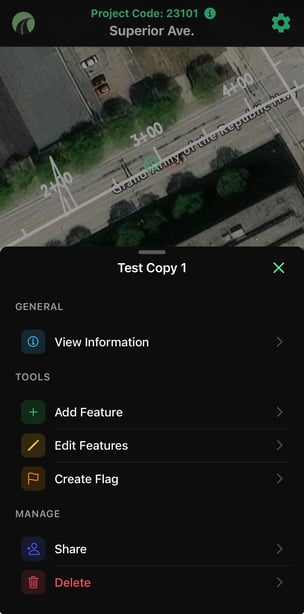
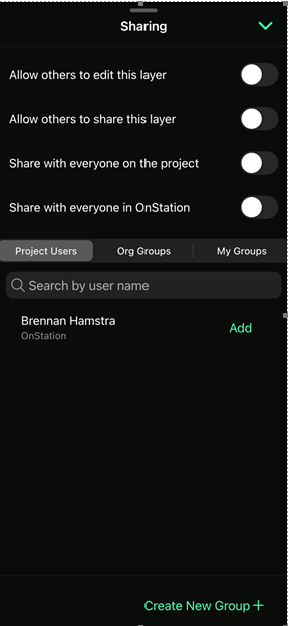
2. The Creator of the Custom Layer can then choose to share this with others. They can share and choose with whom and how they want to share this Custom Layer. IE Can others view vs edit vs share with others.
1. 
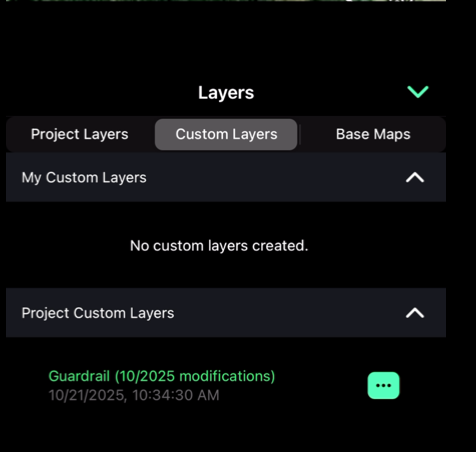
3. Users who have had this Custom Layer shared with them will see this under the "Custom Layers" -\> "Project Custom Layers" . See example below
1. 
##### **Edit Popup Data on a Layer**
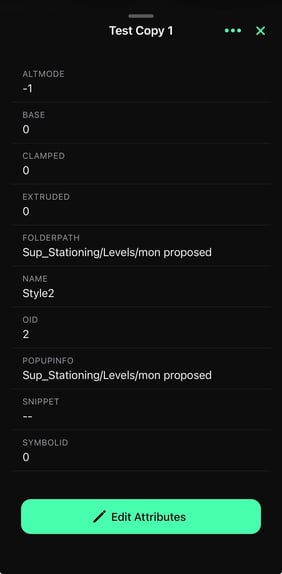
To edit the popup data for a layer, you need to be on a custom layer. The pencil for the ESRI popup data editor will be visible and when clicked, allow the user to edit the attributes in the popup data, clicking save to store that data back to the layer.
- *Note that the Pop Up Layer details are representative of the meta data provided from the engineering files. Any requirements of those fields are determined by the source of those GIS files and not OnStation requirements*
##### **Editing Layers:**
1. To begin to edit a Custom Layer one will need to navigate to the "Custom Layers" tab in the applicable project and select edit for the layer under "My Custom Layers" or "Project Custom Layers" as appropriate
###### **Editing Existing Feature**
1. Tap on the "Edit Feature" menu 
2. Select a Feature that you want to edit from that layer.
3. Once selected move / adjust that feature on the map as desired
4. Edit any of the pop up data as desired
1. Note that the Pop Up Layer details are representative of the meta data provided from the engineering files. Any requirements of those fields are determined by the source of those GIS files and not OnStation requirements
5. When completed click "Save"
###### **Creating A Flag Feature**
*This allows one to copy an object from the GIS map to a flag object.*
1. Tap on the "Flag Feature" menu 
2. Select a Feature that you want to copy to a flag from that layer.
3. Once selected move / adjust that feature on the map IF Desired. If not, move to next step
4. Select the "Choose Flag" button 
5. Select icon as desired and name flag then select "Drop Flag"
6. Share Flag with others as desired.
1. To learn more about flags see article: [Creating Flags](https://help.onstationapp.com/knowledge/add-a-flag?hsLang=en)
7. Minimize flag when completed
###### **Add a New Feature**
*This allows one to create a new feature that was not on the original layer and account for that in the field on the custom layer.*
1. Tap on the "Add Feature" menu
1. 
2. Tap on the map for the line or shape as desired for that new feature
3. When completed click "Create"
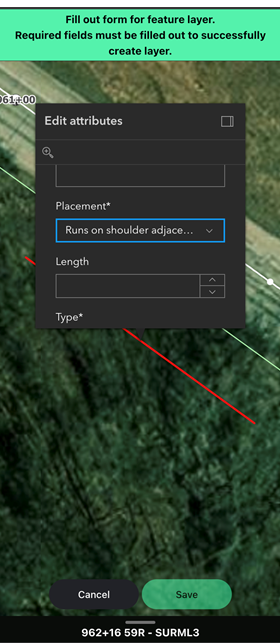
4. Fill out the pop up data as desired
1. Note that the Pop Up Layer details are representative of the meta data provided from the engineering files. Any Fields with an asterisk are required. Any requirements of those fields are determined by the source of those GIS files and not OnStation.
1. 
5. Click "Save"
6. Once created note that you can reselect to move / adjust that feature on the map as desired. See additional steps under the [Editing Existing Feature](https://help.onstationapp.com/knowledge/custom-layers-and-enhanced-design-features-a#CustomLayers_Steps_EditExisting) section for more info
###### Snap Feature
*This allows one to create a new feature and add it to an existing feature on the custom layer. You can choose to create this feature with its own details or inherit details from the existing feature.*
1. Select or create a layer copy
2. Tap add feature 
3. Tap the magnet icon to activate snapping
4. Place points to create a feature connecting to an existing feature
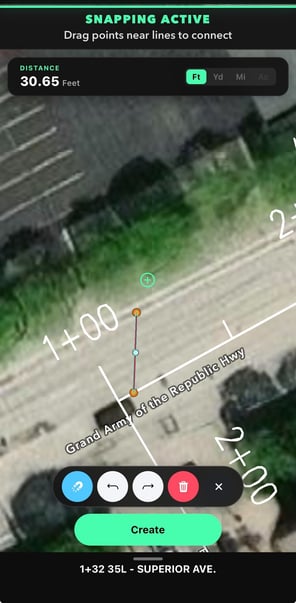
5. Tap create
6. OnStation will recognize the snapping feature and allow you to assign attributes to the new feature based on the connecting feature.
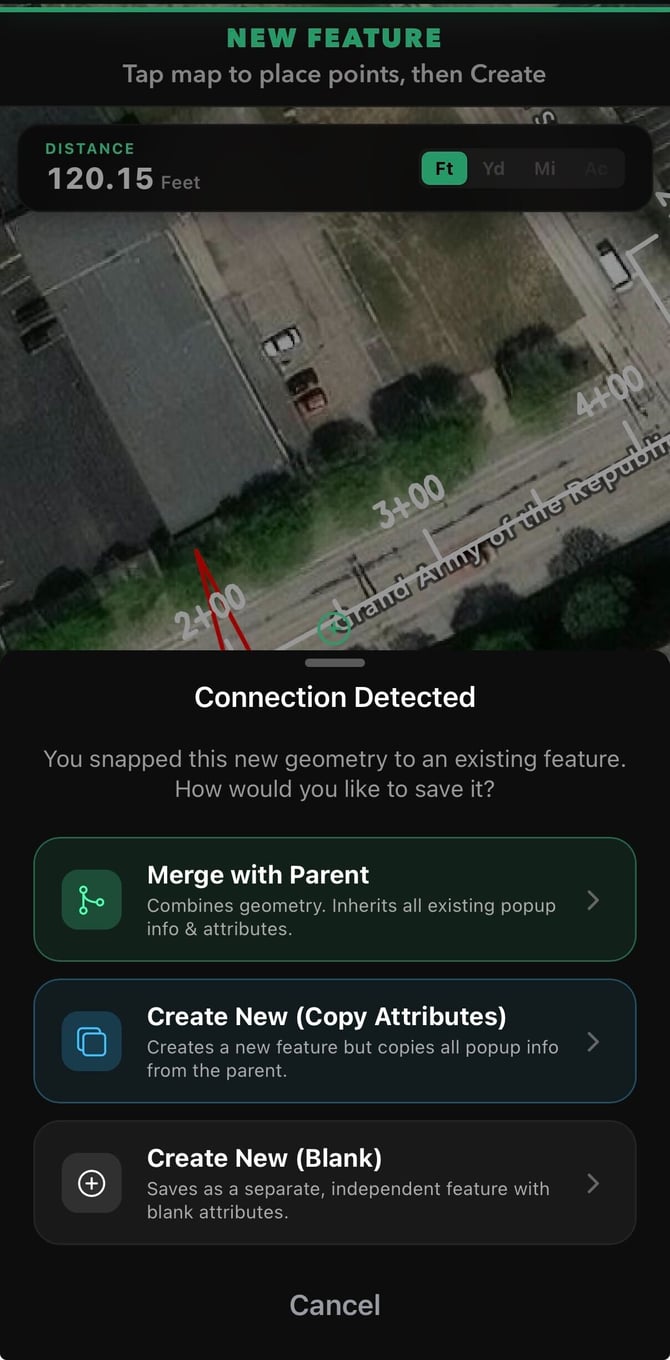
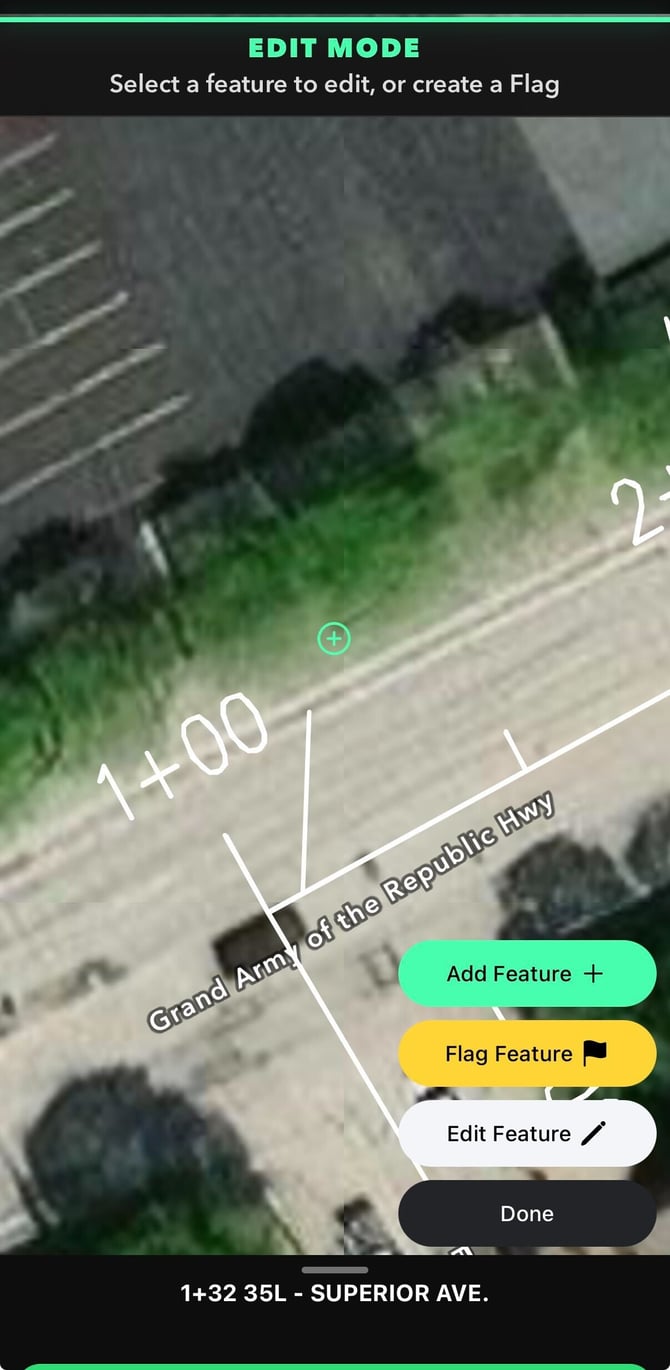
7. After choosing to Merge, Create New, of Blank. Tap Done
- [Getting Started](https://help.onstationapp.com/knowledge/getting-started?hsLang=en#main-content)
- [New Sign-Up/Onboarding](https://help.onstationapp.com/knowledge/getting-started?hsLang=en#new-sign-up-onboarding)
- [Navigating the App](https://help.onstationapp.com/knowledge/getting-started?hsLang=en#navigating-the-app)
- [Navigating the Portal](https://help.onstationapp.com/knowledge/getting-started?hsLang=en#navigating-the-portal)
- [Project Submissions and Managment](https://help.onstationapp.com/knowledge/getting-started?hsLang=en#project-submissions-and-managment)
- [User Managment](https://help.onstationapp.com/knowledge/getting-started?hsLang=en#user-managment)
- [Troubleshooting](https://help.onstationapp.com/knowledge/getting-started?hsLang=en#troubleshooting)
- [Document the Work](https://help.onstationapp.com/knowledge/document-the-work?hsLang=en#main-content)
- [Flags](https://help.onstationapp.com/knowledge/document-the-work?hsLang=en#flags)
- [Photos](https://help.onstationapp.com/knowledge/document-the-work?hsLang=en#photos)
- [Forms](https://help.onstationapp.com/knowledge/document-the-work?hsLang=en#forms)
- [Measuring Tools](https://help.onstationapp.com/knowledge/document-the-work?hsLang=en#measuring-tools)
- [Troubleshooting](https://help.onstationapp.com/knowledge/document-the-work?hsLang=en#troubleshooting)
- [Finding Your Location](https://help.onstationapp.com/knowledge/finding-your-location?hsLang=en#main-content)
- [Learn More](https://help.onstationapp.com/knowledge/finding-your-location?hsLang=en#learn-more)
- [Troubleshooting](https://help.onstationapp.com/knowledge/finding-your-location?hsLang=en#troubleshooting)
- [Share & Collaborate](https://help.onstationapp.com/knowledge/share-collaborate?hsLang=en#main-content)
- [Learn More](https://help.onstationapp.com/knowledge/share-collaborate?hsLang=en#learn-more)
- [Troubleshooting](https://help.onstationapp.com/knowledge/share-collaborate?hsLang=en#troubleshooting)
- [Export & Report](https://help.onstationapp.com/knowledge/export-report?hsLang=en#main-content)
- [Learn More](https://help.onstationapp.com/knowledge/export-report?hsLang=en#learn-more)
- [Active Worksite™](https://help.onstationapp.com/knowledge/active-worksite?hsLang=en)
- [Integrations](https://help.onstationapp.com/knowledge/integrations?hsLang=en#main-content)
- [TransTech Systems](https://help.onstationapp.com/knowledge/integrations?hsLang=en#transtech-systems)
- [HeavyJob](https://help.onstationapp.com/knowledge/integrations?hsLang=en#heavyjob)
- [GNSS/GPS Receivers](https://help.onstationapp.com/knowledge/integrations?hsLang=en#gnss-gps-receivers)
- [FleetWatcher](https://help.onstationapp.com/knowledge/integrations?hsLang=en#fleetwatcher)
- [Trimble](https://help.onstationapp.com/knowledge/integrations?hsLang=en#trimble)
- [Bad Elf](https://help.onstationapp.com/knowledge/integrations?hsLang=en#bad-elf)
[](http://www.onstationapp.com?hsLang=en)
[mailto:email@email.com](mailto:email@email.com)
Copyright © 2026, OnStation