
Bulk importing Users
- Log into the Portal.
- From the Organization Dashboard, Select Add User

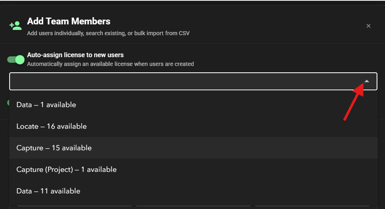
- Choose to auto-assign a license. If yes, select which license to assign.
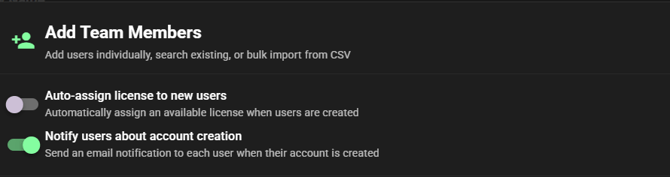
- Choose whether to Notify a user upon their addition to your organization
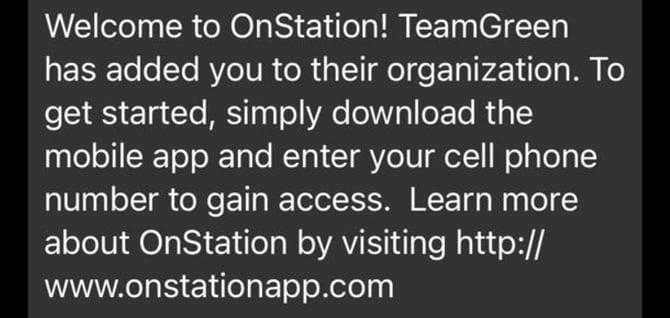
- This will send text message to the New User that het have been added to your Organization
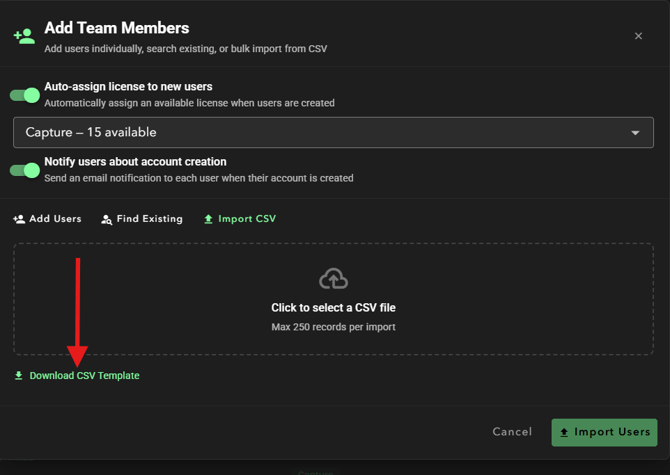
- Select Import CSV
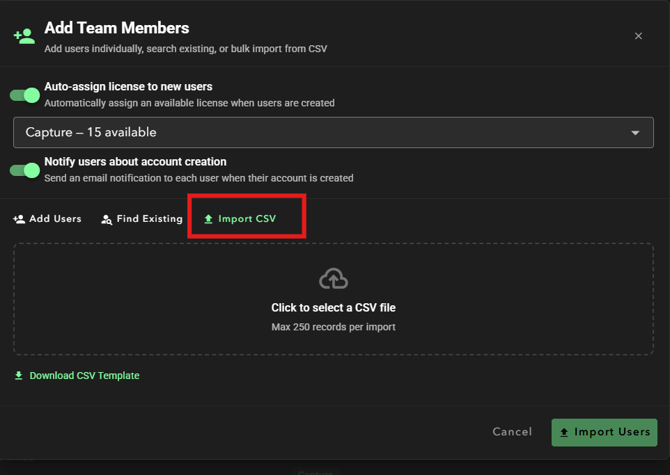
- Download CSV Template
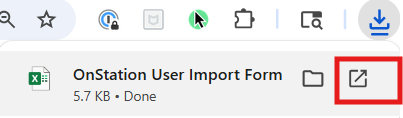
- Locate downloaded file and open, in Chrome this will be in the top right corner
- Fill out form, include License ID if assigning at this time. Ignore if utilizing auto-assign option above.

- For more information on Assigning Licenses see this article:
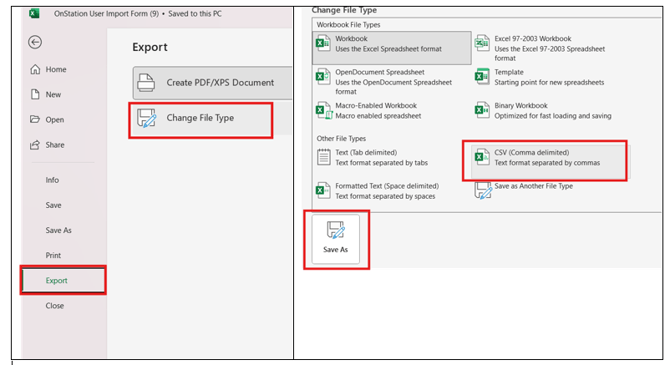
- Export file and save as CSV
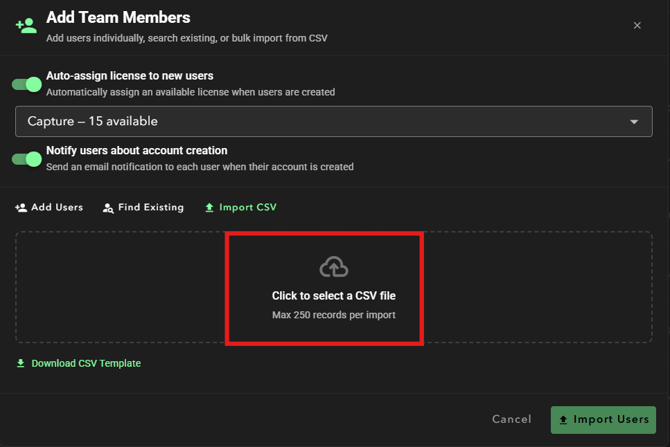
- Click Select File and choose your saved CSV file
- You will now see the Users you have chosen to import
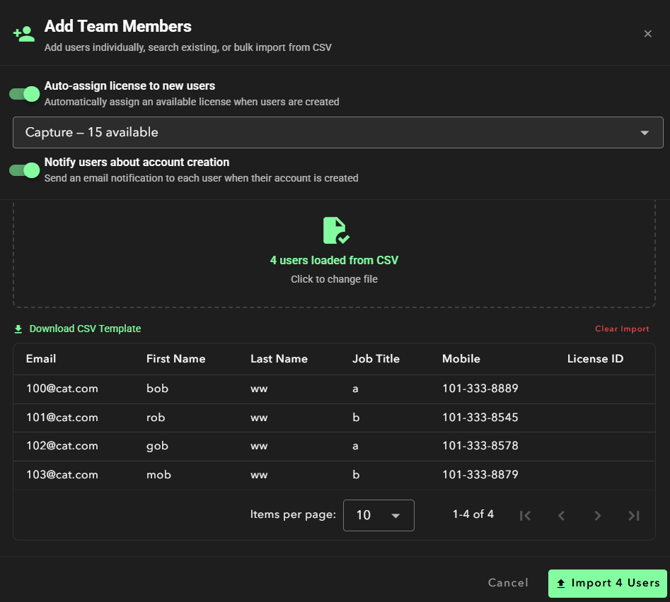
- Once you have selected the appropriate file and confirmed your Users, select Import Users
- Users will now be present in your Organization's Team list